

How to register Digital Key 2 (Smartphone)
Kia Digital Key 2 can only be used on the smartphones that support that function. Check your smartphone supplier’s app store to download a compatible app. Not every smartphone is compatible with this function.
While updating the digital key 2 controller, the smart key function may not work temporarily. In this case, it can be operated with the door lock/unlock button of the smart key.
Smartphone Set Up
To use Digital Key 2 (Smartphone) function, install the Kia Access app on your Smartphone, register your information and subscribe the service.
For more details, access the web manual using the QR code in the infotainment system quick reference guide.
Smartphone Registration
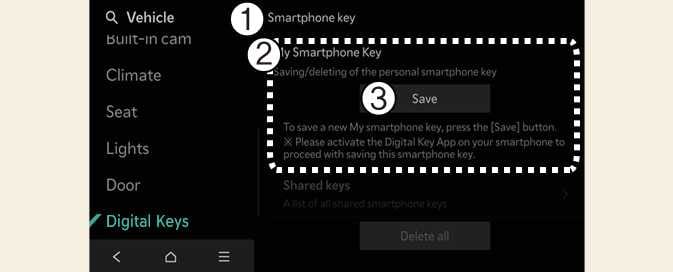 OMV033187N |
|
-
Turn the vehicle on with the Smart key and make sure to keep the smart key inside the vehicle during digital key registration.
-
Shift to P (Park), press on Kia Access app on your smartphone, and register according to the messages on the app.
-
For smartphones without UWB support, place the NFC antenna of the smartphone on the center of the wireless charging pad (1).
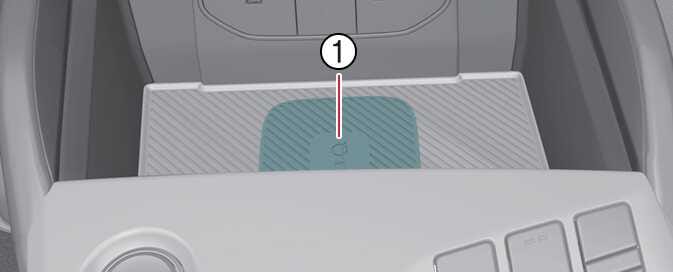 ONQ5H034001
-
Charging pad
-
For smartphones with UWB support, even if you don’t put your smartphone on the indoor authentication pad (wireless charging pad)(1), if you carry your smartphone in the vehicle, you can register the digital key wirelessly.
-
-
Select Save menu on the instrument cluster or on the infotainment system screen. The saving process will begin automatically.
-
When the digital key (smartphone) is saved, a message will appear on the instrument cluster or the infotainment system screen.
-
Remove the smartphone from the in-vehicle authentication pad (wireless charging pad) and complete the saving process by following the instructions on the smart phone screen.
When using a smartphone application (such as Android Auto) while charging, charging may be delayed or stopped. This is not a problem with the wireless charging system but is caused by the smartphone overheating. Please remove the smartphone from the charging pad.
-
The infotainment system may change after software updates. For more information, refer to the user’s manual provided in the infotainment system and the quick reference guide.
-
Vehicle
When there is a digital key (smartphone) already saved in the vehicle, Delete All will be displayed on the Smartphone Key menu screen of the infotainment system and Delete will be displayed on the My Smartphone Key screen. If you want to save a digital key again, How to delete Digital Key (Smartphone).
-
Smartphone
The digital key cannot be saved again while the vehicle’s digital key is saved in the owner’s smartphone. Save the digital key after deleting the digital key from the Kia Access App.
-
During the digital key 2 saving process, the process will cancel when:
-
The smartphone is removed from the in-vehicle authentication pad (wireless charging pad)
-
Changing the infotainment system or instrument cluster screen
-
The vehicle is turned off
-
The gear is shifted
-
There is no smart key (saving process will not begin)
-
-
As the in-vehicle authentication pad may not work smoothly depending on the internal structure of the smartphones, the digital key may not be registered. In this case, register the device by moving the smartphone to the left or right of the in-vehicle authentication pad (wireless charging pad).
-
UWB (Ultra Wideband) means ultra-wideband wireless communication technology. NFC (Near Field Communication) means short-range wireless communication.
When it is not registered on the Kia Access app on your smartphone
Even if you put your smartphone on the indoor authentication pad, if the message of Registering...is not displayed on the infotainment system screen, you can register it as below.
- After turning the vehicle OFF, use the smart key to turn ENGINE START/STOP button ON again, then place the smart key inside the vehicle.
-
Select on the infotainment system screen while the vehicle is in P (Park) position.
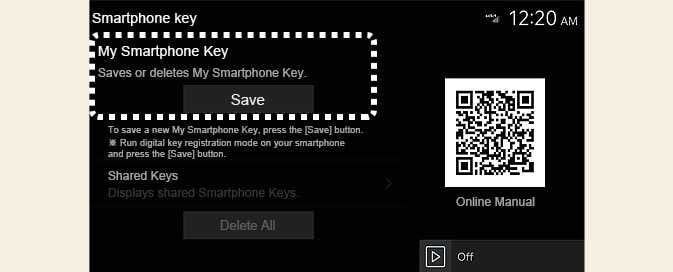 OCV034131L
 -
Place the NFC antenna of the smartphone on the center of the indoor authentication pad (wireless charging pad).
-
When the digital key (smart phone) is saved, a message will appear on the infotainment system screen.