
Forward Collision-Avoidance Assist settings
Forward Safety
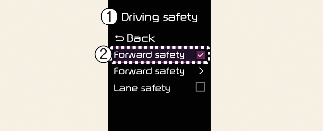
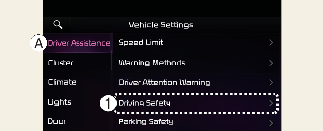
A: Driver Assistance
-
Driving Safety
-
Forward Safety
With the vehicle on, touch User Settings → Driver Assistance → Driving Safety → Driving Safety on the instrument cluster or Setup → Vehicle → Driver Assistance → Driving Safety on the infotainment system. You can select or deselect each function in this menu.
-
Forward Safety: Depending on the collision risk levels, an audible warning will sound, or the braking will be assisted. If the following menu is deactivated, Forward Collision-Avoidance Assist will turn off and the warning light (
 ) will appear on the cluster.
The driver can monitor Forward Collision-Avoidance Assist On/Off status from the Settings menu. If the warning light () remains ON when Forward Collision-Avoidance Assist is on, have the vehicle inspected by a professional workshop. Kia recommends
visiting an authorised Kia dealer/service partner.

When the vehicle is restarted, Forward Collision-Avoidance Assist will always turn on. However, if Forward safety is deselected, the driver should always be aware of the surroundings and drive safely.

-
Steering wheel vibration (if equipped) can be turned on or off.
-
When the trailer connector is connected electrically, Forward Collision-Avoidance Assist automatically turns off. In this case, you cannot get help from Forward Collision-Avoidance Assist. Always drive with care. (if KIA genuine part equipped)

Driver Assistance system means Forward Collision-Avoidance Assist (FCA), Lane Keeping Assist (LKA), Blind-Spot Collision-Avoidance Assist (BCA) and Driver Attention Warning (DAW).
Forward Safety Warning Timing
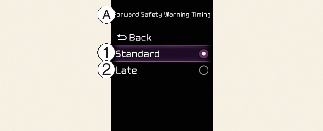
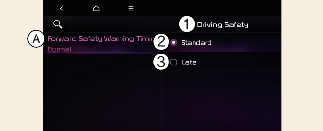
A: Driving Safety
-
Forward Safety Warning Timing
-
Normal
-
Late
With the vehicle on, touch User Settings → Driver Assistance → Driving Safety → Forward Safety Warning Timing on the instrument cluster or Setup → Vehicle → Driver Assistance → Driving Safety → Forward Safety Warning Timing on the infotainment system to change the initial warning activation timing of Forward Collision-Avoidance Assist.
-
Normal: Use in normal driving conditions. If the Warning Timing seems sensitive, change it to Late.
-
If Late is selected, Forward Collision-Avoidance Assist, warns the driver more slowly.
-
Even though Normal is selected for Warning Timing, if the front vehicle suddenly stops, the initial warning activation time may seem late.
-
Select Late for Warning Timing when traffic is light and when driving speed is slow.
-
If the vehicle is restarted, Warning timing will maintain the last setting.
-
If you change the Warning timing, the Warning timing of other Driver Assistance systems may change.
Warning Methods
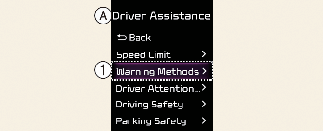
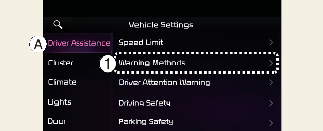
A: Driver Assistance
-
Warning Methods
The Warning Methods can be set with the vehicle on. Select User Settings → Driver Assistance → Warning Methods from the settings menu in the instrument cluster or Setup → Vehicle → Driver Assistance → Warning Methods from the settings menu in the infotainment system to change the following settings:
-
Warning Volume: Adjusts the volume of the warning sound. If you turn off the Warning Volume, for your safety, the function may warn you with a low volume.
-
Haptic Warning: Activate the steering wheel vibration warning. (if equipped)
-
Driving Safety Priority: Lowers all other audio volumes when the Driving Safety system sounds a warning.
-
Ensure that Warning Methods you have set may apply to the Warning Methods of other driver assistance systems.
-
Warning Methods will maintain its last setting even if the vehicle is restarted.
-
The setting menu may not be available for your vehicle depending on the vehicle features and specifications.
-
The Warning Volume and Haptic Warning cannot be turned off at the same time. When one of the warning is turned off the other is activated.