

Digital Key 2 Touch (Smartphone)
How to register Digital Key 2 Touch (Smartphone)
To use a smartphone as a digital key (smartphone) follow the below procedure.
The driver can confirm supported/compatible devices on our website.
Available services are subject to change based on product policies.
In order to use Digital Key 2 Touch (Smartphone) function, install Kia App on your smartphone and register your information.
For more details, please refer to Navigation Quick Reference Guide.
-
Turn the vehicle on with the Smart key and make sure to keep the smart key inside the vehicle during digital key registration.
-
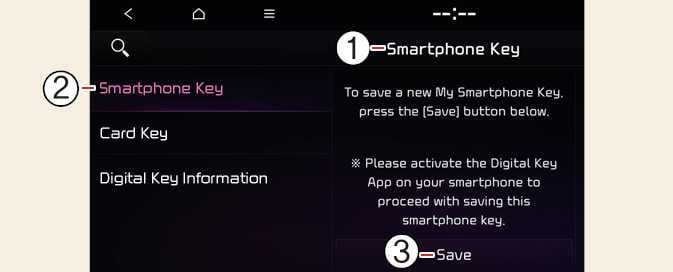
With the vehicle on, touch on the infotainment system.
 OYB035100L
-
Smartphone Key
-
Smartphone Key
-
Save
-
-
After pressing Digital Key
 OYB035083L
-
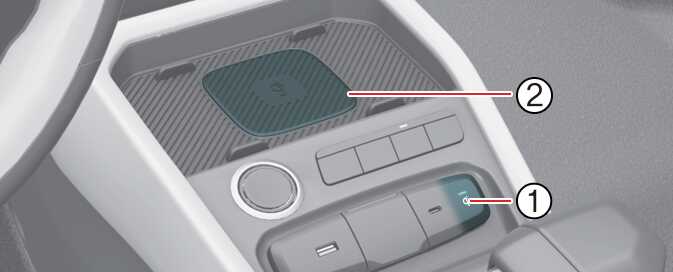
Indicator
-
Charging pad
-
If the device is supported from additional vehicle services, the Digital Key can be registered wirelessly.
-
-
Select Save menu on the instrument cluster or on the infotainment system screen. The saving process will begin automatically.
-
When the digital key (smartphone) is saved, a message will appear on the instrument cluster or the infotainment system screen.
-
Remove the smartphone from the pad and complete the saving process under the guidance of the smartphone screen.
-
The infotainment system may change after software updates. For more information, refer to the user’s manual provided in the infotainment system and the quick reference guide.
-
Vehicle
When there is a digital key (smartphone) already saved in the vehicle, the Save menu is disabled. If you want to save a digital key again, refer to How to delete Digital Key 2 Touch (Smartphone) and follow the deleting procedure first before saving a digital key.
-
Smartphone
The digital key cannot be saved again while the vehicle’s digital key is saved in the owner’s smartphone. Save the digital key after deleting the digital key from the Kia App.
-
During the digital key saving process, the process will cancel when:
-
The smartphone is removed from the in-vehicle authentication pad (wireless charging pad)
-
Changing the infotainment system or instrument cluster screen
-
The vehicle is turned off
-
The gear is shifted
-
There is no smart key (saving process will not begin)
-
How to Use the Digital Key 2 Touch (Smartphone)
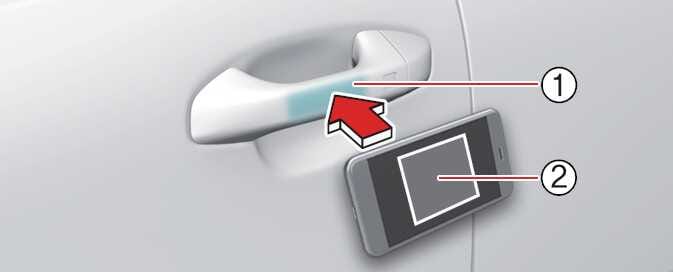
The driver can lock and unlock the door by touching the smartphone on the door handle without activating the Kia App. Also, the vehicle can be started by placing the smartphone on the in-vehicle authentication pad (wireless charging pad).
 OYB035084L |
|
-
If the driver touches the smartphone NFC antenna to the driver’s or passenger’s door handle authentication pad for more than 2 seconds, the door will lock or unlock.
-
After unlocking the doors, the doors will automatically re-lock after 30 seconds unless a door is opened.
-
If the smartphone digital key does not operate, move the smartphone more than 0.1 m (4 inches) from the door handle authentication pad and try it again.
Note that you cannot lock your vehicle using the smartphone NFC antenna if any of the following occur:
-
The Smart Key is in the vehicle
-
The ENGINE START/STOP button is in ACC or ON position
-
Attempting to lock the door when more than one door, or hood, tailgate is opened
After placing your registered smartphone on the in-vehicle authentication pad (wireless charging pad), depress the brake pedal and press the ENGINE START/STOP button.
-
Once the vehicle is started, you can remove the smartphone from the pad.
For more details, refer to ENGINE START/STOP button.
The vehicle can be started when the registered smartphone is placed on the in-vehicle authentication pad (wireless charging pad). Therefore, do not leave unsupervised children or people who are not aware of the system since it can result in serious injury or death. In addition, always have the registered smartphone with you to prevent vehicle theft when leaving the vehicle.
The operation time of Digital Key 2 Touch for shared user may extend during first time use.
Position your Digital Key 2 Touch (smartphone) on the authentication pad located in the outside door handle until the vehicle door lock/unlock function operates.
If the inner authentication pad is used for the first time, 1st vehicle start function may not operate.
How to delete Digital Key 2 Touch (Smartphone)
Turn the vehicle on with the smart key and make sure to keep the smart key inside the vehicle during the digital key (smartphone) deleting process.
-
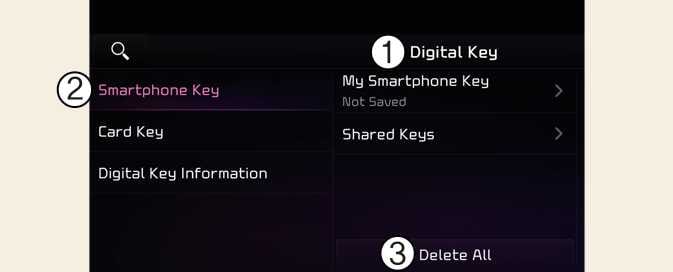
Delete All digital Key (Smartphone)
 OON042484
-
Digital Key
-
Smartphone Key
-
Delete All
With the vehicle on, touch on the infotainment system.
-
The key of owner and the shared user will be deleted.
-
If there is no registered key, the menu cannot be selected.
-
-
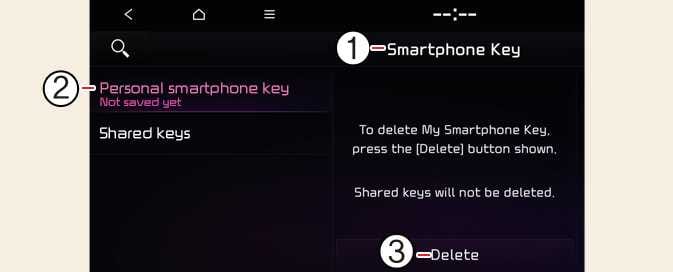
Delete My Smartphone Key
 OYB036122L
-
Smartphone Key
-
Personal smartphone key
-
Delete
If the owner’s smartphone has been changed, the new smartphone can be registered after only deleting the previous Digital Key 2 Touch (Smartphone).
With the vehicle on, touch on the infotainment system.
-
If the shared key is registered in the vehicle, the shared key is not deleted.
-
After deleting 'My Smartphone Key', the new smartphone can be registered.
-
-
If digital key (smartphone) is deleted, the digital key saved in the smartphone is also deleted.
-
If digital key (smartphone) is deleted on the smartphone, the digital key saved in the vehicle is also deleted.
-
The function to delete shared user’s key is not provided from the infotainment system.
-
Digital key (smartphone) is not deleted even if Kia App or Kia Connect app is deleted on your smartphone.
-
Digital key can be activated or deactivated within the Kia App provided from the smartphone manufacturer.
The infotainment system may change after software updates. For more information, refer to the user’s manual provided in the infotainment system and the quick reference guide.