
Smart Cruise Control settings
To turn on the function
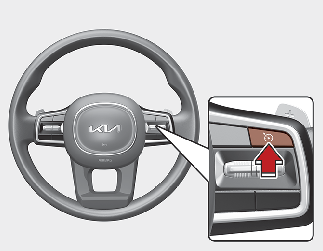
-
Press the Driving Assist button to turn on the function. The speed will be set to the current speed on the cluster.
-
If there is no vehicle in front of you, the set speed will be maintained, but if there is a vehicle in front of you, the speed may decrease to maintain the distance to the vehicle ahead. If the vehicle ahead accelerates, your vehicle will travel at a steady cruising speed after accelerating to the set speed.

-
If your vehicle speed is between 0 ~ 20 mph (0 ~ 30 km/h) when you press the Driving Assist button, the Smart Cruise Control speed will be set to 20 mph (30 km/h).
-
The Driving Assist button symbol may vary depending on your vehicle option.
To set vehicle distance
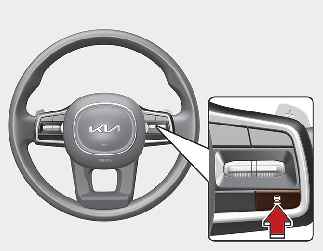
Each time the button is pressed, the vehicle distance changes as follows:
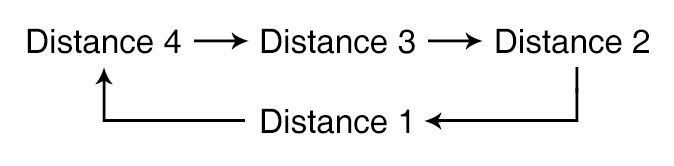
-
If you drive at 56 mph (90 km/h), the distance is maintained as follows:
Distance 4 - approximately 172 ft. (53 m)
Distance 3 - approximately 130 ft. (40 m)
Distance 2 - approximately 106 ft. (30 m)
Distance 1 - approximately 82 ft. (25 m)
-
The distance is set to the last set distance when the engine is restarted, or when the function was temporarily canceled.
To increase speed
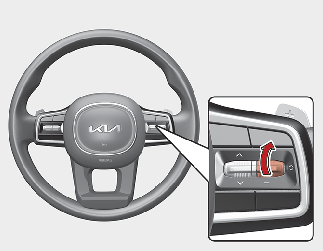
-
Push the + switch up and release it immediately. The set speed will increase by 1 mph (1 km/h) each time the switch is operated in this manner.
-
Push the + switch up and hold it while monitoring the set speed on the cluster. The set speed will increase by 5 mph (10 km/h) each time the switch is operated in this manner. Release the switch when the desired speed is shown, and the vehicle will accelerate to that speed. You can increase the set speed to 110 mph (180 km/h).

Check the driving condition before using the + switch. Driving speed may sharply increase when you push up and hold the + switch.
To decrease speed
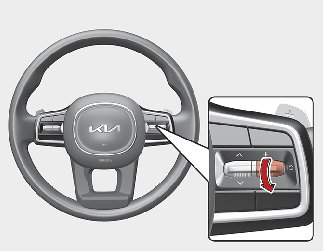
-
Push the - switch down and release it immediately. The set speed will decrease by 1 mph (1 km/h) each time the switch is operated in this manner.
-
Push the - switch down and hold it while monitoring the set speed on the cluster. The set speed will decrease by 5 mph (10 km/h) each time the switch is operated in this manner.
Release the switch at the speed you want to maintain. You can decrease the set speed to 20 mph (30 km/h).
To temporarily cancel Smart Cruise Control
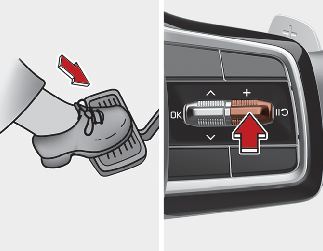
Press the ( ) switch or depress the brake pedal to temporarily cancel Smart Cruise Control.
To resume Smart Cruise Control
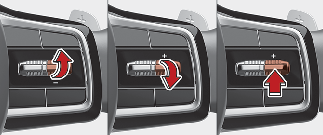
To resume Smart Cruise Control after the function was canceled, operate the +, - or () switch.
If you push the + switch up or - switch down, the set speed will be set to the current speed on the cluster.
If you press the () switch, vehicle speed will resume to the preset speed.
Check the driving condition before using the () switch. Driving speed may sharply increase or decrease when you press the () switch.
To turn off Smart Cruise Control
Press the Driving Assist button to turn Smart Cruise Control off.
Based on Drive Mode
Smart Cruise Control will change acceleration based on the drive mode selected from Drive Mode Integrated Control function. Refer to the following chart.
|
Drive Mode |
Smart Cruise Control |
|---|---|
|
NORMAL |
Normal |
|
ECO |
Slow |
|
SPORT |
Fast |
|
SMART |
Normal |
For more details on Drive Mode, refer to More Details.
Warning Methods
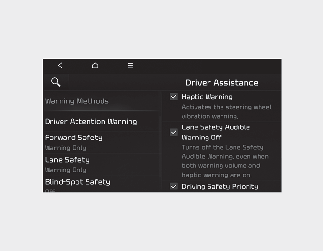
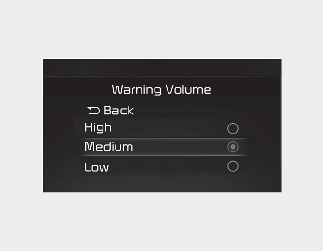
You can adjust the Warning Methods with the ignition switch or ENGINE START/ STOP button in the ON position.
-
Warning Volume : Select 'User Settings → Driver Assistance → Warning Volume' on the LCD display or 'Settings → Vehicle → Driver Assistance → Warning Methods → Warning volume' on the Infotainment system.
Even if '0' or 'Off' is selected, the function's Warning Volume will not turn off but the volume will sound as '1' or 'Low'
-
Steering Wheel Vibration Warning: Select 'User Settings → Driver Assistance → Haptic warning' on the LCD display or 'Settings → Vehicle → Driver Assistance → Warning Methods → Haptic warning' on the Infotainment system.
-
Driving Safety Priority : Select ‘Vehicle Settings → Driver Assistance → Warning Methods → Driving Safety Priority’ on the Infotainment system. For safe driving, the audio volume will temporarily decrease to warn the driver with the audible warning.
If you change the warning volume, the Warning Volume of other Driver Assistance systems may change.
-
Ensure that warning sound you have set may apply to the warning volume of other driver assistance systems.
-
Warning Methods will maintain its last setting even if the vehicle is restarted.
-
With the Warning Volume in '0' or 'Off', if you turn off Steering Wheel Vibration Warning, the Warning Volume will be activated with volume '2' or 'Medium'.
-
With the Steering Wheel Vibration Warning off, if you adjust the Warning Volume to '0' or 'Off', the Steering Wheel Vibration Warning will be activated.
-
The setting menu may not be available for your vehicle depending on the vehicle features and specifications.
-
Descriptions of each driver assistance system may be slightly different from the owner's manual after updating the software of your infotainment system. In this case, scan the QR code in the infotainment system manual to access the web manual to review the changes.
-
Depending on your update, the menu may be displayed as 'Warning Sound' or 'Warning Methods'.