

Camera Settings
 OMQ4A053028MX |
|
With the vehicle on, select the setup icon ( ) on the screen or from the infotainment system screen to change the Rear View Monitor settings.
-
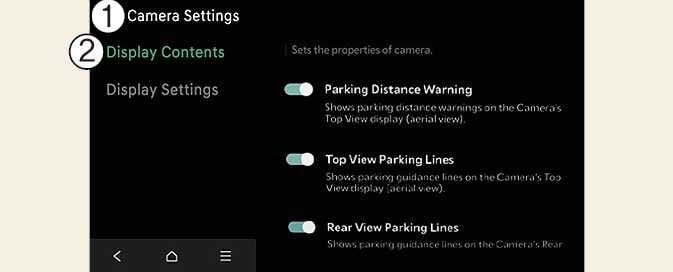
Display Contents: Specify information that will be displayed on the parking assistance screen.
Parking Distance Warning
When the Parking Distance Warning is selected, the Parking Distance Warning is displayed on the top view to the right of the surround view monitor screen when the Parking Distance Warning is activated.
Rear-view Parking Guidance
Rear-view Parking Guidance is displayed in the rear-view when Rear-view Parking Guidance is selected.
Top View Parking Guidance
When Top View Parking Guidance is selected, it is displayed on the top view to the right of the surround view monitor screen when the front or rear top view is activated.
Display settings
You can set the brightness (day/night) and contrast of the camera image in Display settings.
-
The setting menu may not be available for your vehicle depending on vehicle features and specifications.
-
The horizontal guideline of the rear view parking guide lines is based on the empty freight condition. This shows the distance of about 20 in. (0.5 m), 40 in. (1 m) and 91 in. (2.3 m) from the vehicle
-
The horizontal guideline of the rear top view guide lines is based on the empty freight condition. This shows the tailgate opening distance and the distance of about 79 in. (2 m) from the vehicle.