

Updating software
 N_CT25Z005_E |
|
You can see the progress of the update on the screen. At some point during the update, the screen may turn off and back on.
You will receive a notification on your phone through the Kia Access app or the vehicle screen that indicates that the software update is complete.
-
To save battery life, the screen turns off automatically after 3 minutes. You can check the update progress by pressing the ENGINE START/STOP button.
-
You can exit the vehicle after the update starts.
-
The Over-The-Air (OTA) software update feature is only available for Kia Connect service users.
-
The update details may vary depending on the installed software version.
-
If the update fails, the system will automatically initiate update recovery. If you'd like to retry the software update after a successful recovery, press the Start button on the screen, and the vehicle will begin installing the update automatically.
If both the update and recovery fail, please contact an authorized Kia dealer.
-
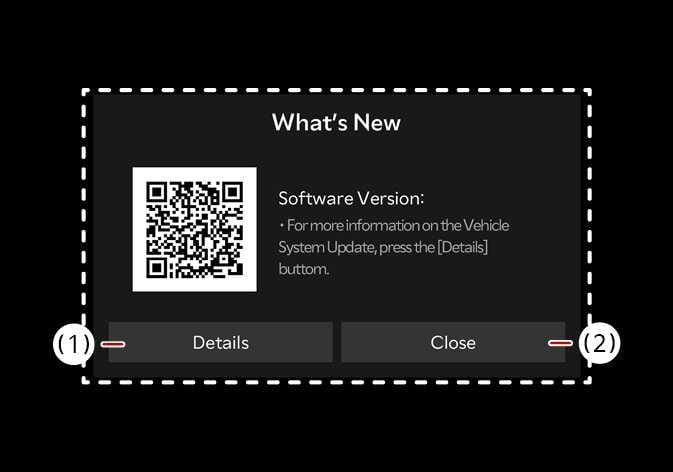
Once the update is complete, a message will appear on the screen. Press Details or scan the QR Code for update detail information.
-
Observe the following restrictions during the update:
-
You cannot use the vehicle during the update. Be sure you have enough time for the update, and safely park the vehicle before starting the update process.
-
You cannot use remote features, including remote start.
-
You cannot charge the vehicle. Charge your vehicle after completing the update.
-
The Rear Occupant Alert may not work. Visually check if there are any occupants in the rear seat after the update starts.
-
If the digital key function is included in the update history, the door lock/unlock function through digital key or fingerprint authentication may not work. Check the update history for notices, and if the digital key function is updated, use the smart key button to lock or unlock the door.
-
-
The update is automatically canceled if any required vehicle conditions change before you start the update.
-
You cannot cancel the update after it has started.
-
You cannot use the OTA software update feature if you modify or replace any vehicle software.
-
Do not open the hood or replace the battery in the vehicle during the update. The update may fail.
-
The high-voltage-related module for charging the 12V battery may activate during the software update.
-
If a diagnostic tool / dongle of any kind is connected to the vehicle On-board Diagnostic (OBD) terminal, the vehicle cannot be updated. The vehicle can be updated by removing the diagnostic tool / dongle connected to the OBD terminal and then restarting the vehicle.
-
Vehicle reception must be identified to safely install any downloaded software.
-
Vehicle signal strength must be strong (above -82 dBm) to safely install any downloaded software.