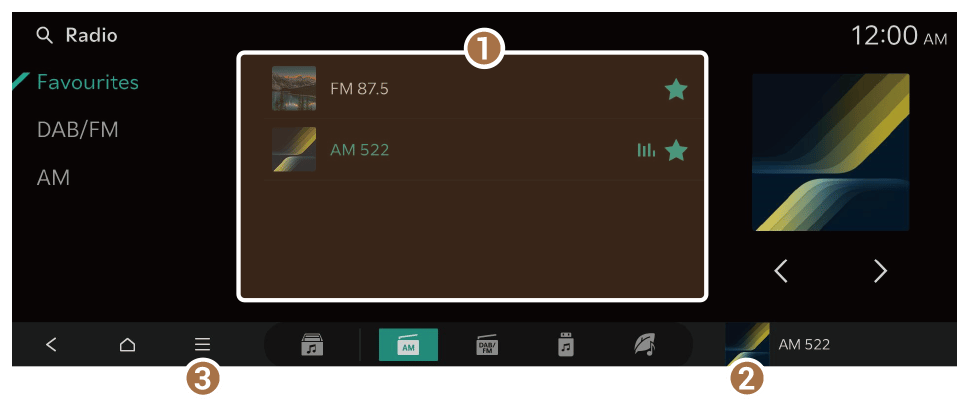
Favourites screen
- Displays a list of stations saved in Favourites.
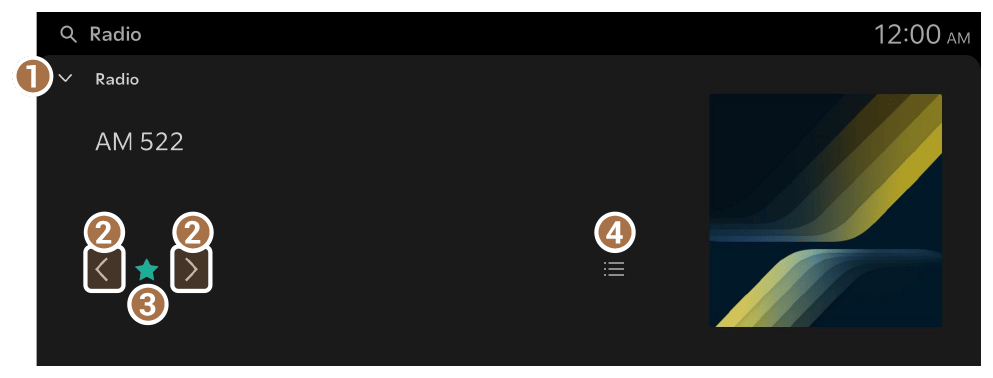
- Displays the AM player screen.
- Displays the list of menus.
- TA: Activate traffic announcements. Announcements and programmes will be received automatically if available.
- Edit favourites: Delete the list of saved stations.
- Sound settings: Displays the system sound settings screen.
- Online manual: View the online manual by scanning the QR code with your mobile phone.
Adding a favourite station
Perform any of the following methods:
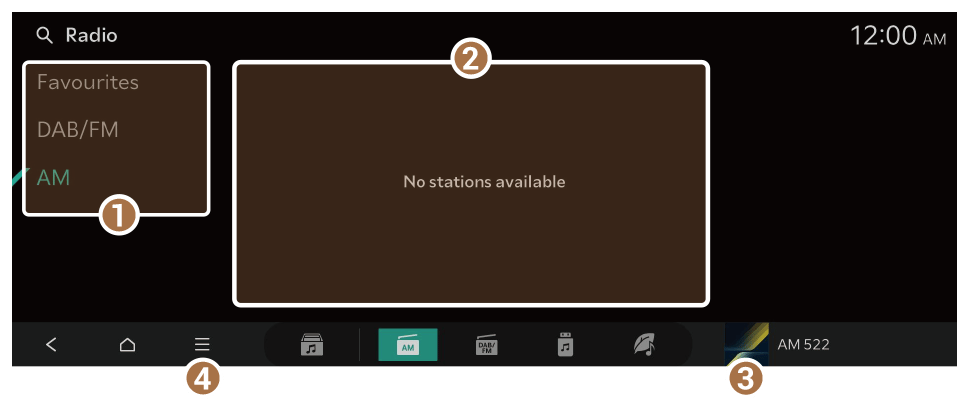
- On the AM screen, press
 .
. - On the AM player screen, press .
- You can save all stations, accessible from the AM screen, to the favourites list. On the AM screen, press
 ► Save all.
- If the favourites list is full, some stations will not be saved to the list.
Changing the favourite station
Perform any of the following methods:
- On the Favourites screen, press the desired station.
- On the control panel, press the [
 SEEK] or [TRACK
  ] button. If you press and hold the button, stations are quickly scanned (if equipped).
 - Use the TUNE button on the control panel to search for the desired station. If the TUNE button on the control panel is pressed within 5 seconds after search begins, the current station being scanned plays. If there is no input for 5 seconds, the search stops and the currently playing station is displayed (if equipped).
- On the steering wheel, press the move button up or down.
- Set the [∧]/[∨] buttons on the steering wheel or SEEK/TRACK buttons (if equipped) to a function when listening to radio. ► See "[∧]/[∨] Buttons (Steering wheel)."
Deleting the favourite station
Perform any of the following methods:
- On the AM screen, press
 .
. - On the AM player screen, press .
- On the Favourites screen, press ► Edit favourites. Alternatively, from the Favourites screen, press and hold on anywhere on the station list, select the station to delete, and then press Delete.






 .
. on the screen or press the [SEARCH] button on the control panel, enter a search term, and then select the item to run.