Media

Turning on SiriusXM 360L radio (if equipped)

SiriusXM 360L is the latest software available to support new content from SiriusXM. To utilize SiriusXM 360L, you will need to check if your vehicle is equipped with the latest software.

Verify if your vehicle is equipped with SiriusXM 360L

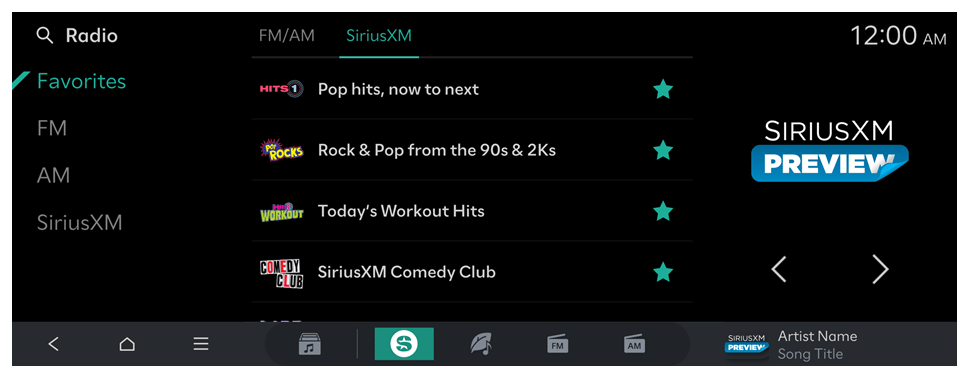
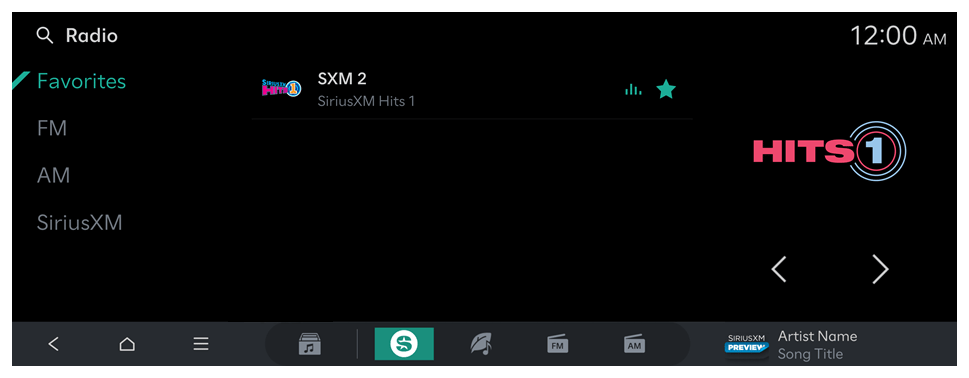
To check if your vehicle has SiriusXM 360L, navigate to Favorites under Radio.
  1. If FM, AM & SiriusXM appear as separate categories on your Favorites list, your vehicle is equipped with SiriusXM 360L.
  1. If Favorites are grouped together, your vehicle does not currently support SiriusXM 360L, and you can instead refer to Turning on the SiriusXM radio.
The usage of certain SiriusXM features may be restricted based on the chosen payment plan. Refer to SiriusXM settings to learn more.
  • SiriusXM 360L is not currently available in every vehicle, please refer to the above instructions to verify which version of SiriusXM your vehicle is using.

Listening to SiriusXM 360L

  1. Perform any of the following methods:
  • On the Home screen or Media screen, press .
  • On the control panel, press the [MEDIA] button.
  • If multiple media are connected on the control panel, press and hold the [MEDIA] button.
  1. On the Media Home screen, press SiriusXM.
  • Press on the screen or press the [SEARCH] button on the control panel, enter a search term, and then select the item to run.
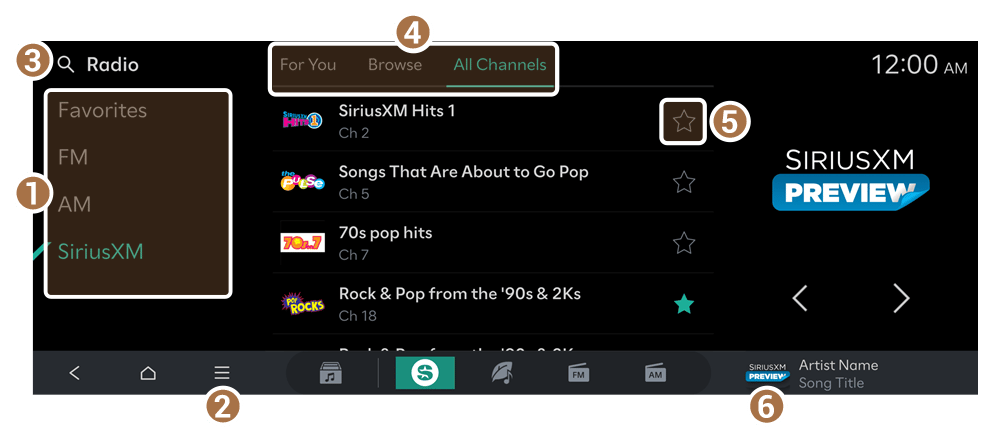
  • The screen may differ depending on the vehicle model and specifications.
  • Broadcasting station names and other local information are displayed using a mix of internet (IP) & satellite data. Information may not appear or will be limited when signal is not being received.
  • The displayed broadcasting station names may not match the actual names.

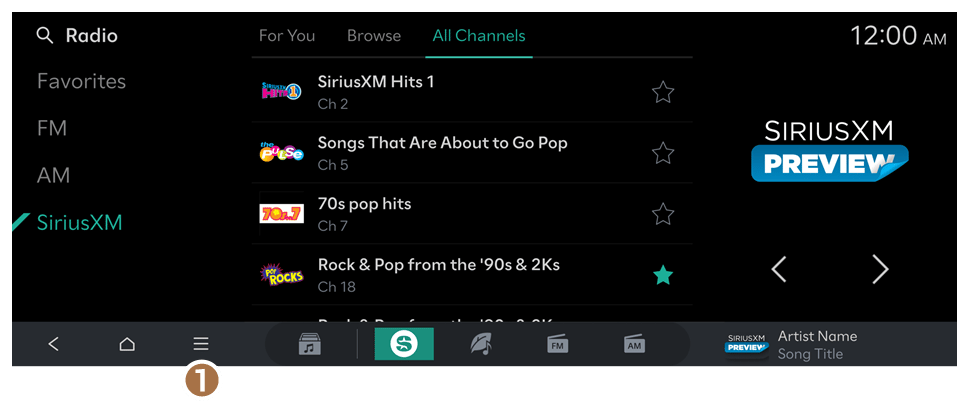
SiriusXM 360L screen

  1. Change the radio mode.
  1. Settings menu which includes:
  1. Scanning SiriusXM Channels: Scan and play each channel for 5 seconds.
  2. SiriusXM Account Settings: Manage and customize your SiriusXM experience.
  3. Enter Channel: Search specifically for channels with channel numbers.
  4. Sound Settings: Vehicle sound system settings.
  5. Online Manual: View the online manual by scanning the QR code with your mobile phone.
  1. Search for SiriusXM content.
  • Search may be limited based on vehicle's connection to internet and satellite availability.
  1. Change to either For You, Browse, or All Channels.
  1. For You: Display curated content based on your listening habits within SiriusXM.
  2. Browse: Display additional categories of music and media provided by SiriusXM
  3. All Channels: Display all SiriusXM content that has an associated channel number.
  1. Favorite content which will be added to your SiriusXM Favorites within Radio.
  1. Tapping will open SiriusXM media player.

SiriusXM 360L Favorites

Favorites allow you to view all saved stations across FM/AM and SiriusXM. Tapping the on a SiriusXM channel saves it to the favorites list.
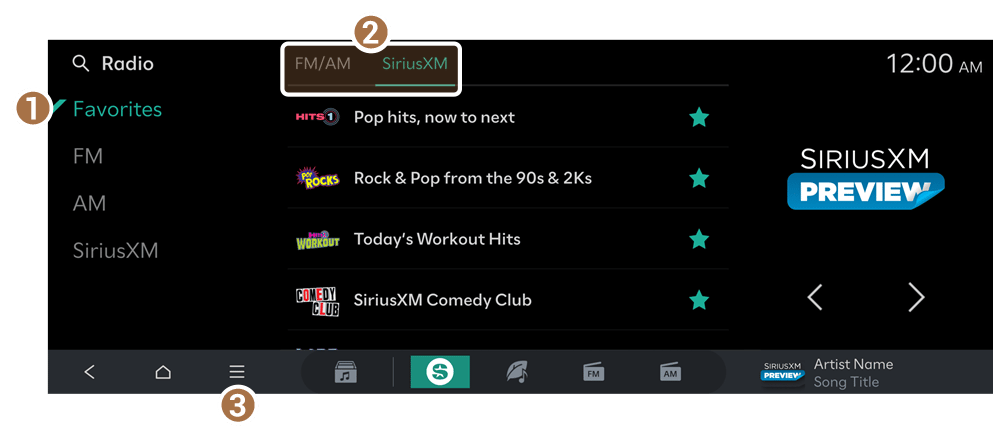
  • If FM, AM & SiriusXM appear as separate categories on your Favorites list, you have SiriusXM 360L.
  1. Select Favorites to display your saved favorites.
  1. View your saved favorites for either FM/AM or SiriusXM.
  1. Selecting the option menu will display additional settings for Favorites.
  1. Edit Favorites: Delete and edit the list of saved stations.
  • Press and hold a saved station to enter Editing mode.
  1. Sound Settings: Displays the system sound settings screen.
  2. Online Manual: View the online manual by scanning the QR code with your mobile phone.

Adding a favorite station

Perform any of the following methods:
  • On the SiriusXM screen, press .
  • On the SiriusXM player screen, press .
  • If the favorites list is full, some stations will not be saved to the list.

Changing the favorite station

Perform any of the following methods:
  • On the Favorites screen, press the desired station.
  • On the control panel, press the [ SEEK] or [TRACK ] button (if equipped).
  • Use the TUNE button on the control panel to search for the desired station. If the TUNE button on the control panel is pressed within 5 seconds after search begins, the current station being scanned plays. If there is no input for 5 seconds, the search stops and the currently playing station is displayed (if equipped).
  • On the steering wheel, press the move button up or down.

Deleting the favorite station

Perform any of the following methods:
  • On the SiriusXM screen, press .
  • On the SiriusXM player screen, press .
  • On the Favorites screen, press Edit Favorites. Alternatively, from the Favorites screen, press and hold on anywhere on the station list, select the station to delete, and then press Delete.
SiriusXM 360L player screen

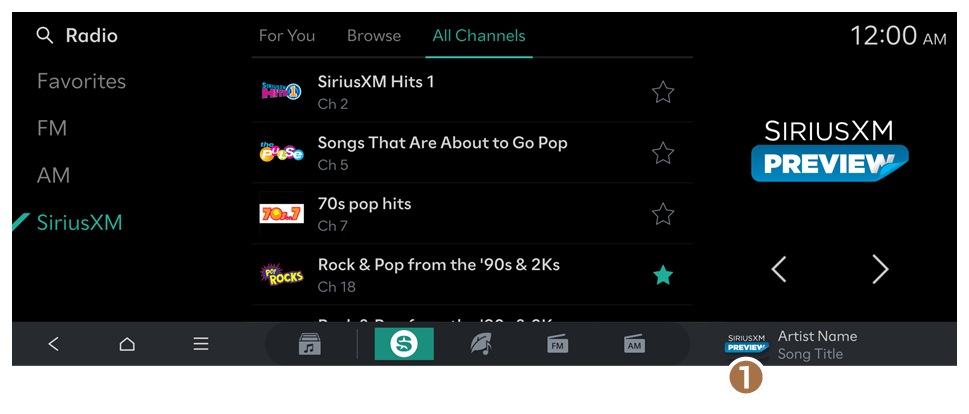
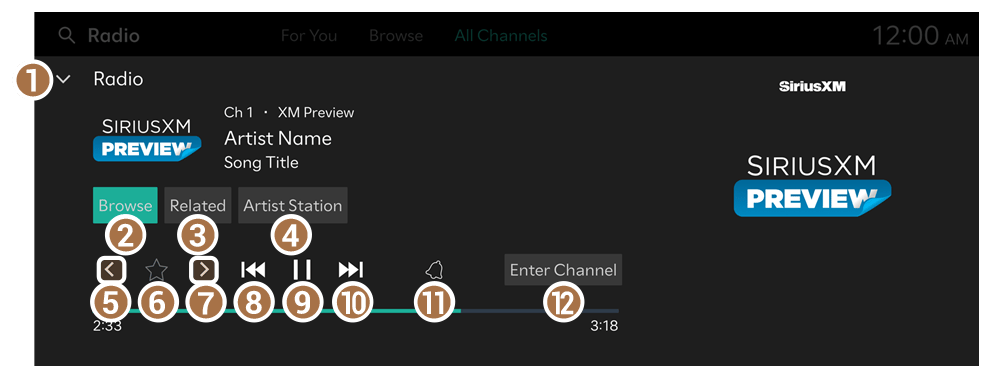
  1. Tapping will display the SiriusXM media player.
  1. Closes the Media player.
  • The Media player can also be closed by swiping the screen down.
  1. Opens Browse tab.
  1. Shows recommended media based on what is currently playing.
  1. Plays an Artist Station based on the currently playing artist.
  • Depending on the content playing, button may appear differently.
  1. Changes to the previous or next channel if available.
  • Not all SiriusXM content supports previous or next controls.
  1. Favorites currently playing content.
  1. Changes to the previous or next channel if available.
  • Not all SiriusXM content supports previous or next controls.
  1. Short pressing will rewind audio to previous segment.
  • Long pressing will rewind audio to beginning of segment.
  • Not all SiriusXM content supports previous or next controls.
  1. Pause or resume broadcast.
  1. Short pressing will jump audio forward to next available segment.
  • Long pressing will shift audio forward to listening Live.
  • Control will display "Live" when listening to content at live point.
  1. Set notification for playing content.
  1. Navigates to Enter Channel where you can use channels numbers to quickly search.

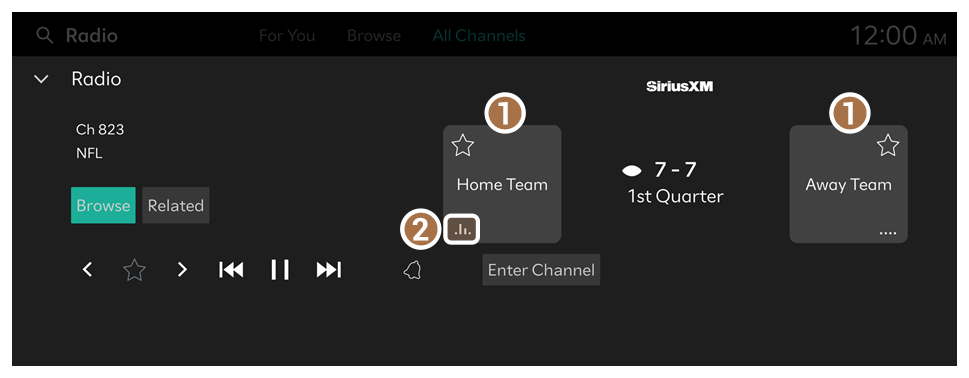
SiriusXM 360L player screen - Sports Play-by-Play

  1. Tapping either the Home or Away team will change the broadcast feed to respective team during live games.
  1. Indicator of which team's broadcast is being transmitted.

Changing channels on SiriusXM

Perform any of the following methods:
  • On the SiriusXM list view, press the desired station.
  • On the SiriusXM player view, press the []/[] button.
  • On the control panel, press the [ SEEK] or [TRACK ] button (if equipped).
  • Use the TUNE button on the control panel to search for the desired channel. If the TUNE button is pressed within 5 seconds of the start of the search, the current station being scanned will play. If there is no input for 5 seconds, the search will stop and the currently playing station will be displayed.
  • On the steering wheel, press the move button up or down.
  • Set the [∧]/[∨] buttons on the steering wheel or SEEK/TRACK buttons (if equipped) to a function when listening to radio. See "[∧]/[∨] Buttons (Steering Wheel)."
  • When changing stations on the player screen, stations are changed based on station number.

SiriusXM 360L Account and Settings

SiriusXM includes additional settings related to account management, notification management, listening preferences, and support.
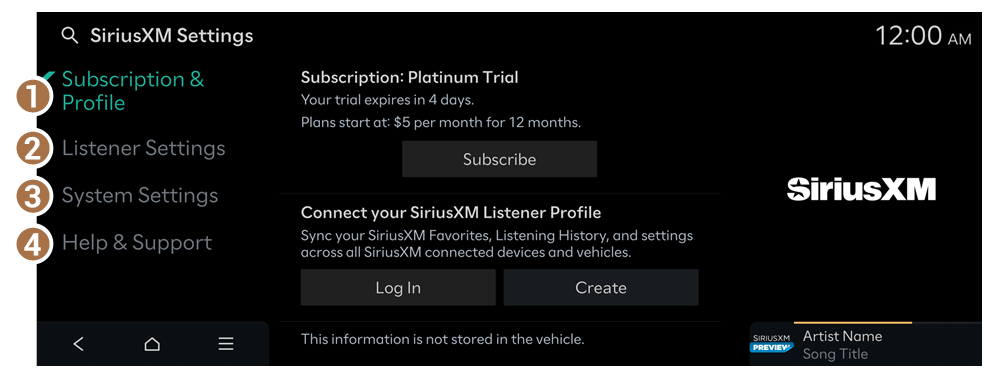
  1. Select the to view Radio settings.
  • Displays SiriusXM Account Settings.
  • The appearance of the SiriusXM settings page may change according to account information and status.
  1. Subscription & Profile
  • Subscription status and account information is available.
  1. Log In: Use your existing SiriusXM credentials to access your account.
  2. Create: Enter credentials to create an account for SiriusXM.
  1. Listener Settings
  • Adjust notifications, block explicit content, and reset listening history.
  1. System Settings
  • Radio ID and software version of SiriusXM.
  1. Help & Support
  • SiriusXM support, legal & privacy choices.

Settings

Font size

Line spacing