
Parking Collision-Avoidance Assist settings
Parking Safety
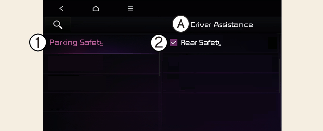
With the vehicle on, touch Settings → Vehicle → Driver Assistance → Parking Safety on the infotainment system.
-
Rear safety: Reverse Parking Collision-Avoidance Assist will warn the driver and assist with braking when a collision with a pedestrian or an object is imminent.
Turning Parking Collision Avoidance Assist On/Off
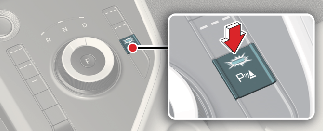
Press and hold the Parking Safety ( ) button more than 2 seconds, 'Rear Active Assist' or to turn the Parking Collision-Avoidance Assist on or off.
Rear Safety settings
A: Driver Assistance
-
Parking Safety
-
Rear Safety
With the vehicle on, touch Settings → Vehicle → Driver Assistance → Parking Safety → Rear Safety on the infotainment system to set the Rear Safety.

When the trailer is connected, Reverse Parking Collision-Avoidance Assist automatically turns off (if equipped). In this case, you cannot get help from Reverse Parking Collision-Avoidance Assist. Always drive with care.

-
If the vehicle is restarted, Warning volume will maintain the last setting.
-
If Off is selected, the Warning volume of Reverse Parking Collision-Avoidance Assist will not turn off, but the volume will sound as Low.
-
If Off is selected, steering wheel vibration (if equipped) will not turn off.
-
If you change the Warning volume, the Warning volume of other Driver Assistance systems may change.
Warning methods

-
Warning volume
-
High
-
Medium
-
Low
-
Off
A: Driver assistance
-
Warning methods
-
Warning volume
Warning methods can be set when the vehicle is in ON position.
-
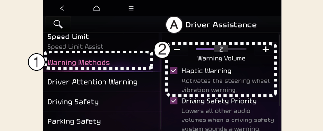
Warning volume: Select User settings → Driver assistance → Warning volume on the instrument cluster, or select Settings → Vehicle → Driver assistance → Warning methods → Warning volume on the infotainment system, and adjust the warning volume.
Even if you set the warning volume to 0, Warning volume will keep its volume in 1. (If steering wheel vibration equipped)
-
Haptic warning: Select User settings → Driver assistance → Haptic warning on the instrument cluster, or select Settings → Vehicle → Driver assistance → Warning methods → Haptic warning on the infotainment system, and adjust the Haptic warning. (if equipped)
-
Ensure that Warning methods you have set may apply to the Warning methods of other driver assistance systems.
-
Warning methods will maintain its last setting even if the vehicle is restarted.
-
The setting menu may not be available for your vehicle depending on the vehicle features and specifications.
-
With the warning volume is 0, if you deselect Haptic warning, the warning volume will be automatically adjusted with volume 2.
-
With the Haptic warning is deselected, if you adjust the warning volume to 0, the Haptic warning will be automatically selected.