

Rear View Monitor Settings
-
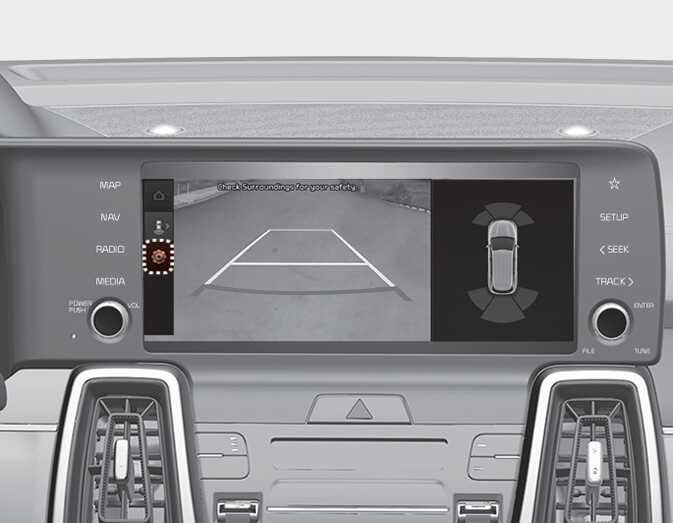
You can change Rear View Monitor settings by pressing the setup icon「
 」 on the screen while the function is operating, or select 'Driver Assistance → Parking Safety → Camera Settings' from the Settings menu while the ENGINE START/STOP button is in the ON position.
-
Display Contents: To change the settings of Rear view parking guide and Extended Rear View Monitor use.
Parking/View button
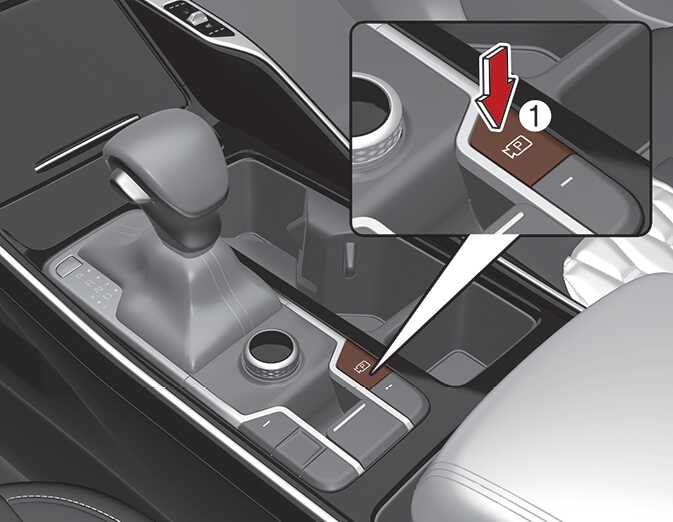
Press the Parking/View button (1) to turn Rear View Monitor on or off.
Warning Methods
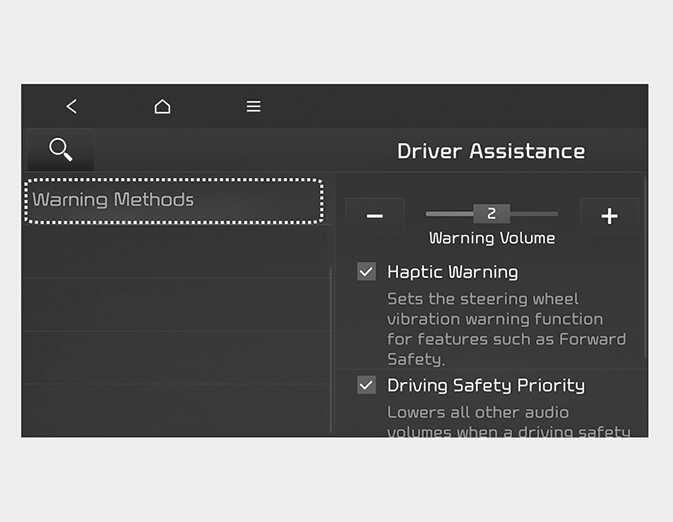
You can adjust the Warning Methods with the ignition switch or ENGINE START/ STOP button in the ON position.
-
Parking Safety Priority: Select 'Settings → Vehicle → Driver Assistance → Warning Methods → Parking Safety Priority’ on the Infotainment system for safe parking. For safe parking, the audio volume will temporarily decrease while Rear View Monitor is operating.
-
Ensure that warning sound you have set may apply to the warning volume of other driver assistance systems.
-
If not equipped with the navigation system, select User Settings → Driver Assistance to adjust the Warning Volume.
-
The settings menu content may vary depending of the vehicle specifications.
-
Descriptions of each Driver Assistance system may be slightly different from the owner's manual after updating the software of your infotainment system. In this case, scan the QR code in the infotainment system manual to access the web manual for checking the changes.
-
Depending on region or system update, the menu may be displayed as 'Warning Sound' or 'Warning Methods'.