

Intelligent Speed Limit Assist Settings
Speed limit
With the ENGINE START/STOP button in the ON position, select or deselect 'Driver Assistance → Intelligent Speed Limit Assist' from the Settings menu to set whether or not to use each function.
-
If 'Speed Limit Assist' is selected, the function will inform the driver of speed limit. In addition, the function will inform the driver to change set speed of Manual Speed Limit Assist and/or Smart Cruise Control to help the driver stay within the speed limit.
-
If 'Speed Limit Warning' is selected, the function will inform the driver of speed limit. In addition, the function will warn the driver when the vehicle is driven faster than the speed limit.
-
If 'Off' is selected, the function will turn off.
Speed limit offset
With the ENGINE START/STOP button in the ON position, when 'Driver Assistance → Speed Limit → Speed Limit Offset' is selected, the Speed Limit Offset can be changed. Speed Limit Warning and Speed Limit Assist will operate by applying the Speed Limit Offset setting to the detected speed limit.
-
For your safety, change the Settings after parking the vehicle at a safe location.
-
Speed Limit Assist function operates based on the Offset setting added to the speed limit. If you want to change the set speed according to the speed limit, set the offset to '0'.
-
Speed Limit Warning function warns the driver when driving speed exceeds the speed at which the set Offset is added to speed limit. If you want Speed Limit Warning to warn you immediately when the driving speed exceeds the speed limit, set the offset to '0'.
The setting of 'Speed Offset' is not reflected in Navigation-based Smart Cruise Control (NSCC).
Warning Methods
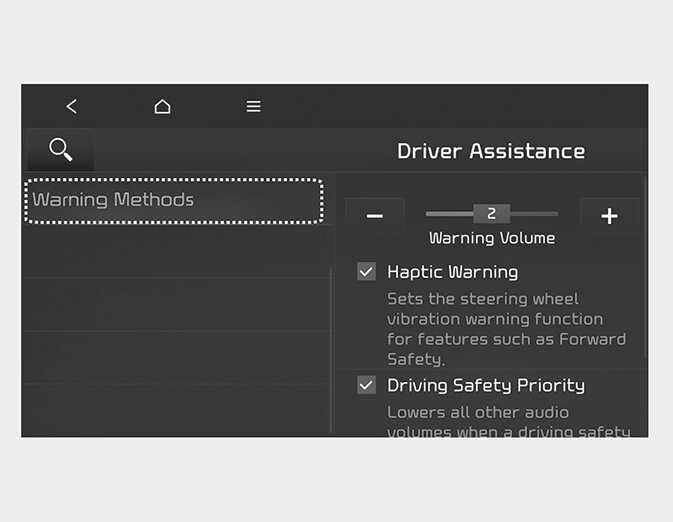
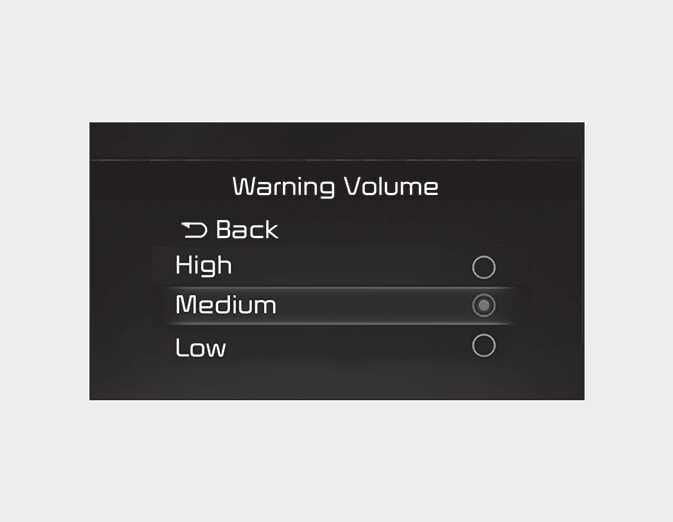
You can adjust the Warning Methods with the ignition switch or ENGINE START/ STOP button in the ON position.
-
Warning Volume: Select 'User Settings → Driver Assistance → Warning Volume' on the instrument cluster or 'Settings → Vehicle → Driver Assistance → Warning Methods' on the infotainment system to change the Warning Methods. Even if '0' or 'Off' is selected, the function's Warning Volume will not turn off but the volume will sound as '1' or 'Low'.
-
Ensure that Warning Sound and Haptic you have set may apply to the Warning volume of other Driver Assistance systems.
-
Warning Sound and Haptic will maintain its last setting even if the vehicle is restarted.
-
If vehicle is not equipped with the navigation system, select 'User Settings → Driver Assistance' to adjust the Warning Volume.
-
The setting menu may not be available for your vehicle depending on the vehicle features and specifications.
-
Descriptions of each Driver Assistance system may be slightly different from the owner's manual after updating the software of your infotainment system. In this case, scan the QR code in the infotainment system manual to access the web manual for checking the changes.
-
Depending on your update, the menu may be displayed as 'Warning Sound' or 'Warning Methods'.