

Enrolling fingerprint
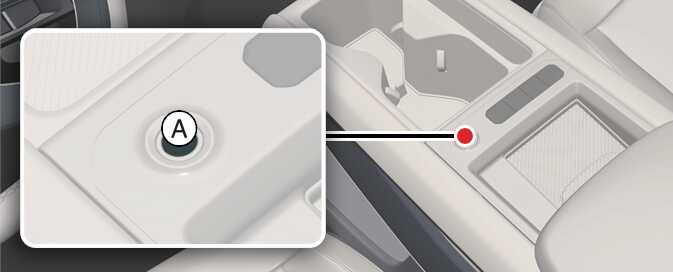
-
Turn on the vehicle.
-
Select Setup → User Profile → Driver 1 → Fingerprint Identification → Set/Delete Fingerprint → Set in the infotainment.
-
Gently place your finger that you wish to enroll on the fingerprint sensor (A) according to the instruction. Fingerprint authentication attempts with excessive force may fail
-
Following the instructions, place several parts of your fingerprint until the scanning process is complete.
-
Once the scanning process is completed, the message Saving fingerprint…. appears and the fingerprint enrollment process is completed.
-
When the fingerprint enrollment process is completed in the vehicle, the status is displayed on the infotainment system.
-
The fingerprint enrollment process is canceled when the following condition occurs:
-
The infotainment system screen is altered.
-
The EV button turns on or off.
-
The gear is shifted and the vehicle is driven.
-
-
The infotainment system may change after software updates. For more information, refer to the manual provided in the infotainment system and the quick reference guide.