

Camera settings
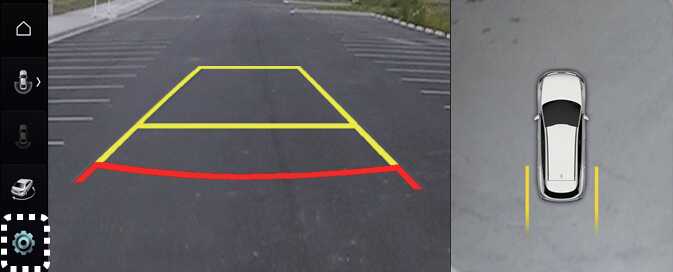
With the vehicle on, select the setup icon (
 ) on the screen or
Settings →
Vehicle →
Driver assistance →
Parking safety →
Camera settings from the infotainment system screen to change the Rear View Monitor settings.
) on the screen or
Settings →
Vehicle →
Driver assistance →
Parking safety →
Camera settings from the infotainment system screen to change the Rear View Monitor settings.
-
Display Contents: To change the settings of Parking distance warning, Top view parking guide lines, and Rear view parking guide lines function.
-
Display Settings: To change the screen's brightness and contrast.: (if equipped)
The settings menu on your vehicle may not be necessarily be available due to the selected options or regions.
Warning methods
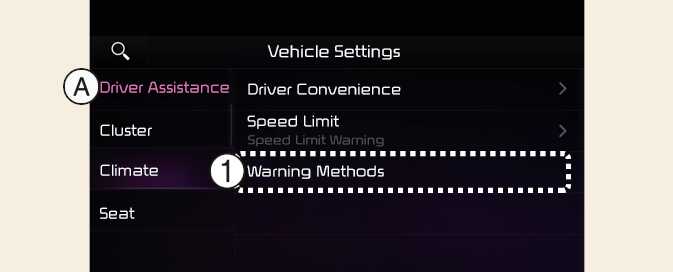
A:Driver Assistance
-
Warning Methods
The Warning Methods can be set with the vehicle on. Select Settings → Vehicle → Driver Assistance → Warning Methods from the settings menu in the infotainment system to change the following settings:
-
Parking Safety Priority: Lowers all other audio volumes when Surround View Monitor is active is active.
-
If you change the Warning Methods, it can be applied to each function of the driver assistance system. Please check and change it in each function.
-
If the vehicle is restarted, Warning Methods will maintain the last setting.
-
The setting menu may not exist based on vehicle specification.
Surround View Monitor Auto On
With the vehicle on, select 'Driver Assistance → Parking Safety → Surround View Monitor Auto On' from the infotainment system Settings menu to use the function.
To use this function, refer to Surround View Monitor operation