

How to use the digital key 2 (Smartphone)
Smartphone touch control
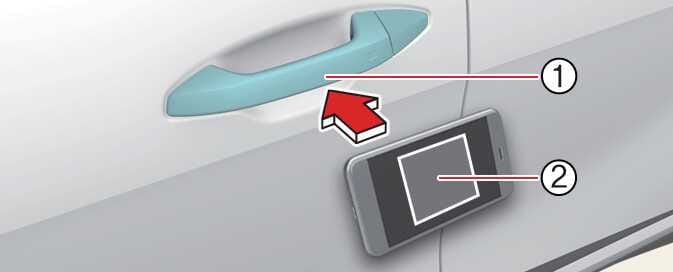
The driver can lock and unlock the door by touching the smart phone on the door handle without activating the Kia App or Kia Connect app. Also, the vehicle can be started by placing the smartphone on the in-vehicle authentication pad (wireless charging pad).
 ONQ5H034002 |
|
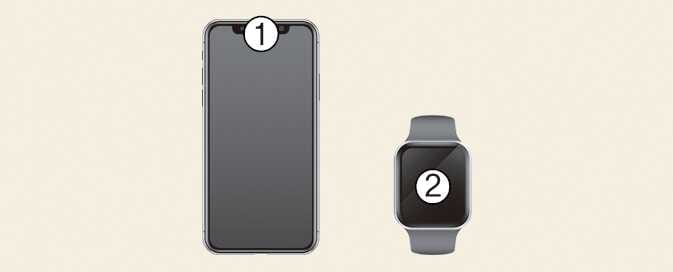
You can check the location of the NFC antenna on your Samsung smartphone in the . The Apple iPhone®`s NFC antenna is located at the top of the back of the device, and the Apple Watch®`s NFC antenna is located in the centre of the screen. Make sure that the location of the smartphone's NFC antenna touches the in-vehicle authentication pad (wireless charging pad).
 OMV033006 |
However, as the location of the smartphone's NFC antenna may differ by smartphone model, contact the smartphone manufacturer for more details.
Locking/Unlocking the doors
-
If the driver touches the smartphone NFC antenna to the driver's or passenger's door handle authentication pad for more than 2 seconds, the door will lock or unlock.
-
If 2 Press Unlock function is set, only the driver's door will be unlocked by touching the smart phone on the driver's door handle. Touch the smart phone once more within 4 seconds to unlock all doors.
-
After unlocking the doors, the doors will automatically re-lock after 30 seconds unless a door is opened.
-
If the smartphone digital key does not operate, move the smartphone more than 0.1 m (4 inches) from the door handle authentication pad and try it again.
To lock or unlock the doors with a registered smartphone, contact the NFC antenna on the back of the smartphone with the authentication pad of the driver's or passenger's outside door handle for about 2 seconds.
-
To lock or unlock the doors, carry your smartphone and touch the door handle lock/unlock sensor (carved area) on the outside door handle.
-
If you put the smartphone in a back pocket or bag, it may be blocked by the body part, which limits the Bluetooth connection and cause operation delay when locking/unlocking doors or starting the vehicle.
-
If a tinting film containing metal components is applied, the digital key may not function properly.
Note that the door will unlock and a beep sounds when using the digital key 2 if any of the following occur:
-
When the Smart Key is in the vehicle
-
The vehicle is in ACC or ON position
-
Attempting to lock the door when more than one door, or bonnet, tailgate is opened
-
If a tinting film containing metal substances is applied to the digital key, it may not function properly.
Starting the vehicle
After placing your registered smartphone on the in-vehicle authentication pad (wireless charging pad), depress the brake pedal and start the vehicle.
-
Once the vehicle is started, you can remove the smartphone from the pad.
-
Place the NFC antenna of the smartphone on the centre of the indoor authentication pad (wireless charging pad), press the brake pedal, and then press the start button to start the vehicle.
-
After starting the vehicle, you can remove the smartphone from the indoor authentication pad (wireless charging pad).
-
Some smartphones may not have smooth NFC communication due to their internal structure. In such cases, move the smartphone to the right or left of the indoor authentication pad (wireless charging pad) to operate it.
-
The Apple iPhone®`s NFC antenna is located at the top of the back of the device, and the Apple Watch®`s NFC antenna is located in the centre of the screen. Make sure that the location of the smartphone's NFC antenna touches the in-vehicle authentication pad (wireless charging pad). However, as the location of the smartphone's NFC antenna may be different by smartphone model, contact the smartphone manufacturer for more details.
-
Carry the smartphone inside the vehicle, press the brake pedal, and then press the start button to start the vehicle.
-
To start the vehicle remotely, use the Kia app or an app provided by the smartphone manufacturer and press the remote start button. The vehicle will start and the hazard warning lights will flash.
-
To turn off the vehicle, press the remote start button again.
Operating the tailgate
-
When the vehicle is locked, press the tailgate open button whilst carrying a registered smartphone to open the tailgate.
-
When the Smart Tailgate feature is selected, the tailgate automatically opens if you stand in the detection area behind it for more than 3 seconds whilst carrying a smartphone registered with Digital Key 2.
-
When closing the tailgate, please check that the registered smartphone is inside the vehicle. If you leave your smartphone inside the vehicle, the doors may not unlock when you close the tailgate whilst the doors are locked or when you close the tailgate using the tailgate close button.
-
The vehicle can be started by anyone if the registered smartphone is inside the vehicle. Therefore, do not leave children or individuals unfamiliar with the vehicle's system alone in the vehicle, which could result in serious bodily injury or death. In addition, always keep the smartphone registered with Digital Key 2 on you to prevent theft when leaving the vehicle.
For smartphone with UWB support, Digital Key 2 is only available when the vehicle and smartphone are connected via Bluetooth.
-
The effective range of a Bluetooth connection may vary depending on the surrounding environment.
-
If the smartphone is in a back pocket or bag, the signal may be blocked, potentially limiting the Bluetooth connection and causing delays when locking/unlocking doors or starting the vehicle.
For smartphone with UWB support, Digital Key 2 is only available for a limited time to optimize the vehicle and smartphone batteries.
You can check the connection between the vehicle and the smartphone in the smartphone's settings or through an app provided by the smartphone manufacturer.
The vehicle can be started when the registered smartphone is placed on the in-vehicle authentication pad (wireless charging pad). Therefore, do not leave unsupervised children or people who are not aware of the system since it can result in serious injury or death. In addition, always have the registered smartphone with you to prevent vehicle theft when leaving the vehicle.
The operation time of digital key 2 for shared user may extend during the first time use.
Approach your digital key 2 (smartphone) on the authentication pad located in the outside door handle until the vehicle door lock/unlock function operates.
If the inner authentication pad is used for the first time, 1st vehicle start function may not operate.