
Intelligent Speed Limit Assist settings
Speed Limit
A: Driver Assistance
-
Speed Limit
-
Speed Limit Assist
-
Speed Limit Warning
-
Off
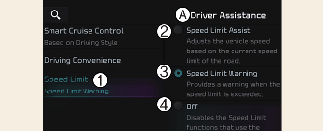
With the vehicle on, select or deselect Setup → Vehicle → Driver Assistance → Speed Limit from the Settings menu to set whether or not to use each function.
-
If Speed Limit Assist is selected, Intelligent Speed Limit Assist will inform the driver of speed limit and additional road signs. In addition, Intelligent Speed Limit Assist will inform the driver to change set speed of Manual Speed Limit Assist and/or Smart Cruise Control to help the driver stay within the speed limit.
-
If Speed Limit Warning is selected, Intelligent Speed Limit Assist will inform the driver of speed limit and additional road signs. In addition, Intelligent Speed Limit Assist will warn the driver when the vehicle is driven faster than the speed limit. Manual Speed Limit Assist or Smart Cruise Control set speed will not be automatically adjusted. The driver should adjust the speed manually.
-
If Off is selected, Intelligent Speed Limit Assist will turn off.
Speed Limit Offset
A: Driver Assistance
-
Speed Limit
-
Speed Limit Offset (mph)
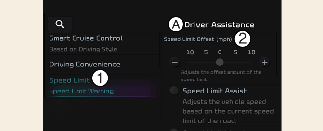
With the vehicle on, when Setup → Vehicle → Driver Assistance → Speed Limit → Speed Limit Offset is selected, the Speed Limit Offset can be changed. Speed Limit Warning and Speed Limit Assist will operate by applying the Speed Limit Offset setting to the detected speed limit.

-
For your safety, change the Settings after parking the vehicle at a safe location.
-
Speed Limit Assist function operates based on the Offset setting added to the speed limit. If you want to change the set speed according to the speed limit, set the offset to 0.
-
Speed Limit Warning function warns the driver when driving speed exceeds the speed at which the set Offset is added to speed limit. If you want Speed Limit Warning to warn you immediately when the driving speed exceeds the speed limit, set the offset to 0.

The setting of Speed Limit Offset is not reflected in Navigation-based Smart Cruise Control (NSCC).
Warning Methods
A: Driver Assistance
-
Warning Methods
-
Warning Volume
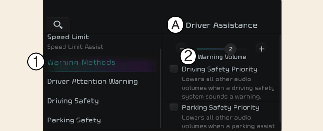
You can adjust the Warning Methods with the EV button in the ON position.
-
Warning Volume: Select Setup → Vehicle → Driver Assistance → Warning Methods on the Infotainment system.

-
Changing the Warning Methods may also change the Warning Methods of other driver assistance systems. Please ensure and change it.
-
Warning Methods will maintain its last setting even if the vehicle is restarted.
-
The setting menu may not be available for your vehicle depending on the vehicle features and specifications.
-
Descriptions of each Driver Assistance system may be slightly different from the owner's manual after updating the software of your infotainment system. In this case, scan the QR code in the infotainment system manual to access the web manual for checking the changes.
-
Depending on your region or update, the menu may be displayed as 'Warning Sound' or 'Warning Methods'.