
Rear View Monitor settings
Camera settings
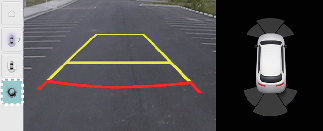
With the vehicle on, select the setup icon ( ) on the screen or Setup → Vehicle → Driver Assistance → Parking Safety → Camera Settings from the infotainment system screen to change the Rear View Monitor settings.
-
Display Contents: To change the settings of Extended Rear View Monitor and Rear Parking Guide Lines.
-
Display Settings: To change the screen's brightness and contrast.
Warning Methods
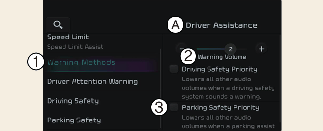
A: Driver Assistance
-
Warning Methods
-
Warning Volume
-
Parking Safety Priority
With the vehicle on, touch Settings → Vehicle → Driver Assistance → Warning Style on the infotainment system to change the Warning Style.
-
Parking Safety Priority: For safe parking, the audio volume will temporarily decrease while Rear View Monitor is operating.

-
If not equipped with the navigation system, select User Settings → Driver Assistance to adjust the Warning Volume.
-
The setting menu may not be available for your vehicle depending on the vehicle features and specifications.
-
Descriptions of each Driver Assistance system may be slightly different from the owner's manual after updating the software of your infotainment system. In this case, scan the QR code in the infotainment system manual to access the web manual for checking the changes.