

System layout – control panel
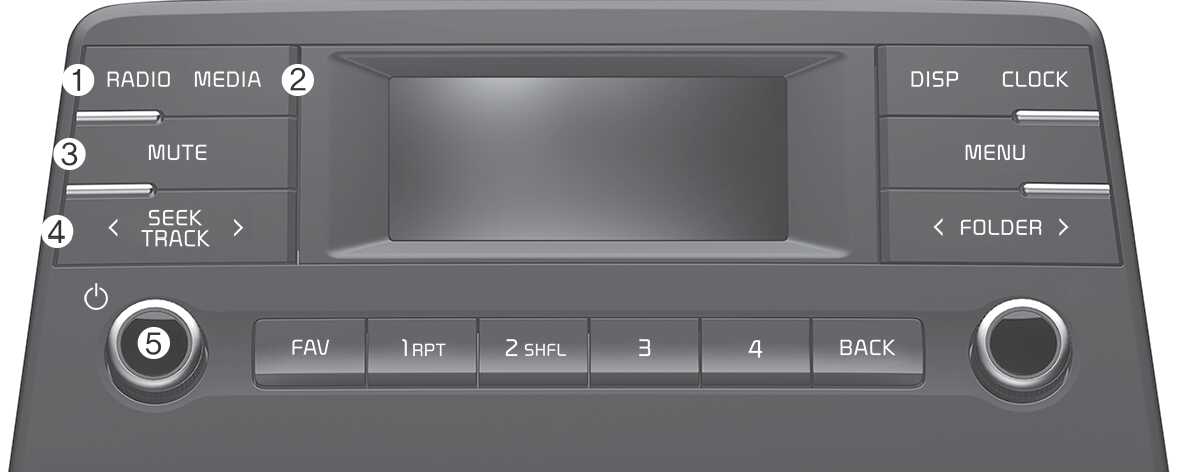
* The system’s actual appearance and layout may differ depending on the vehicle model and specification.
-
RADIO button
-
Press to display the radio mode selection window.
-
When the mode selection window displays, turn the [ TUNE] knob to select the desired mode and then press the knob.
-
When the Mode popup is not selected in [ MENU] ▶ Mode popup, press the [ RADIO] button on the control panel to change the mode.
Each time you press the [ RADIO] button on the control panel, the mode switches to radio FM ▶ AM in order.
-
-
MEDIA button
-
Press to display the media storage device.
-
-
MUTE button
-
Press to mute or unmute the system.
-
While playing media, press to pause or resume playback.: (if equipped)
-
-
SEEK/TRACK button
-
Change the station/track/file.
-
While listening to the radio, press and hold to search for a station.
-
While playing media, press and hold to rewind or fast forward.
-
-
POWER button/VOLUME knob
-
Press to turn the system on or off.
-
Turn to the left or right to adjust the system sound volume.
-
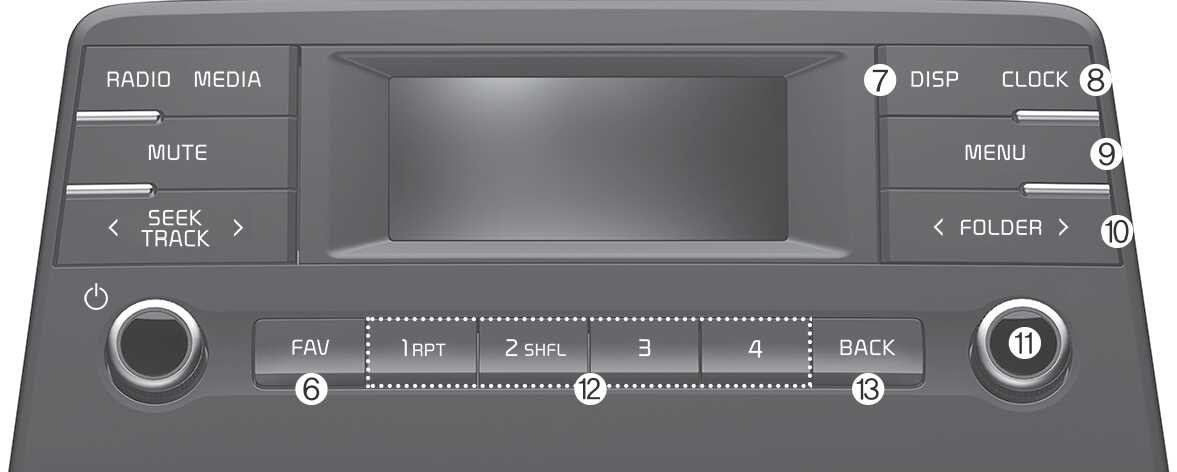
* The system’s actual appearance and layout may differ depending on the vehicle model and specification.
-
FAV button
-
While listening to the radio, press to move to next page of the preset list.
-
-
DISP button
-
Turn the display on or off.
-
Each time you press the button, the screen will turn on and off.
-
-
CLOCK button
-
Press to access the clock setting screen.
-
-
MENU button
-
Press to access the menu screen for the current mode.
-
-
FOLDER button
-
In the USB mode, press to access the folder list.
-
-
TUNE knob/FILE knob/ENTER button
-
While listening to the radio, turn to adjust the frequency.
-
While playing media, turn to search for a track/file (except for Bluetooth audio mode).
-
While searching by turning the knob, press to select the current track/file (except for the Bluetooth audio mode).
-
-
Number buttons (1 RPT~ 4)
-
While listening to the radio, press to listen to a saved radio station.
-
While listening to the radio, press and hold to save the current radio station to the preset.
-
In the USB/Bluetooth audio modes, press the [ 1 RPT] button to change the repeat play mode. Press the [ 2 SHFL] button to change the shuffle play mode.
-
-
BACK button
-
Press the [ BACK] button to return to the previous screen (except for the radio preset list).
-
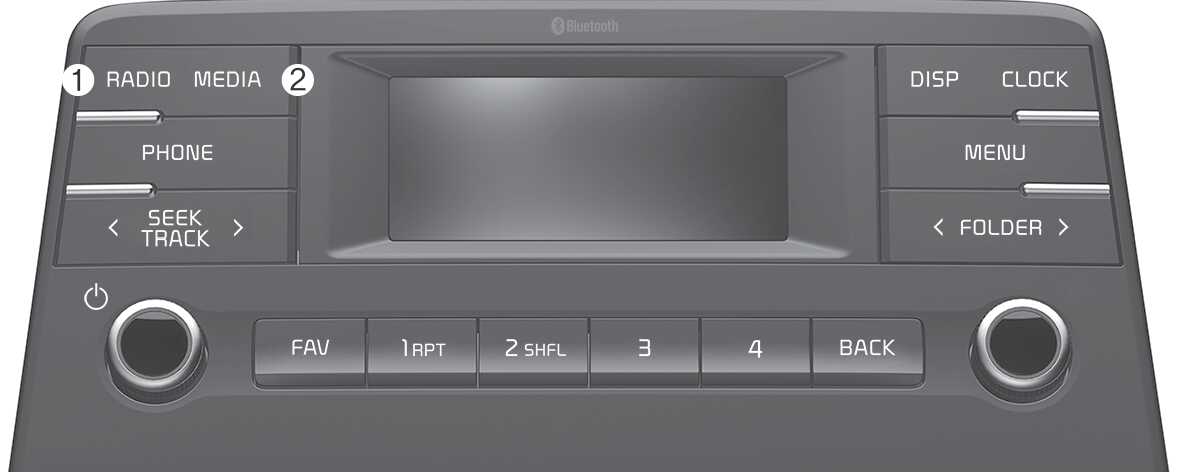
(With Bluetooth® Wireless Technology)
* The system’s actual appearance and layout may differ depending on the vehicle model and specification.
-
RADIO button
-
Press to display the radio mode selection window.
-
When the mode selection window displays, turn the [ TUNE] knob to select the desired mode and then press the knob.
-
When the Mode popup is not selected in [ MENU] ▶ Mode popup, press the [ RADIO] button on the control panel to change the mode.
Each time you press the [ RADIO] button on the control panel, the mode switches to radio FM ▶ AM in order.
-
-
MEDIA button
-
Press to display the media mode selection window.
-
When the mode selection window displays, turn the [ TUNE] knob to select the desired mode and then press the knob.
-
When the Mode popup is not selected in [ MENU] ▶ Mode popup, press the [ MEDIA] button on the control panel to change the mode.
Each time you press the [ MEDIA] button on the control panel, the mode switches to media USB ▶ Bluetooth audio in order.
-
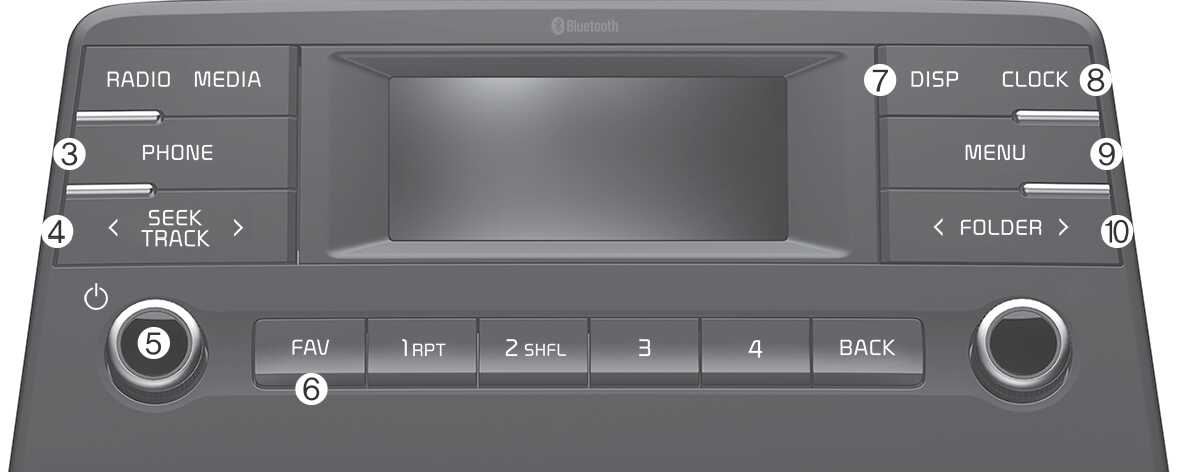
(With Bluetooth® Wireless Technology)
The system’s actual appearance and layout may differ depending on the vehicle model and specification.
-
PHONE button
-
Press to start connecting a mobile phone via Bluetooth.
-
After a Bluetooth phone connection is made, press to access the Bluetooth phone menu.
-
-
SEEK/TRACK button
-
Change the station/track/file.
-
While listening to the radio, press and hold to search for a station.
-
While playing media, press and hold to rewind or fast forward (except for Bluetooth audio mode).
-
-
POWER button/VOLUME knob
-
Press to turn the system on or off.
-
Turn to the left or right to adjust the system sound volume.
-
-
FAV button
-
While listening to the radio, press to move to next page of the preset list.
-
-
DISP button
-
Turn the display on or off.
-
Each time you press the button, the screen will turn on and off.
-
-
CLOCK button
-
Press to access the clock setting screen.
-
-
MENU button
-
Press to access the menu screen for the current mode.
-
-
FOLDER button
-
In the USB mode, press to access the folder list.
-
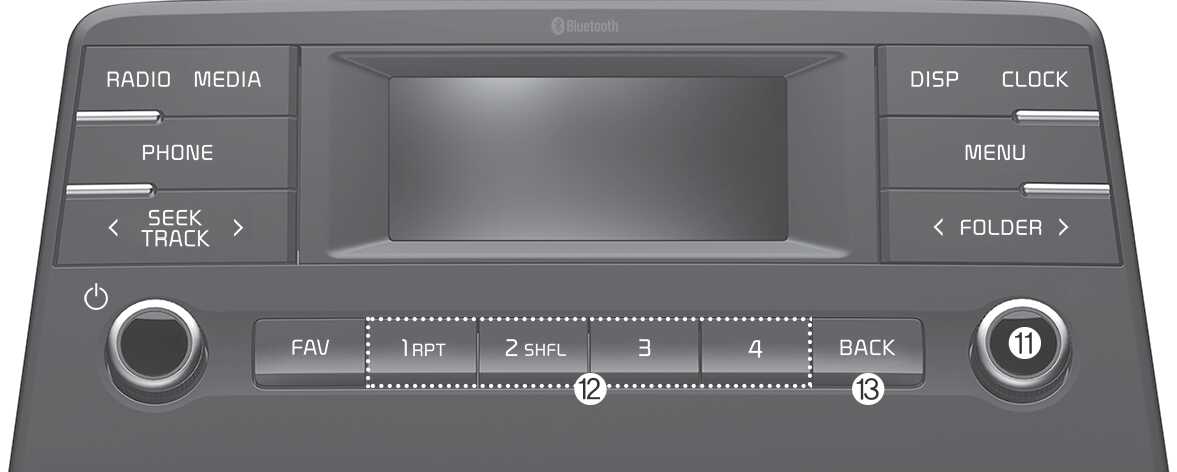
(With Bluetooth® Wireless Technology)
The system’s actual appearance and layout may differ depending on the vehicle model and specification.
-
TUNE knob/FILE knob/ENTER button
-
While listening to the radio, turn to adjust the frequency.
-
While playing media, turn to search for a track/file (except for Bluetooth audio mode).
-
While searching by turning the knob, press to select the current track/file (except for the Bluetooth audio mode).
-
-
Number buttons (1 RPT~ 4)
-
While listening to the radio, press to listen to a saved radio station.
-
While listening to the radio, press and hold to save the current radio station to the preset.
-
In the USB/Bluetooth audio modes, press the [ 1 RPT] button to change the repeat play mode. Press the [ 2 SHFL] button to change the shuffle play mode.
-
-
BACK button
-
Press the [ BACK] button to return to the previous screen (except for the radio preset list).
-