

LCD display modes
The LCD display provides 5 modes. You can switch modes by pressing the Mode button.
|
|
|||||
|---|---|---|---|---|---|
 Driving Assist |
 Trip Computer |
 Turn By Turn (TBT)* |
 User Settings* |
Information/Master Warning |
|
|
Up/Down |
Lane Keeping Assist Smart Cruise Control* Lane Following Assist Highway Driving Assist* |
Range *1 |
Route Guidance |
Driver Assistance* |
TPMS |
|
Drive Info |
Destination Info |
Eco Vehicle |
Engine Temperature |
||
|
Since Refueling |
Head-Up Display |
The Master Warning mode displays warning messages related to the vehicle when one or more systems is not operating normally. |
|||
|
Accumulated Info |
Cluster |
||||
|
Energy Flow |
Lights* |
||||
|
Door* |
|||||
|
Convenience* |
|||||
|
Units |
|||||
|
Language |
|||||
|
Reset |
|||||
 Mode
Mode




|
|
||||
|---|---|---|---|---|
 Driving Assist |
 Trip Computer |
 Turn By Turn (TBT)* |
Information/Master Warning |
|
|
Up/Down |
Forward Collision-Avoidance Assist Lane Keeping Assist Blind-Spot Collision-Avoidance Assist* Smart Cruise Control* Lane Following Assist Highway Driving Assist* |
Range *1 |
Route Guidance |
TPMS |
|
Drive Info |
Destination Info |
Engine Temperature |
||
|
Since Refueling |
The Master Warning mode displays warning messages related to the vehicle when one or more systems is not operating normally. |
|||
|
Accumulated Info |
||||
|
Energy Flow |
||||
|
TPMS |
||||
|
Digital Speedometer |
||||
 Mode
Mode




The information provided may differ depending on which functions are applicable to your vehicle.
: if equipped
1: For Plug-in Hybrid vehicle
Keep the engine running when configuring the display settings to prevent the battery from discharging.
Trip computer mode
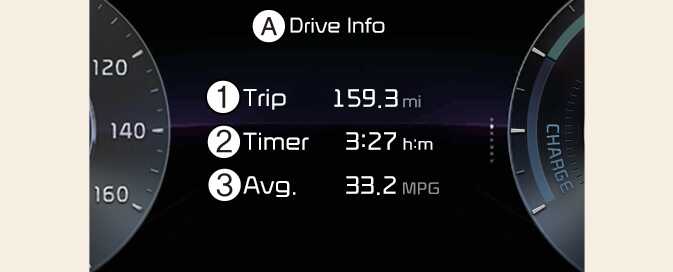
A: Drive info
-
Accumulated trip distance
-
Total driving time
-
Average fuel efficiency
The trip computer mode displays information related to vehicle driving parameters including fuel economy, tripmeter information and timer.
For more details, refer to Trip information (trip computer).
Turn By Turn (TBT) mode
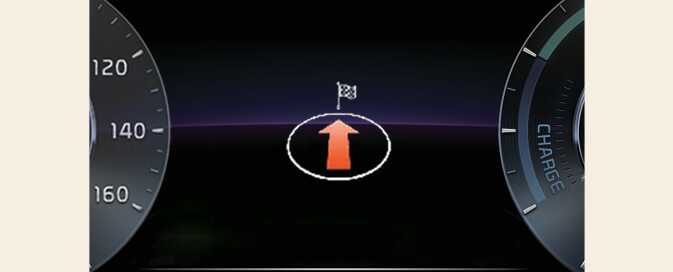
This mode displays the state of the navigation.
Driving Assist mode
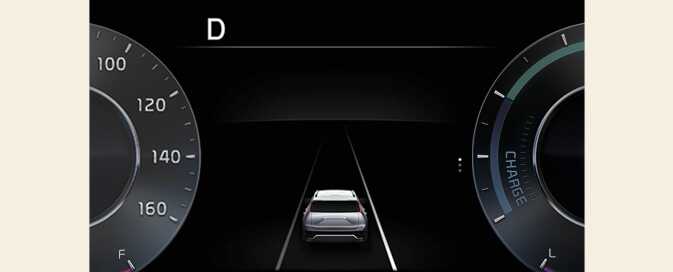
This mode displays the state of:
-
Lane Safety
-
Smart Cruise Control
Information mode
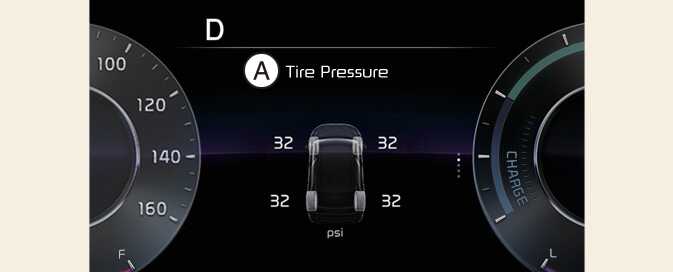
A: Tire Pressure
This mode displays the state of:
-
Tire pressure
This mode displays information related to Tire Pressure.
For more details, refer to Tire Pressure Monitoring System (TPMS).
Master warning mode
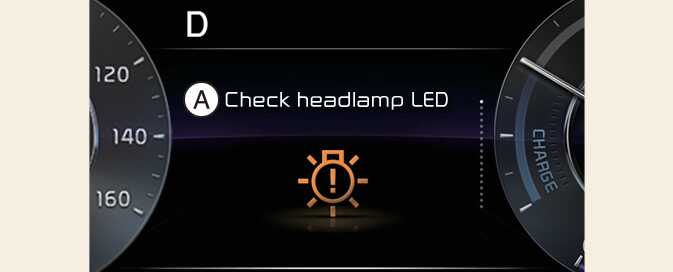
A: Check headlamp LED
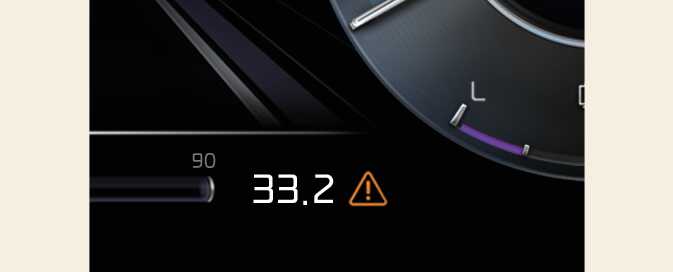
This warning light informs the driver the following situations.
-
LED headlamp malfunction
-
Lamp malfunction
-
High Beam Assist malfunction: (if equipped)
At this time, a Master Warning icon (
 ) will appear beside the User Settings icon (
 ), on the LCD display. If the warning situation is resolved, the Master warning light will turn off and the Master Warning icon will disappear.
User settings mode
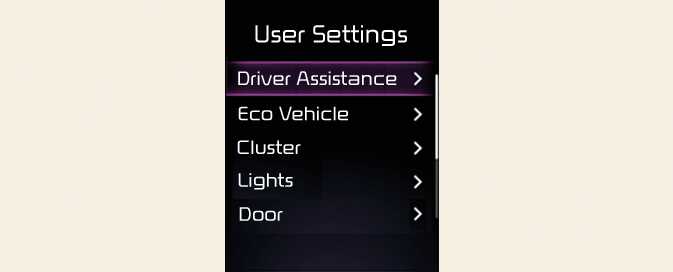
In this mode, you can change the settings of the instrument cluster, doors, lamps, etc.
-
Driver Assistance
-
Eco Vehicle
-
Cluster
-
Lights
-
Door
-
Convenience
-
Units
-
Language
-
Reset
The information provided may differ depending on which functions are applicable to your vehicle.
|
Items |
Explanation |
|---|---|
|
Driving Convenience |
To adjust Smart Cruise Control For more details, refer to Smart Cruise Control (SCC). |
|
Speed Limit* |
To adjust the Speed Limit Offset
To select the function of Intelligent Speed Limit Assist For more details, refer to Intelligent Speed Limit Assist (ISLA). |
|
Warning Volume |
To select the Warning Volume |
|
Haptic Warning |
Activate/Deactivate |
|
Driver Attention Warning |
To activate or deactivate functions of Driver Attention Warning For more details, refer to Driver Attention Warning (DAW). |
|
Driving Safety * |
To activate or deactivate Forward Collision-Avoidance Assist For more details, refer to Forward Collision-Avoidance Assist (FCA) (Front Camera Only) and Forward Collision-Avoidance Assist (FCA) (Sensor Fusion).
To select the Forward Safety Warning Timing For more details, refer to Forward Collision-Avoidance Assist (FCA) (Front Camera Only) and Forward Collision-Avoidance Assist (FCA) (Sensor Fusion).
To activate or deactivate Lane Keeping Assist For more details, refer to Lane Keeping Assist (LKA).
To activate or deactivate Blind-Spot Collision-Avoidance Assist For more details, refer to Blind-Spot Collision-Avoidance Assist (BCA).
To activate or deactivate Safe Exit Warning For more details, refer to Safe Exit Warning (SEW). |
|
Parking Safety * |
To activate or deactivate Rear Cross-Traffic Collision-Avoidance Assist. For more details, refer to Rear Cross-Traffic Collision-Avoidance Assist (RCCA). |
The information provided may differ depending on which systems are applicable to your vehicle.
|
Items |
Explanation |
|---|---|
|
Green Zone EV Drive |
Activate or Deactivate |
|
Coasting Guidance |
To select the Coasiting Guidance. |
|
Start coasting |
To select the Start Coasting. |
|
Smart Regeneration |
Activate or Deactivate |
|
Locking Charging Cable* |
To select the Locking Charging Cable |
|
Charge Guidance Sound* |
To select the Charge Guidance Sound. |
: for plug-in hybrid vehicle
|
Items |
Explanation |
|---|---|
|
Enable Head-Up Display |
Activate or Deactivate |
|
Display Height |
|
|
Rotation |
|
|
Brightness |
Level 1~20 |
|
Content Selection |
To select the content to be displayed. |
|
Items |
Explanation |
|---|---|
|
Theme Selection |
If this item is checked, the cluster theme will change accordingly. |
|
Wiper/Lights Display |
Activate or Deactivate |
|
Traffic Signs |
Activate or Deactivate |
|
Icy Road Warning |
Activate or Deactivate |
|
Cluster Voice Guidance Volume |
To adjust the Cluster Voice Guidance Volume. |
|
Welcome Sound |
Activate or Deactivate |
|
Items |
Explanation |
|
|---|---|---|
|
Illumination |
To adjust the instrument cluster illumination. |
|
|
One Touch Turn Signal |
For more details, refer to Lighting. |
|
|
Ambient Light Brightness |
To adjust the brightness of Ambient Light. |
|
|
Ambient Light Color |
To select the color of Ambient Light. |
|
|
Headlamp Delay |
If this item is checked, the headlamp delay function will be activated. |
|
|
High Beam Assist |
If this item is checked, High Beam Assist will be activated. For more details, refer to High Beam Assist (HBA). |
|
The information provided may differ depending on which functions are applicable to your vehicle.
|
Items |
Explanation |
|---|---|
|
Automatically Lock |
If the setting is changed while the vehicle is in motion, the changed setting may not immediately operate. |
|
Automatically Unlock |
|
|
2 Press Unlock |
If this item is checked, the two press unlock will be activated. Press the door unlock button once to unlock the driver's door, and press the button once more within 4 seconds to unlock the rest of the doors. |
|
Horn Feedback |
To Select the functions. |
|
Power Liftgate |
If this item is checked, Power Liftgate will be activated. |
|
Power Liftgate Opening Speed |
To select the power liftgate speed. |
|
Power Liftgate Opening Height |
To select the height. For more details, refer to Power liftgate. |
|
Smart Liftgate |
To activate or deactivate the Smart Liftgate. For more details, refer to Smart Liftgate with Auto Open. |
|
Remote Window Control (if equipped) |
Activate To select the functions. |
The information provided may differ depending on which systems are applicable to your vehicle.
|
Items |
Explanation |
|---|---|
|
Seat Easy Access |
To select the seat movement |
|
Rear Occupant Alert |
If this item is checked, the Rear Occupant Alert (ROA) display will be activated. |
|
Service Interval |
To select the Service Interval. |
|
Oil Change Reminder |
To reset the remaining oil life. |
|
Welcome Mirror/Light |
To select the welcome mirror/light function. |
|
Wireless Charging System |
Activate or Deactivate |
|
Auto Rear Wiper (in R) |
If this item is checked, the Auto Rear Wiper will be activated when the front wiper is On and the gear is selected in R (Reverse). |
The information provided may differ depending on which functions are applicable to your vehicle.
|
Items |
Explanation |
|
|---|---|---|
|
Speed Unit |
To select the Speedometer unit. |
|
|
Temperature Unit |
To select the Temperature unit. |
|
|
Fuel Economy Unit |
To select the Fuel economy unit. For more details, refer to Trip information (trip computer). |
|
|
Tire Pressure Unit |
To select the Tire Pressure Unit |
|
The information provided may differ depending on which functions are applicable to your vehicle.
|
Items |
Explanation |
|---|---|
|
Language |
To select the language. |
|
Items |
Explanation |
|
|---|---|---|
|
Reset |
You can reset the menus in the User Settings mode. All menus in the User Settings mode are reset to factory settings, except language and service interval. |
|
*: if equipped