

Smart Cruise Control settings
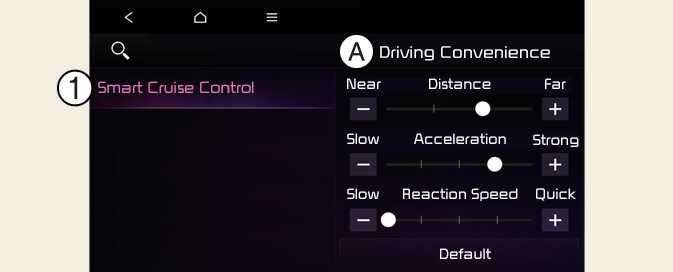
A: Driving Convenience
-
Smart Cruise Control
With the vehicle on, touch Settings → Driver Assistance → Driving Convenience → Smart Cruise Control on the instrument cluster or Settings → Vehicle → Driver Assistance → Driving Convenience → Smart Cruise Control on the infotainment system to set the distance, acceleration and the reaction speed.
Warning Methods
-
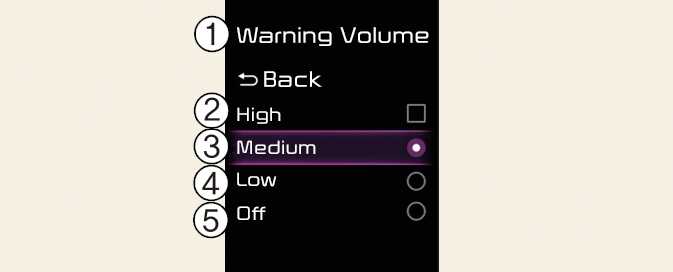
Warning Volume
-
High
-
Medium
-
Low
-
Off
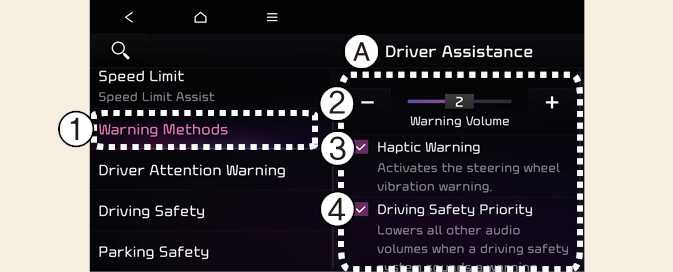
A: Driver Assistance
-
Warning Methods
-
Warning Volume
-
Haptic Warning
-
Driving Safety Priority
Warning Methods can be set when the vehicle is in ON position.
-
Warning Volume: Select User Settings → Driver Assistance → Warning Volumeon the instrument cluster or, select Settings → Vehicle → Driver Assistance → Warning Methods → Warning Volume on the infotainment system, and adjust the Warning Volume.
If you turn off the Warning Volume, for your safety, the function may warn you with a low volume. (If steering wheel vibration equipped)
-
: (if equipped)Haptic Warning: Select : (if equipped)Setup → : (if equipped)Vehicle→ : (if equipped)Driver Assistance → : (if equipped)Warning Methods → : (if equipped)Haptic Warning on the infotainment system, and set the steering wheel vibration warning. : (if equipped)
-
Driving Safety Priority: Select Settings→ Vehicle→ Driver Assistance → Warning Methods → Driving Safety Priority on the infotainment system. For safe driving, the audio volume will temporarily decrease to warn the driver with the audible warning.
-
Ensure that Warning Methods you have set may apply to the Warning Methods of other driver assistance systems.
-
Warning Methods will maintain its last setting even if the vehicle is restarted.
-
The setting menu may not be available for your vehicle depending on the vehicle features and specifications.
-
The Warning Volume and Haptic Warning cannot be turned off at the same time. When one of the warning is turned off the other is activated