
Digital Key 2 (Smart Phone)
How to register Digital Key 2 (Smart phone)
Kia Digital Key 2 can only be used on the smartphones that support this function, and the smartphone's Digital Key 2 function is provided by the smartphone manufacturer. Some smartphone functions may be incompatible with your vehicle.
While updating the digital key 2 controller, the smart key function may not work temporarily. In this case, it can be operated with the door lock/unlock button of the smart key.
Smart Phone Set Up
In order to use Digital Key 2 (Smart phone) function, install the Kia Access App on your smart phone, register your information and subscribe the service.
Smart Phone Registration
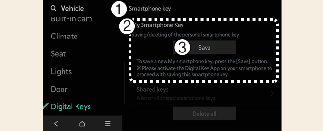
-
Smartphone key
-
My Smartphone key
-
Save
-
Turn the vehicle on with the Smart key and make sure to keep the smart key inside the vehicle during digital key registration.
-
Shift to P (Park), press Digital Key Settings → Register on Kia Access app on your smartphone, and register according to the messages on the app.
-
For smartphones without UWB support, place the NFC antenna of the smartphone on the center of the wireless charging pad (1).
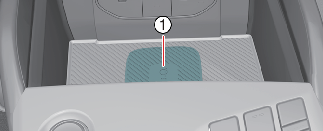
-
Charging pad
-
-
For smartphones with UWB support, even if you don’t put your smartphone on the indoor authentication pad (wireless charging pad)(1), if you carry your smartphone in the vehicle, you can register the digital key wirelessly.
-
-
When the digital key (smartphone) is saved, a message will appear on the instrument cluster or the infotainment system screen.

You can check the location of the NFC antenna on your Samsung smartphone in the Settings app → Connections → NFC and contactless payments. The Apple iPhone®'s NFC antenna is located at the top of the back of the device (1), and the Apple Watch®'s NFC antenna is located in the center of the screen (2). Make sure that the location of the smartphone's NFC antenna touches the invehicle authentication pad (wireless charging pad).
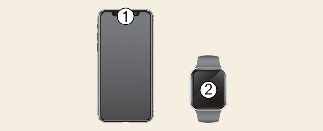
However, as the location of the smartphone's NFC antenna may be different by smartphone model, contact the smartphone manufacturer for more details.
When it is not registered on the Kia Access app on your smartphone
Even if you put your smartphone on the indoor authentication pad, if the message of Registering... is not displayed on the infotainment system screen, you can register it as below.
-
After turning the vehicle OFF, use the smart key to turn POWER ON again, then place the smart key inside the vehicle.
-
Select Setup → Vehicle → Digital Keys → Smartphone key → My Smartphone Key on the infotainment system screen while the vehicle is in P (Park) position.
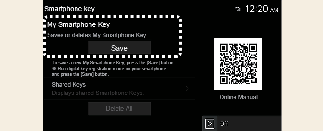
-
Place the NFC antenna of the smartphone on the center of the indoor authentication pad (wireless charging pad).
When the digital key (smart phone) is saved, a message will appear on the infotainment system screen.
-
The infotainment system may change after software updates. For more information, refer to the manual provided in the infotainment system and the quick reference guide.
-
Vehicle
When there is a digital key (smart phone) already saved in the vehicle, Delete All will be displayed on the Smartphone Key menu screen of the infotainment system and Delete will be displayed on the My Smartphone Key screen. If you want to save a digital key again, More Details.
-
Smart Phone
The digital key cannot be saved again while the vehicle’s digital key is saved in the owner's smart phone. Save the digital key after deleting the digital key from the smartphone OEM wallet App or in the vehicle.
-
During the digital key 2 saving process, the process will cancel when:
-
The smart phone is removed from the in-vehicle authentication pad (wireless charging pad)
-
Changing the infotainment system or instrument cluster screen
-
The vehicle is turned off
-
The gear is shifted
-
There is no smart key (saving process will not begin)
-
-
As the in-vehicle authentication pad may not work smoothly depending on the internal structure of the smartphones, the digital key may not be registered. Register the key by moving the smartphone to the left or right of the in-vehicle authentication pad (wireless charging pad).
-
UWB (Ultra WideBand) means ultra-wideband wireless communication technology. NFC (Near Field Communication) means short-range wireless communication.
How to Use the Digital Key 2 (Smart Phone)
Smart Phone Touch Control
The driver can lock and unlock the door by touching the smart phone on the door handle without activating the Kia Access App. Also, the vehicle can be started by placing the smart phone on the charging pad. Make sure that the location of the smartphone's NFC (short-dange wireless communication) antenna touches the door handle authentication pad.
The Apple iPhone®'s NFC antenna is located at the top of the back of the device, and the Apple Watch®'s NFC antenna is in the center of the screen. The NFC antenna is in the same location that you may use for tapping to make contactless payments. If you are uncertain about the location of the NFC antenna on your phone, contact the smartphone manufacturer for more details.
Locking/Unlocking the doors
-
If the driver touches the smart phone antenna to the driver's or passenger's door handle authentication pad for more than 2 seconds, the door will lock or unlock.
-
If 2 Press Unlock function is set, only the driver's door will be unlocked by touching the smart phone on the driver's door handle. Touch the smart phone once more within 4 seconds to unlock all doors.
-
After unlocking the doors, the doors will automatically re-lock after 30 seconds unless a door is opened.
-
If the smart phone digital key does not operate, move the smart phone more than 4 inches (0.1 m) from the door handle authentication pad and try it again.
To lock or unlock the doors with a registered smartphone, touch the NFC antenna on the smartphone on the authentication pad of the driver's or passenger's outside door handle for about 2 seconds.
-
To lock or unlock the doors, carry your smartphone and touch the door handle lock/unlock sensor (curved area) on the outside door handle.

-
When you carry the smartphone supported by UWB and stay near the vehicle for about a few minutes, the door may not unlock automatically.
-
If the smartphone is in a back pocket or bag, the signal may be blocked and could limit the Bluetooth connection and cause operation delay when locking/unlocking doors or starting the vehicle.
-
If a tinting film containing metal components is applied, the digital key may not function properly.
Note that the door will not lock and a beep sounds when using the Digital Key 2 if any of the following occur:
-
When the Smart Key is in the vehicle
-
The EV button is in POWER ON or DRIVE READY position
-
Attempting to lock the door when more than one door, or hood, liftgate is opened
-
If a tinting film containing metal substances is applied to the digital key, it may not function properly.
Starting the vehicle
After placing your registered smart phone on the charging pad, depress the brake pedal and press the EV button.
-
Once the vehicle is started, you can remove the smart phone from the pad.
For more details, refer to More Details.
-
Place the NFC antenna of the smartphone on the center of the charging pad, press the brake pedal, and then press the start button to start the vehicle.
-
After starting the vehicle, you can remove the smartphone from the charging pad.
-
Some smartphones may not have smooth NFC communication due to their internal structure. In such cases, move the smartphone to the right or left of the charging pad to operate it.
-
The Apple iPhone®'s NFC antenna is located at the top of the back of the device, and the Apple Watch®'s NFC antenna is located in the center of the screen. The NFC antenna is in the same location that you may use for tapping to make contactless payments. If you are uncertain about the location of the NFC antenna on your phone, contact the smartphone manufacturer for more details.
-
Carry the smartphone inside the vehicle, press the brake pedal, and then press the start button to start the vehicle.
-
To start the vehicle remotely, use an app provided by the smartphone manufacturer to lock the vehicle using the door lock button, and then press the remote start button within 4 seconds. The vehicle will start, and the hazard warning light will flash
-
To turn off the vehicle, press the remote start button again.
Operating the liftgate
-
When the vehicle is locked, to open the liftgate, press the liftgate open button, carrying a smartphone registered.
-
When Smart liftgate is selected, the liftgate automatically opens when you approach the detecting area behind the liftgate for more than 3 seconds, carrying a smartphone with Digital Key 2 registered.

-
Always have the registered smartphone with you when you close the liftgate. The doors may not unlock if you close the liftgate when the doors are locked or close the liftgate using the liftgate button on the smartphone.
-
The vehicle can be started when the registered smartphone is placed on the in-vehicle authentication pad (wireless charging pad). Therefore, do not leave unsupervised children or people who are not aware of the system since it can result in serious injury or death. In addition, always keep the registered smart phone with you to prevent vehicle theft when leaving the vehicle.
For smartphones with UWB support, Digital Key 2 is only available when the vehicle and the smartphone are connected through Bluetooth.
-
The distance at which you can get a Bluetooth connection may vary depending on the surroundings.
-
If a tinting film containing metal components is applied, it may cause poor Bluetooth connectivity.
-
If the smartphone is in a back pocket or bag, the signal may be blocked, which could limit the Bluetooth connection and cause delays when locking/unlocking doors or starting the vehicle.
For smartphones with UWB support, Digital Key 2 is only available for a limited time to optimize the vehicle and smartphone batteries.
You can check the connection between the vehicle and smartphone in the smartphone's settings or in an app provided by the smartphone manufacturer.
How to delete Digital Key (Smart Phone)
Turn the vehicle on with the smart key and make sure to keep the smart key inside the vehicle during the digital key (smart phone) deleting process.
-
To Delete All Digital Keys
-
Digital Keys
-
Smartphone key
-
Delete all
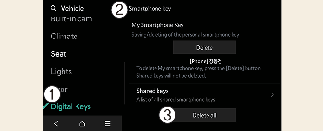
With the vehicle on, touch Setup→ Vehicle → Digital Keys → Smartphone key → Shared keys → Delete all on the infotainment system.
-
The key of owner and the shared user will be deleted.
-
If there is no registered key, the menu cannot be selected.
-
-
To Delete My Smartphone Key
-
Digital Keys
-
Smartphone key
-
My Smartphone Key
-
Delete
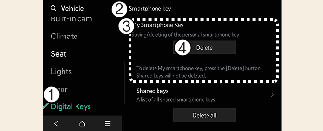
If you want to change only the owner's smartphone key while keeping the shared key, delete My Smartphone Key not Delete All and then Save again.
With the vehicle on, touch Setup → Vehicle → Digital Keys → Smartphone Key → My Smartphone key → Delete on the infotainment system.
-
After deleting My Smartphone key, the new smartphone can be registered.
-
Deleting the shared keys
Select Setup→ Vehicle → Digital Keys → Smartphone key→ Shared Keys → [Group]→ Delete on the infotainment system screen.
Those digital keys other than the My Smartphone Key (smartphone) are classified by [Group] and displayed as ‘Shared Key.’
If the account logged in the smartphone is the same, it is displayed as the same [Group]. You can delete the Shared Key by the unit of [Group].
-
If digital key (smart phone) is deleted, the digital key saved in the smartphone is also deleted.
-
If digital key (smart phone) is deleted on the smart phone, the digital key saved in the vehicle is also deleted.
The infotainment system may change after software updates. For more information, refer to the manual provided in the infotainment system and the quick reference guide.