
Using the contacts list
-
From the Phone screen, turn the [TUNE] knob on the control panel to select Contacts, and then press the knob.
-
Turn the [TUNE] knob to select the desired group of alphanumeric characters, and then press the knob.
-
Turn the [TUNE] knob to select the desired contact, and then press the knob to make a phone call.
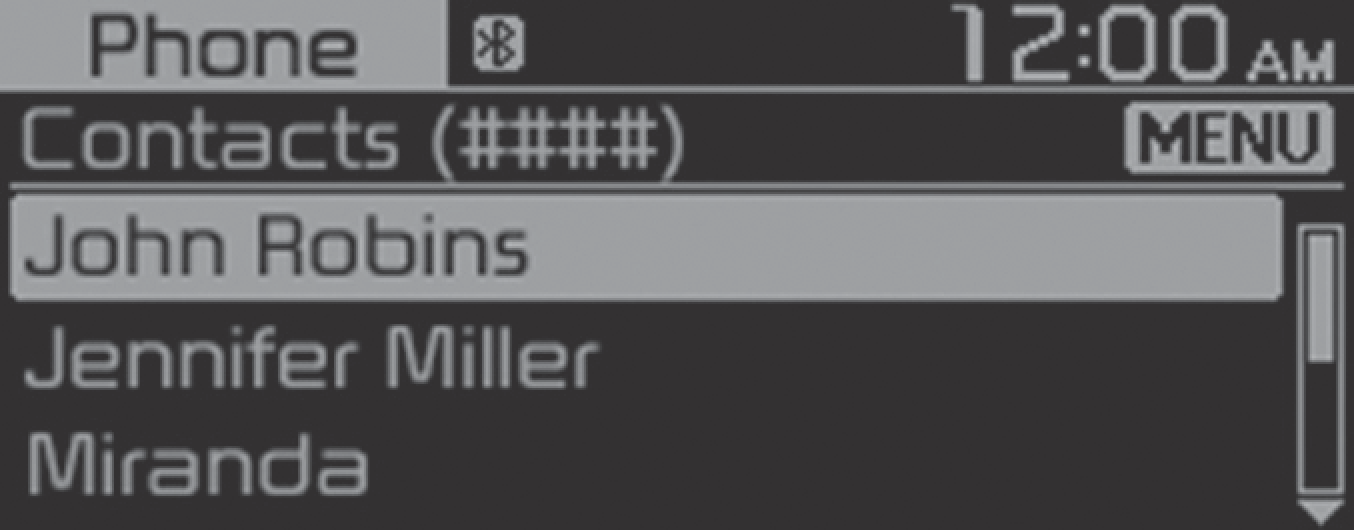
Press the [MENU/CLOCK] button on the control panel to access the following a menu option:
-
Download: Download your mobile phone contacts.

-
Contacts can be downloaded only from the currently connected Bluetooth device.
-
Contacts can be viewed only when the Bluetooth device is connected.
-
Only contacts in the supported format can be downloaded and displayed from the Bluetooth device. Contacts from some applications will not be included.
-
Up to 2,000 contacts can be downloaded from your device.
-
Some mobile phones may not support the download function.
-
Depending on the system’s specifications, some of the downloaded contacts may be lost.
-
Contacts stored both in the phone and in the SIM card are downloaded. With some mobile phones, contacts in the SIM card may not be downloaded.
-
Special characters and figures used in the contact name may not be displayed properly.
-
Permission is required to download contacts from the mobile phone. When you attempt to download data, you may need to permit the download on the mobile phone. If the download fails, check the mobile phone screen for any notification or the mobile phone’s permission setting.
-
Depending on the mobile phone type or status, downloading may take longer.
-
When you download your contacts, any old data will be deleted.
-
You cannot edit or delete your contacts on the system.
-
When you connect a new mobile phone, your contacts downloaded from the previous mobile phone will not be displayed, but they will remain in your system until you delete the previous phone from the device list.
Answering calls
When a call comes in, a notification pop-up window of the incoming call appears on the system screen.
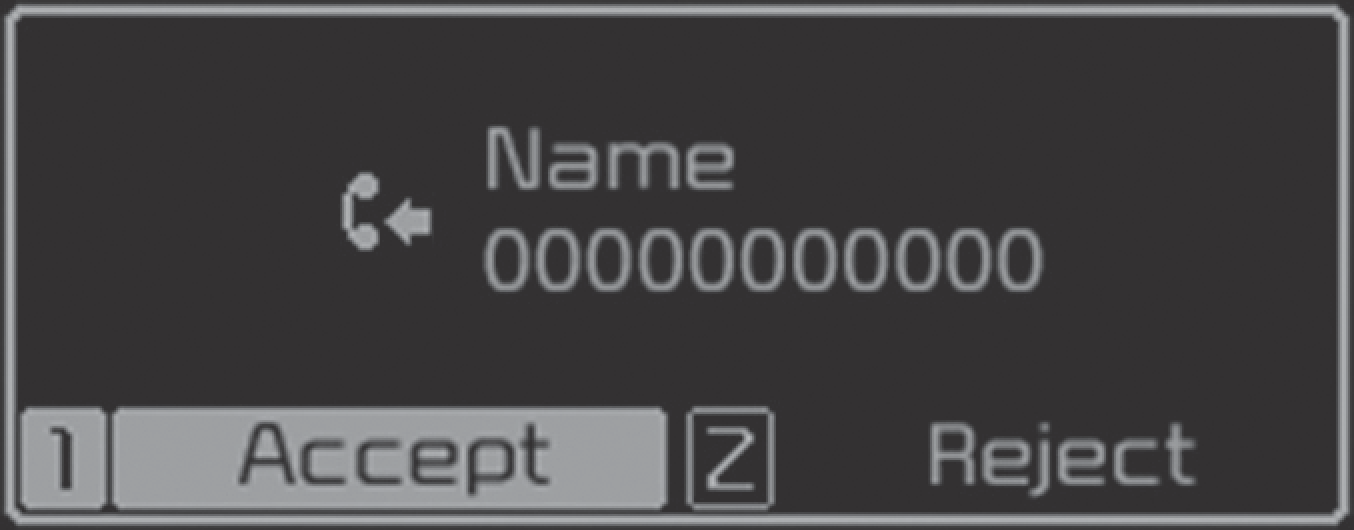
To answer the call, press the [1 RPT] button on the control panel.
-
Alternatively, press the Call/ Answer button on the steering wheel.
To reject the call, press the [2] button on the control panel.
-
Alternatively, press the Call end button on the steering wheel.
-
Depending on the mobile phone type, call rejection may not be supported.
-
Once your mobile phone is connected to the system, the call sound may be output through the vehicle’s speakers even after you exit the vehicle if the phone is within the connection range. To end the connection, disconnect the device from the system or deactivate Bluetooth on the device.
Using options during a call
During a call, you will see the call screen shown below. Press a button to perform the function you want.
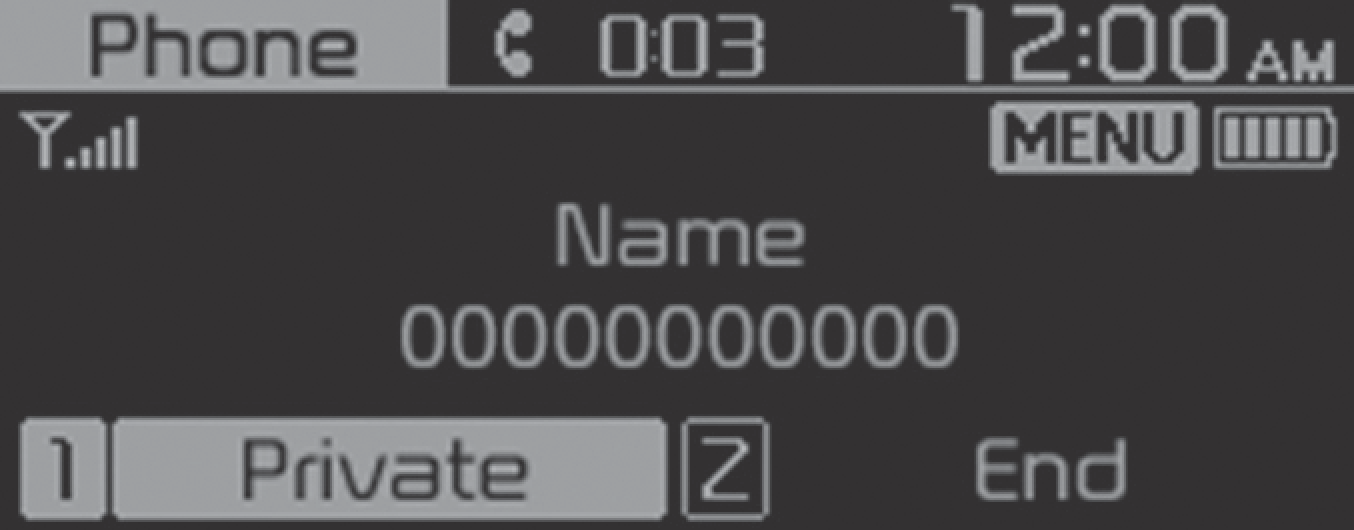
To switch the call to your mobile phone, press the [1 RPT] button on the control panel.
-
Alternatively, press and hold the Call/Answer button on the steering wheel.
To end the call, press the [2 SHFL] button on the control panel.
-
Alternatively, press the Call end button on the steering wheel.
Press the [MENU/CLOCK] button on the control panel to access the following a menu option:
-
Microphone Volume (Outgoing Volume): Adjust the microphone volume or turn off the microphone so the other party cannot hear you.
-
If the caller information is saved in your contacts list, the caller’s name and phone number will be displayed. If the caller information is not saved in your contacts list, only the caller’s phone number will be displayed.
-
You cannot switch to any other screen, such as the audio screen or the settings screen, during a Bluetooth call.
-
Depending on the mobile phone type, call quality may vary. On some phones, your voice may be less audible to the other party.
-
Depending on the mobile phone type, the phone number may not be displayed.
-
Depending on the mobile phone type, the call switching function may not be supported.