

Camera Settings
 OLQ2AH005045 |
|
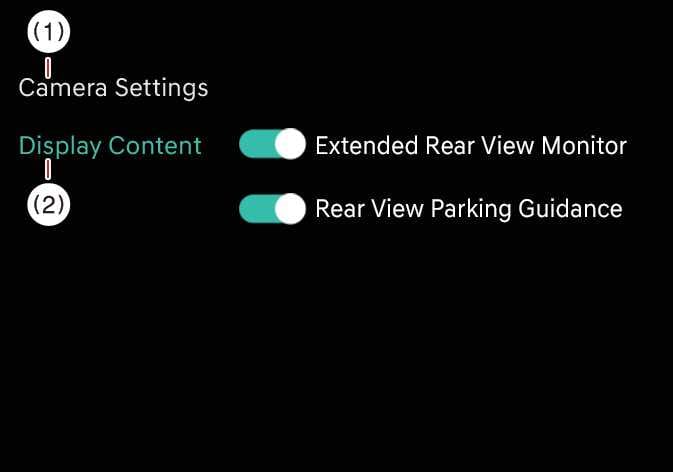
Whilst the vehicle is ON, tap the setup icon ( ) or tap on the infotainment system screen to change the Rear View Monitor settings.
If Display Contents is selected, you can change setting for Extended Rear View Monitor and Rear View Parking guide lines.
Extended Rear View Monitor
If you activate the Extended Rear View Monitor setting, the rear camera view continues to display when you shift from R (Reverse) to N (Neutral) or D (Drive).
Rear View Parking Guidelines
If you activate the Rear View Parking Guidelines setting, Rear View Parking Guidelines and Top Rear View Parking Guidelines display on the rear monitor.
Display settings
You can set the brightness (day/night) and contrast of the camera image in Display settings.
-
Depending on your vehicle’s specifications, the settings menu may not be available.
-
The horizontal lines displayed by Rear View Parking Guidelines indicate distances from your vehicle of 0.5 m (20 in), 1 m (40 in), and 2.3 m (91 in).
-
The horizontal scale displayed by Top View Parking Guidelines indicates tailgate opening distances and the 1.5 m (60 in) distance from your vehicle.