
Surround View Monitor settings
Warning Methods
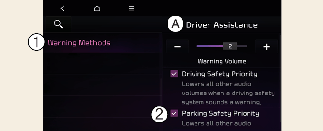
A: Driver Assistance
-
Warning Methods
-
Parking Safety Priority
With the vehicle on, touch Settings → Vehicle → Driver Assistance → Warning Methods on the infotainment system to change the Warning Sound and Haptic.
-
Parking Safety Priority: Lowers all other audio volumes when Rear View Monitor is active.

-
Ensure that Warning Methods you have set may apply to the Warning Methods of other driver assistance systems.
-
Warning Methods will maintain its last setting even if the vehicle is restarted.
-
The setting menu may not be available for your vehicle depending on vehicle features and specifications.
Camera settings
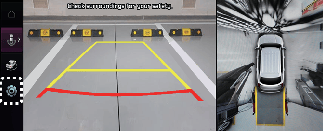
With the vehicle on, select the setup icon ( ) on the screen or Settings → Vehicle → Driver Assistance → Parking Safety → Camera settings from the infotainment system screen to change the Rear View Monitor settings.
-
Display Contents: To change the settings of Top view parking guidance, Parking guide in rear view, and Parking distance warning function.
-
Display Settings: To change the screen's brightness and contrast.
Parking Distance Warning
When the Parking Distance Warning is selected, the Parking Distance Warning is displayed on the top view to the right of the surround view monitor screen when the Parking Distance Warning is activated.
Rear View Parking Guidance
Rear-view Parking Guidance is displayed in the rear-view when Rear-view Parking Guidance is selected.
The parking guide horizontal lines in the rear view indicate distances of 20 in (0.5 m), 40 in (1 m) and 91 in (2.3 m) from the vehicle.
Top View Parking Guidance
When Top View Parking Guidance is selected, it is displayed on the top view to the right of the surround view monitor screen when the front or rear top view is activated.
The horizontal scale of the Top View Parking Lines indicates distances of 79 in (2 m) from the vehicle.
Surround View Monitor Auto On
With the vehicle on, select Settings → Vehicle → Driver Assistance→ Parking Safety → Surround View Monitor Auto On from the infotainment system screen to use the function.
For more details on Surround View Monitor Auto On, refer to More Details.