
Setting Vehicle Distance
The Vehicle Distance will automatically activate when Smart Cruise Control is on.
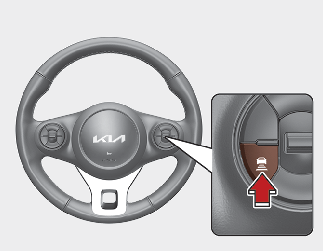
-
Select the appropriate distance according to road conditions and vehicle speed.
Each time the button is pressed, the Vehicle Distance changes as follows:
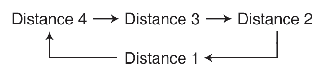
For example, if you drive at 90 km/h (56 mph), the distance maintain as follows;
-
Distance 4 - approximately 52.5 m (172 ft)
-
Distance 3 - approximately 40 m (131 ft)
-
Distance 2 - approximately 32.5 m (107 ft)
-
Distance 1 - approximately 25m (82 ft)
-

The distance is set to the last set distance when the function is used for the first time after starting the vehicle.
When the lane ahead is clear:
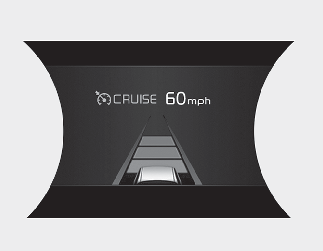
The vehicle speed will maintain the set speed.

Following Distance
-
To avoid collisions, always be aware of the selected speed and Vehicle Distance settings when activating your Smart Cruise Control.
-
Always maintain sufficient braking distance and decelerate your vehicle by applying the brakes if necessary.
When there is a vehicle ahead of you in your lane:
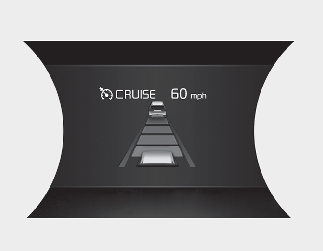
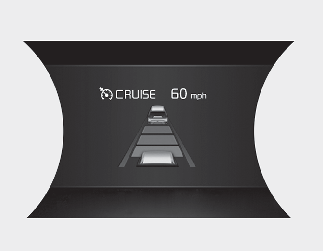
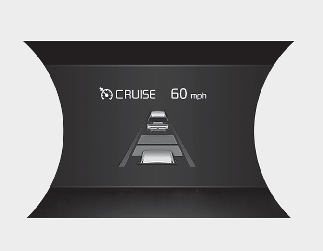
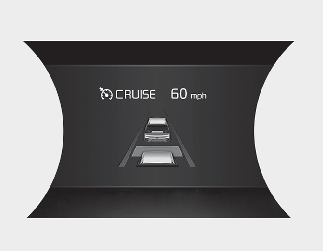
The vehicle will maintain the set speed, when the lane ahead is clear.
The vehicle will slow down or speed up to maintain the selected distance, when there is a vehicle ahead of you in the lane. (A vehicle will appear in front of your vehicle in the LCD display only when there is an actual vehicle in front of you)
If the vehicle ahead speeds up, your vehicle will travel at a steady cruising speed after accelerating to the selected speed.

-
The warning chime sounds and LCD display blinks if it is hard to maintain the selected distance to the vehicle ahead.
-
If the warning chime sounds, actively adjust the vehicle speed by depressing the brake pedal according to the road and driving conditions.
-
Even if the warning chime is not activated, always pay attention to the driving conditions to prevent dangerous situations from occurring.
-
Be warn to road conditions as radio, loud sounds and outside conditions could prevent occupants from hearing a warning sound.
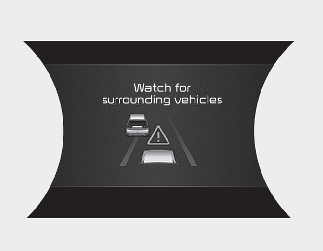
If the vehicle ahead (vehicle speed: less than 30 km/h (20 mph)) moves to the next lane, the warning chime will sound and a message will appear. Adjust your vehicle speed for vehicles or objects that can suddenly appear in front of you by depressing the brake pedal according to the road and driving conditions.
In traffic situation
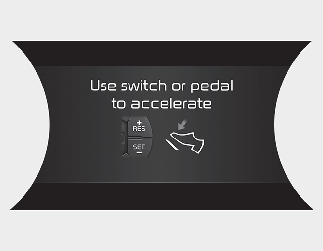
Use switch or pedal to accelerate
-
In traffic, your vehicle will stop if the vehicle ahead of you stops. Also, if the vehicle ahead of you starts moving, your vehicle will start as well. However, if the vehicle stops you must depress the accelerator pedal or press the RES+ button to start driving.
-
If you press the RES+ or SET- button while Auto Hold and Smart Cruise Control is operating the Auto Hold will be released regardless of accelerator pedal operation and the vehicle will start to move. The AUTO HOLD indicator changes from green to white.
Detecting sensor (front radar)
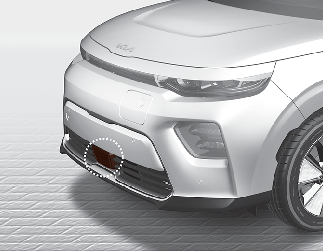
The front radar detects the distance to the vehicle ahead.
If the front radar is covered with dirt or other foreign matter, the Vehicle Distance control may not operate correctly.
Always keep the area in front of the sensor clean.
Warning message
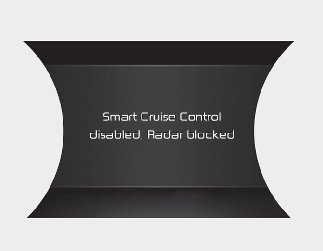
When the sensor lens cover is covered with dirt, snow, or debris, Smart Cruise Control operation may stop temporarily. If this occurs, a warning message will appear on the LCD display. Remove any dirt, snow, or debris and clean the radar sensor lens cover before operating Smart Cruise Control..
Smart Cruise Control may not properly activate, if the radar is totally covered, or if any vehicles are not detected after turning ON the vehicle (e.g., in an open terrain).
Smart Cruise Control malfunction message
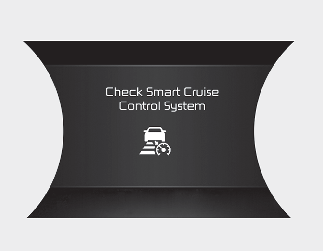
The message will appear when the Vehicle Distance control function is not functioning normally.
In this case, take your vehicle to an authorized Kia dealer and have the function checked.
-
Do not install accessories around the sensor and do not replace the bumper by yourself. It may interfere with the sensor performance.
-
Always keep the sensor and bumper clean.
-
Use only a soft cloth to wash the vehicle. Do not spray pressurized water directly on the sensor or sensor cover.
-
Be careful not to apply unnecessary force on the radar sensor or sensor cover. If the sensor is forcibly moved out of proper alignment, Smart Cruise Control may not operate correctly. In this case, a warning message may not be displayed.
Have the vehicle inspected by an authorized Kia dealer.
-
Do not damage the sensor or sensor area by a strong impact. If the sensor moves slightly off position, Smart Cruise Control will not operate correctly without any warning or indicator from the cluster. If this occurs, take your vehicle to an authorized Kia dealer and have the function checked.
-
Use only a genuine Kia sensor cover for your vehicle. Do not paint anything on the sensor cover.
-
If the front bumper becomes damaged in the area around the radar sensor, Smart Cruise Control may not operate properly.