System overview
System layout – control panel
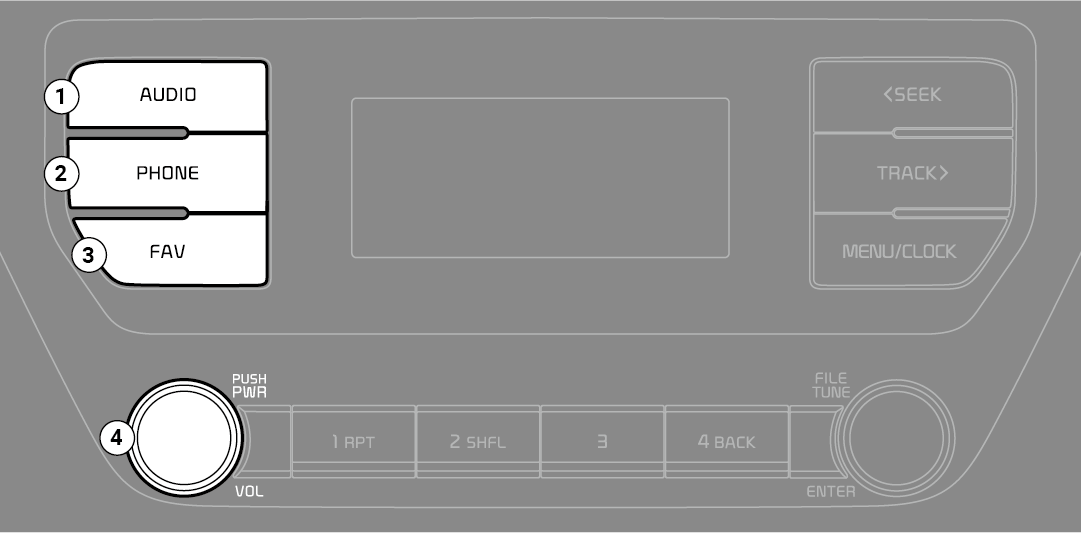
(With Bluetooth® Wireless Technology)
* The system’s actual appearance and layout may differ depending on the vehicle model and specification.
-
AUDIO button
-
Press to display the radio/media mode selection window.
-
When the mode selection window displays, turn the [TUNE] knob to select the desired mode and then press the knob.
-
When the Mode popup is not selected in [MENU/CLOCK] ▶ Mode popup, press the [AUDIO] button on the control panel to change the mode.
Each time you press the [AUDIO] button on the control panel, the mode switches to radio ▶ media in order.
-
-
PHONE button
-
Press to start connecting a mobile phone via Bluetooth.
-
After a Bluetooth phone connection is made, press to access the Bluetooth phone menu.
-
-
FAV button
-
Whilst listening to the radio, press to move to next page of the preset list.
-
-
POWER button/VOL knob
-
Press to turn the system on or off.
-
Turn to the left or right to adjust the system sound volume.
-
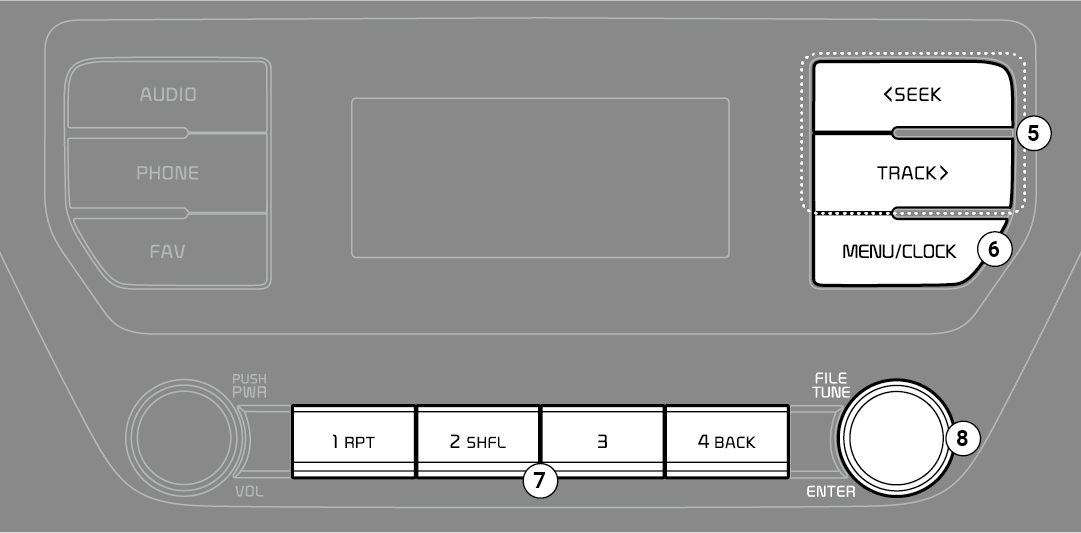
(With Bluetooth® Wireless Technology)
* The system’s actual appearance and layout may differ depending on the vehicle model and specification.
-
SEEK/TRACK button
-
Change the station/track/file.
-
Whilst listening to the radio, press and hold to search for a station.
-
Whilst playing media, press and hold to rewind or fast forward (except for Bluetooth audio mode).
-
-
MENU button/CLOCK button
-
Press to access the menu screen for the current mode..
-
Press and hold to access the time setup screen.
-
-
TUNE knob/FILE knob/ENTER button
-
Whilst listening to the radio, turn to adjust the frequency.
-
Whilst playing media, turn to search for a track/file (except for Bluetooth audio mode).
-
Whilst searching by turning the knob, press to select the current track/file (except for the Bluetooth audio mode).
-
-
Number buttons (1 RPT~ 4 BACK)
-
Whilst listening to the radio, press to listen to a saved radio station.
-
Whilst listening to the radio, press and hold to save the current radio station to the preset.
-
In the USB/Bluetooth audio modes, press the [1 RPT] button to change the repeat play mode. Press the [2 SHFL] button to change the shuffle play mode.
-
Press the [4 BACK] button to return to the previous screen (except for the radio preset list).
-
System layout – steering wheel remote control
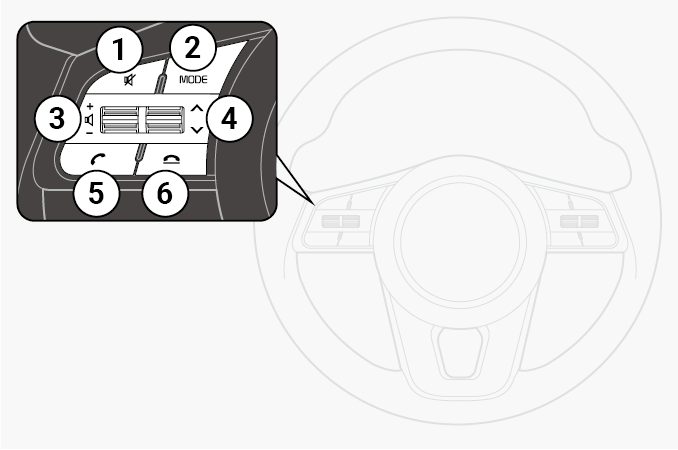
(Bluetooth® equipped model)
* The system’s actual appearance and layout may differ depending on the vehicle model and specification.
-
MUTE button
-
Press to mute or unmute the system.
-
During a call, press to mute or unmute the microphone.
-
Whilst playing media, press to pause or resume playback. (if equipped)
-
-
MODE button
-
Press to switch between radio and media modes.
-
Press and hold to turn the system on or off.
-
-
Volume lever
-
Push up or down to adjust the volume.
-
-
Up/Down lever
-
Change the station/track/file.
-
Whilst listening to the radio, push to listen to the previous/next saved radio station.
-
Whilst listening to the radio, push and hold to search for a station.
-
Whilst playing media, push and hold to rewind or fast forward (except for Bluetooth audio mode).
-
-
Call/Answer button
-
Press to start connecting a mobile phone via Bluetooth.
-
After a Bluetooth phone connection is made, press to access your call history. Press and hold to dial the most recent phone number. When a call comes in, press to answer the call.
-
During a call, press to switch between the active call and the held call. Press and hold to switch the call between the system and the mobile phone.
-
-
Call end button
-
When a call comes in, reject the call.
-
During a call, end the call.
-

About driving
-
Do not operate the system Whilst driving. Driving Whilst distracted may result in a loss of vehicle control, potentially leading to an accident, severe personal injury, or death. The driver’s primary responsibility is the safe and legal operation of a vehicle, and any handheld devices, equipment, or vehicle systems which divert the driver’s attention from this responsibility should never be used during operation of the vehicle.
-
Avoid watching the screen Whilst driving. Driving Whilst distracted may lead to a traffic accident. Stop your vehicle in a safe location before using functions that require multiple operations.
-
Stop your vehicle first before using your mobile phone. Using a mobile phone Whilst driving may lead to a traffic accident. If necessary, use the Bluetooth Handsfree feature to make calls and keep the call as short as possible.
-
Keep the volume low enough to hear external sounds. Driving without the ability to hear external sounds may lead to a traffic accident. Listening to a loud volume for a long time may cause hearing damage.
About handling the system
-
Do not disassemble or modify the system. Doing so may result in an accident, fire, or electric shock.
-
Do not allow liquids or foreign substances to enter the system. Liquids or foreign substances may cause noxious fumes, a fire, or a system malfunction.
-
Stop using the system if it malfunctions, such as no audio output or display. If you continue using the system when it is malfunctioning, it may lead to a fire, electric shock, or system failure.
-
Do not touch the antenna during thunder or lightning because such an act may cause electric shock.

About operating the system
-
Use the system with the engine running. Using the system for a long time when the engine is stopped may discharge the battery.
-
Do not install unapproved products. Using unapproved products may cause an error Whilst using the system. System errors caused by installing unapproved products are not covered under the warranty.
About handling the system
-
Do not apply excessive force to the system. Excessive pressure on the screen may damage the LCD panel or the touch panel.
-
When cleaning the screen or button panel, make sure to stop the engine and use a soft, dry cloth. Wiping the screen or buttons with a rough cloth or using solvents (alcohol, benzene, paint thinner, etc.) may scratch or chemically damage the surface.
-
If you attach a liquid-type air freshener to the fan louvre, the surface of the louvre may become deformed due to the flowing air.
-
If you want to change the position of the installed device, please inquire with your place of purchase or service maintenance centre. Technical expertise is required to install or disassemble the device.

-
If you experience any problems with the system, contact your place of purchase or dealer.
-
Placing the infotainment system within an electromagnetic environment may result in noise interference.
Turning the system on or off
To turn on the system, start the engine.
-
If you do not want to use the system Whilst driving, you can turn off the system by pressing the [POWER] button on the control panel. To use the system again, press the [POWER] button again.
After you have turned off the engine, the system will automatically turn off after a whilst or as soon as you open the driver’s door.
-
Depending on the vehicle model or specifications, the system may turn off as soon as you turn off the engine.
-
When you turn back on the system, the previous mode and settings will remain intact.
-
Some functions may be disabled for safety reasons whilst the vehicle is moving. They work only when the vehicle stops. Park your vehicle in a safe location before using any of them.
-
Stop using the system if it malfunctions, such as no audio output or display. If you continue using the system when it is malfunctioning, it may lead to a fire, electric shock, or system failure.
You can turn on the system when the key ignition switch is placed in the “ACC” or “ON” position. Using the system for an extended period without the engine running drains the battery. If you plan on using the system for a long time, start the engine.
Turning the display on or off
To prevent glare, you can turn off the screen. The screen can be turned off only whilst the system is on.
-
On the control panel, press the [MENU/CLOCK] button.
-
When the option selection window displays, turn the [TUNE] knob to select Display off, and then press the knob.
-
To turn the screen back on, press any of the control panel buttons.
-
Getting to know the basic operations
You can select an item or adjust the settings by using the number buttons and the [TUNE] knob on the control panel.
Selecting an item
Numbered items
Press the corresponding number button.
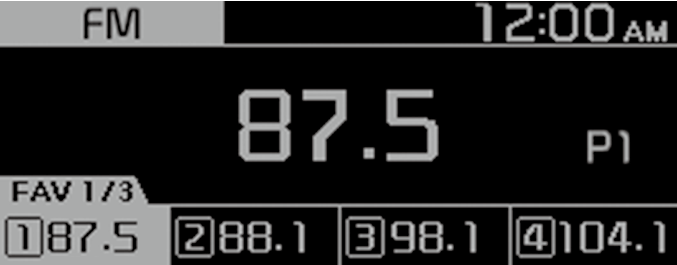
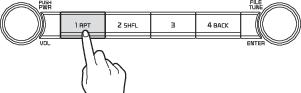
Numberless items
Turn the [TUNE] knob to select the desired item, and then press the knob to select the item.
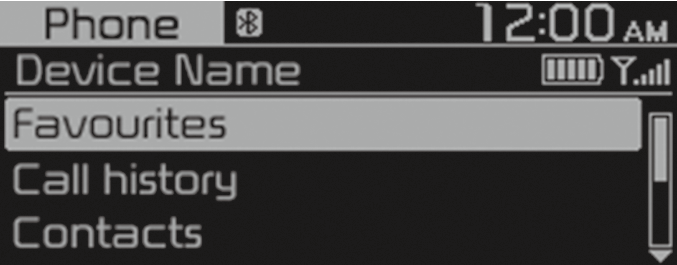
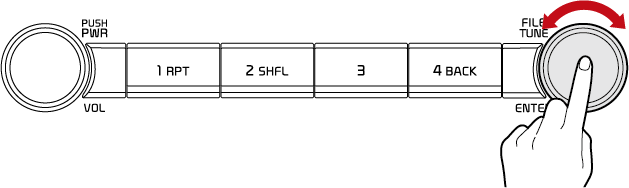
Adjusting the settings
Turn the [TUNE] knob to adjust the value, and then press the knob to save changes.
Turn the [TUNE] knob to the right to increase the value and turn the [TUNE] knob to the left to decrease the value.