
Bluetooth
Connecting Bluetooth devices
Bluetooth is a short-range wireless networking technology. Via Bluetooth, you can connect nearby mobile devices wirelessly to send and receive data between connected devices. This enables you to use your devices effectively.
To use Bluetooth, you must first connect a Bluetooth-enabled device to your system, such as a mobile phone or an MP3 player. Ensure that the device you want to connect supports Bluetooth.

Park your vehicle in a safe location before connecting Bluetooth devices. Distracted driving can cause a traffic accident and lead to personal injury or death.

-
On your system, you can use only Bluetooth Handsfree and Audio features. Connect a mobile device that supports both features.
-
Some Bluetooth devices may cause malfunctions to the infotainment system or make interference noises. In this case, storing the device in a different location may resolve the problem.
-
Depending on the connected Bluetooth device or mobile phone, some functions may not be supported.
-
If the system is not stable due to a vehicle-Bluetooth device communication error, delete the paired devices and connect the Bluetooth devices again.
-
If Bluetooth connection is not stable, follow these steps to try again.
-
Deactivate Bluetooth and reactivate it on the device. Then, reconnect the device.
-
Turn the device off and on. Then, reconnect it.
-
Remove the battery from the device and reinstall it. Then, turn the device on and reconnect it.
-
Unregister the Bluetooth pairing on both the system and the device and then re-register and connect them.
-
-
The Bluetooth connection is unavailable when the device’s Bluetooth function is turned off. Be sure to turn on the device’s Bluetooth function.
Pairing devices with your system
For Bluetooth connections, first pair your device with your system to add it to the system’s list of Bluetooth devices. You can register up to five devices.
-
From the control panel, press the [PHONE] button, and then select Phone settings ▶ Add new device.
-
If you are pairing a device with your system for the first time, or if there are no connected devices than you can also press the Call/Answer button on the steering wheel to initiate pairing.
-
-
On the Bluetooth device you want to connect, activate Bluetooth, search for your vehicle’s system, and then select it.
-
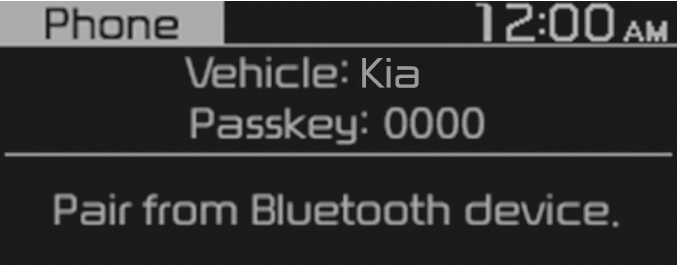
Check the system’s Bluetooth name, which is displayed in the new registration pop-up window on the system screen.
-
-
Enter or confirm the passkey to confirm the connection.
-
If the passkey input screen is displayed on the Bluetooth device screen, enter the passkey ‘0000’ which is displayed on the system screen.
-
If the 6-digit passkey is displayed on the Bluetooth device screen, ensure that the Bluetooth passkey displayed on the Bluetooth device is the same as the passkey on the system screen and confirm the connection from the device.
-
-
The screen image in this manual is an example. Check your system screen for the exact vehicle name and Bluetooth device name.
-
The default passkey is ‘0000’.
-
It may take a Whilst for the system to connect with the device after you permit the system to access the device. When a connection is made, the Bluetooth status icon appears at the top of the screen.
-
You can change the permission settings via the mobile phone’s Bluetooth settings menu. For more information, refer to your mobile phone’s user guide.
-
To register a new device, repeat steps 1 to 3.
-
If you use the automatic Bluetooth connection function, a call may be switched to the vehicle’s Handsfree when you are taking on the phone near the vehicle Whilst the vehicle’s engine is on. If you do not want the system to connect with the device automatically, deactivate Bluetooth on your device.
-
When a device is connected to the system via Bluetooth, the device’s battery may discharge faster.
Connecting a paired device
To use a Bluetooth device on your system, connect the paired device to the system. Your system can connect with only one device at a time.
-
From the control panel, press the [PHONE] button, and then select Phone settings ▶ Paired devices.
-
If there is no connected device, press the Call/Answer button on the steering wheel to start pairing.
-
-
Turn the [TUNE] knob to select the device to connect, and then press the knob.
-
If another device is already connected to your system, disconnect it. Select the connected device to disconnect.
-
-
If a connection ends because a device is out of the connection range or a device error occurs, the connection will be restored automatically when the device enters the connection range or when the error is cleared.
-
Depending on auto connection priority, connection to a device may take time.
Disconnecting a device
If you want to stop using a Bluetooth device or connect another device, disconnect your currently connected device.
-
From the control panel, press the [PHONE] button, and then select Phone settings ▶ Paired devices.
-
Turn the [TUNE] knob to select your currently connected device and then press the knob.
-
Press the [1 RPT] button to select Yes.
Deleting paired devices
If you no longer want a Bluetooth device paired or if you want to connect a new device when the Bluetooth device list is full, delete paired devices.
-
From the control panel, press the [PHONE] button, and then select Phone settings ▶ Delete devices.
-
Turn the [TUNE] knob to select the device to delete, and then press the knob.
-
Press the [1 RPT] button to select Yes.
-
When you delete a paired device, the Call history and Contacts stored in the system are also deleted.
-
To re-use a deleted device, you must pair the device again.
Using a Bluetooth audio device
You can listen to music stored in the connected Bluetooth audio device via your vehicle’s speakers.
-
On the control panel, press the [AUDIO] button.
-
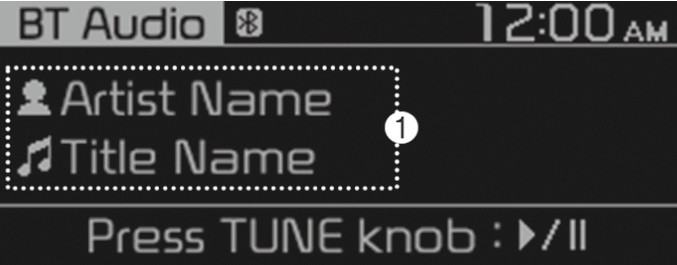
When the mode selection window displays, turn the [TUNE] knob to select BT Audio and then press the knob.
-
Information about the song currently playing
Press the [MENU/CLOCK] button on the control panel to access the following a menu option.
-
Sound settings: You can change the settings related to sounds, such as location where sound will be concentrated and the output level for each range.
-
Position: Select a location where sound will be concentrated in the vehicle. Select Fader or Balance, turn the [TUNE] knob to select the desired position, and then press the knob. To set sound to be centred in the vehicle, select Centre (Center).
-
Equaliser (Tone): Adjust the output level for each sound tone mode.
-
Sound experience: (if equipped)
select the location where sound is focused in the vehicle between the driver's seat and all other seats.
-
Speed dependent vol.: Set the volume to be adjusted automatically according to your driving speed.
NOTICE-
Depending on vehicle models or specifications, available options may vary.
-
Depending on the system or amplifier specifications applied to your vehicle, available options may vary.
-
-
-
Mode popup: Set to display mode selection window when the [MEDIA] button is pressed on the control panel.
-
Date/Time: You can change the date and time that are shown on the system display.
-
Set date: Set date to display on the system display.
-
Set time: Set time to display on the system display.
-
Time format: Select to display time in the 12 hour format or the 24 hour format.
-
Display (Power Off): Set to display the clock when the system power is off.
-
-
Language: You can change the display language.
Pausing/Resuming playback
To pause playback, press the [TUNE] knob on the control panel. To resume playback, press the [TUNE] knob again.
-
You can also press the Mute button on the steering wheel remote control.
Playing repeatedly
On the control panel, press the [1 RPT] button. The repeat play mode changes each time you press it. The corresponding mode icon will be displayed on the screen and the current playing song will be repeated.
Playing in random order
On the control panel, press the [2 SHFL] button. The shuffle play mode is activated or deactivated each time you press it. When you activate the shuffle mode, the corresponding mode icon will be displayed on the screen. when shuffle is active, the available songs will be played randomly.
-
Depending on the connected Bluetooth device, mobile phone, or the music player you are using, playback controls may differ.
-
Depending on the music player you are using, streaming may not be supported.
-
Depending on the connected Bluetooth device or mobile phone, some functions may not be supported.
-
If a Bluetooth enabled phone is being used to play music and it receives or makes a phone call, the music will stop.
-
Receiving an incoming call or making an outgoing call Whilst playing Bluetooth audio may result in audio interference.
-
If you use the Bluetooth phone mode Whilst using Bluetooth audio, playback may not automatically resume after you end the call depending on the connected mobile phone.
-
Moving the track up/down Whilst playing Bluetooth audio mode may result in pop noises with some mobile phones.
-
The Rewinding/Fast forwarding function is not supported in the Bluetooth audio mode.
-
The playlist feature is not supported in the Bluetooth audio mode.
-
If the Bluetooth device is disconnected, Bluetooth audio mode will end.
-
Depending on the connected Bluetooth device or mobile phone, repeat & shuffle order features may not be supported.
Using a Bluetooth phone
You can use Bluetooth to talk on the phone hands free. View call information on the system screen, and make or receive calls safely and conveniently via the vehicle’s built-in microphone and speakers.
-
Park your vehicle in a safe location before connecting Bluetooth devices. Distracted driving can cause a traffic accident and lead to personal injury or death.
-
Never dial a phone number or pick up your mobile phone Whilst driving. Use of a mobile phone may distract your attention, making it difficult to recognise external conditions and reducing the ability to cope with unexpected situations, which may lead to an accident. If necessary, use the Bluetooth Handsfree feature to make calls and keep the call as short as possible.
-
You cannot access the Phone screen if there is no connected mobile phone. To use the Bluetooth phone function, connect a mobile phone to the system.
-
The Bluetooth Handsfree function may not work when you are passing out of the cellular service coverage area, such as when you are in a tunnel, underground, or in a mountainous area.
-
Call quality may be degraded in the following environments:
-
The reception of the mobile phone is poor.
-
The inside of the vehicle is noisy.
-
The mobile phone is placed near metallic objects, such as a beverage can.
-
-
Depending on the connected mobile phone, the volume and sound quality of the Bluetooth Handsfree may vary.
Making a call
If your mobile phone is connected to the system, you can make a call by selecting a name from your call history or contacts list.
-
On the control panel, press the [PHONE] button.
-
Alternatively, press the Call/ Answer button on the steering wheel.
-
-
Select a phone number.
-
To select a phone number from your favourites list, select Favourites.
-
To select a phone number from your call history, select Call history.
-
To select a phone number from the contacts list downloaded from the connected mobile phone, select Contacts.
-
-
To end the call, press the [2 SHFL] button on the control panel.
-
Alternatively, press the Call end button on the steering wheel.
-
Registering the favourites list
You can more easily use Bluetooth to talk on the phone hands-free by registering phone numbers as your favourites.
-
On the Phone screen, turn the [TUNE] knob on the control panel to select Favourites, and press the knob.
-
Select [MENU] ▶ Add new favourites.
-
Turn the [TUNE] knob to select the desired group of alphanumeric characters, and then press the knob.
-
Turn the [TUNE] knob to select the desired contact.
Using the favourites list
-
From the Phone screen, turn the [TUNE] knob on the control panel to select Favourites, and then press the knob.
-
Turn the [TUNE] knob to select the desired contact, and then press the knob to make a phone call.
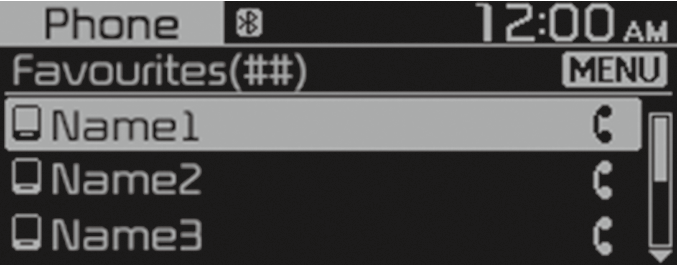
Press the [MENU/CLOCK] button on the control panel to access the following menu options:
-
Add new favourites: Add a frequently used phone number to favourites.
-
Delete items: Delete a selected favourites item.
-
Delete all: Delete all favourites items.
-
You can register up to 20 favourites for each device.
-
You must first download the contacts to the system to register favourites.
-
The favourites list saved on the mobile phone is not downloaded to the system.
-
Even if the contact information on the mobile phone is edited, the favourites on the system are not automatically edited. Delete and add the item to favourites again.
-
When you connect a new mobile phone, your favourites set for the previous mobile phone will not be displayed, but they will remain in your system until you delete the previous phone from the device list.
Using your call history
-
From the Phone screen, turn the [TUNE] knob on the control panel to select Call history, and then press the knob.
-
Turn the [TUNE] knob to select the desired entry, and then press the knob to make a phone call.
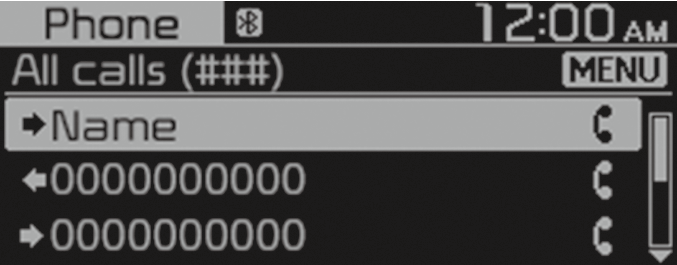
Press the [MENU] button on the control panel to access the following menu options:
-
Download: Download your call history.
-
All calls: View all call records.
-
Dialled calls: View only dialled calls.
-
Received calls: View only received calls.
-
Missed calls: View only missed calls.
-
Some mobile phones may not support the download function.
-
The call history is accessed only after downloading the call history when the mobile phone is connected to the system.
-
Calls from restricted IDs are not saved on the call history list.
-
Up to 50 call records will be downloaded per individual list.
-
Call duration and time information will not be displayed on the system screen.
-
Permission is required to download your call history from the mobile phone. When you attempt to download data, you may need to permit the download on the mobile phone. If the download fails, check the mobile phone screen for any notification or the mobile phone’s permission setting.
-
When you download your call history, any old data will be deleted.
Using the contacts list
-
From the Phone screen, turn the [TUNE] knob on the control panel to select Contacts, and then press the knob.
-
Turn the [TUNE] knob to select the desired group of alphanumeric characters, and then press the knob.
-
Turn the [TUNE] knob to select the desired contact, and then press the knob to make a phone call.
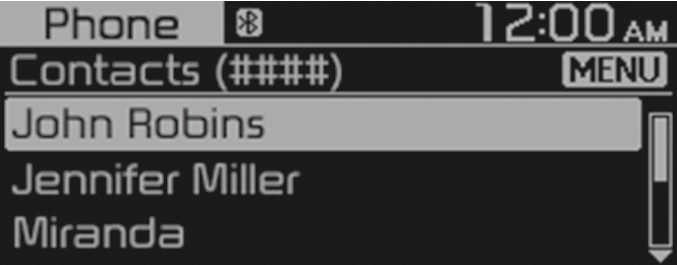
Press the [MENU] button on the control panel to access the following a menu option:
-
Download: Download your mobile phone contacts.
-
Contacts can be viewed only when the Bluetooth device is connected.
-
Only contacts in the supported format can be downloaded and displayed from the Bluetooth device. Contacts from some applications will not be included.
-
Up to 2,000 contacts can be downloaded from your device.
-
Some mobile phones may not support the download function.
-
Depending on the system’s specifications, some of the downloaded contacts may be lost.
-
Contacts stored both in the phone and in the SIM card are downloaded. With some mobile phones, contacts in the SIM card may not be downloaded.
-
Special characters and figures used in the contact name may not be displayed properly.
-
Permission is required to download contacts from the mobile phone. When you attempt to download data, you may need to permit the download on the mobile phone. If the download fails, check the mobile phone screen for any notification or the mobile phone’s permission setting.
-
Depending on the mobile phone type or status, downloading may take longer.
-
When you download your contacts, any old data will be deleted.
-
You cannot edit or delete your contacts on the system.
-
When you connect a new mobile phone, your contacts downloaded from the previous mobile phone will not be displayed, but they will remain in your system until you delete the previous phone from the device list.
Answering calls
When a call comes in, a notification pop-up window of the incoming call appears on the system screen.
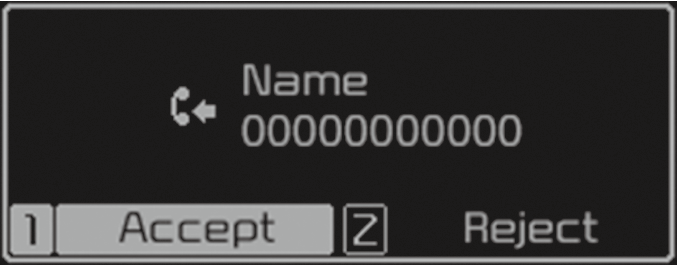
To answer the call, press the [1 RPT] button on the control panel.
-
Alternatively, press the Call/Answer button on the steering wheel.
To reject the call, press the [2 SHFL] button on the control panel.
-
Alternatively, press the Call end button on the steering wheel.
-
Depending on the mobile phone type, call rejection may not be supported.
-
Once your mobile phone is connected to the system, the call sound may be output through the vehicle’s speakers even after you exit the vehicle if the phone is within the connection range. To end the connection, disconnect the device from the system or deactivate Bluetooth on the device.
Using options during a call
During active call, you will see the call screen shown below. Press a button to perform the function you want.
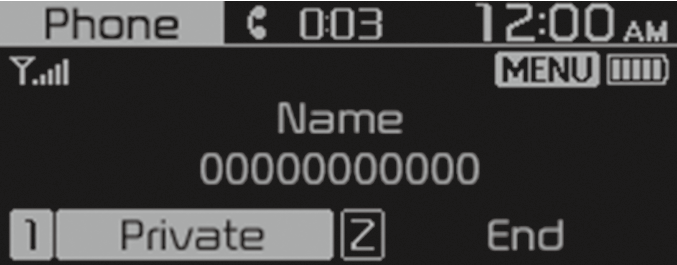
To switch the call to your mobile phone, press the [1 RPT] button on the control panel.
-
Alternatively, press and hold the Call/Answer button on the steering wheel.
Press [1 RPT] again during private mode to change call from private mode to Use hands-free.
To end the call, press the [2 SHFL] button on the control panel.
-
Alternatively, press the Call end button on the steering wheel.
Press the [MENU] button on the control panel to access the following a menu option:
-
Microphone Volume (Outgoing Volume): Adjust the microphone volume or turn off the microphone so the other party cannot hear you.
-
If the caller information is saved in your contacts list, the caller’s name and phone number will be displayed. If the caller information is not saved in your contacts list, only the caller’s phone number will be displayed.
-
You cannot switch to any other screen, such as the audio screen or the settings screen, during a Bluetooth call.
-
Depending on the mobile phone type, call quality may vary. On some phones, your voice may be less audible to the other party.
-
Depending on the mobile phone type, the phone number may not be displayed.
-
Depending on the mobile phone type, the call switching function may not be supported.