
LCD display modes
|
|
|||||
|---|---|---|---|---|---|
 Trip Computer |
 Turn By Turn (TBT)* |
 Driving Assist |
 User Settings* |
 Master warning |
|
|
Up/Down |
Drive Info |
Route Guidance |
Lane Safety/SCC* |
Driver Assistance |
The Master Warning mode displays warning messages related to the vehicle when one or more systems is not operating normally. |
|
Since Refueling |
Destination Info |
DAW* |
Cluster |
||
|
Accumulated Info |
TPMS* |
Lights |
|||
|
Digital Speedometer |
Door |
||||
|
Convenience |
|||||
|
Units |
|||||
|
Language |
|||||
|
Reset |
|||||
 Mode
Mode


The information provided may differ depending on which functions are applicable to your vehicle.
* : if equipped

Keep the engine running when configuring the display settings to prevent the battery from discharging.
Trip computer mode
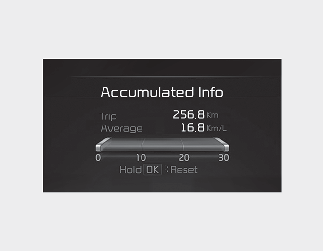
The trip computer mode displays information related to vehicle driving parameters including fuel economy, tripmeter information and vehicle speed.
* For more details, refer to More Details.
Turn By Turn (TBT) mode (if equipped)

This mode displays the state of the navigation.
Driving Assist mode
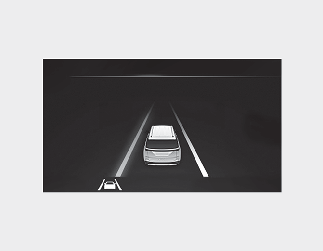
This mode displays the state of:
-
Lane Safety system
-
Smart Cruise Control
-
Driver Attention Warning
-
Tire Pressure Monitoring System
This mode displays information related to tire pressure status.
* For more details, refer to More Details.
* For more details, refer to each system information in More Details.
Master warning mode
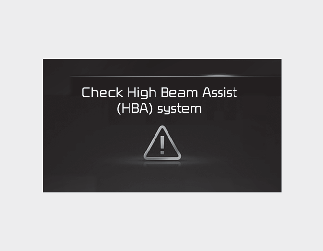
This warning light informs the driver the following situations.
-
LED headlamp malfunction
-
Lamp malfunction
-
High Beam Assist malfunction
At this time, a Master Warning icon ( ) will appear beside the User Settings icon (
 ), on the LCD display. If the warning situation is solved, the master warning light will be turned off and the Master Warning
icon will disappear.
), on the LCD display. If the warning situation is solved, the master warning light will be turned off and the Master Warning
icon will disappear.
User settings mode
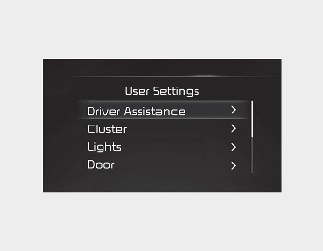
In this mode, you can change the settings of the instrument cluster, doors, lamps, etc.
-
Driver Assistance
-
Cluster
-
Lights
-
Door
-
Convenience
-
Units
-
Language
-
Reset
The information provided may differ depending on which functions are applicable to your vehicle.
|
Items |
Explanation |
|
|---|---|---|
|
Driving Convenience |
To adjust Highway Driving Assist.
To select the functions. * For more details, refer to More Details. |
|
|
Speed Limit |
To adjust Speed Limit.
To select the functions. * For more details, refer to More Details. |
|
|
Warning Timing |
To select the Warning time. |
|
|
Warning Volume |
To select the Warning volume. |
|
|
Driver Attention Warning |
To select the function. * For more details, refer to More Details. |
|
|
Forward Safety |
To adjust Forward Collision-Avoidance Assist.
To select the functions. |
|
|
Lane Safety |
To adjust Lane Keeping Assist.
To select the functions. |
|
|
Blind-Spot Safety |
To activate or deactivate Blind-Spot View Monitor.
To activate or deactivate Safe Exit Assist or Safe Exit Warning.
For more details, refer to More Details. To Activate or deactivate Blind-Spot Collision-Avoidance Assist.
For more details, refer to More Details. |
|
|
Parking Safety |
To Activate or deactivate Rear Cross-Traffic Collision-Avoidance Assist.
For more details, refer to More Details. |
|
* The information provided may differ depending on which systems are applicable to your vehicle.
|
Items |
Explanation |
|---|---|
|
Average Fuel Economy (if equipped) |
At vehicle start / After refueling / Manually: The average fuel economy will reset automatically at vehicle start / after refueling / manually. |
|
Wiper/Lights Display |
If this item is checked, the wiper/lights display will be activated. |
|
Traffic Signs |
If this item is checked, the traffic signs display will be activated. |
|
Icy Road Warning |
If this item is checked, the icy road warning will be activated. |
|
Welcome Sound |
If this item is checked, the welcome sound function will be activated. |
|
Theme Selection |
If this item is checked, the cluster theme will change accordingly. |
* The information provided may differ depending on which systems are applicable to your vehicle.
|
Items |
Explanation |
|
|---|---|---|
|
Illumination |
To adjust the instrument cluster illumination.
|
|
|
One Touch Turn Signal |
* For more details, refer to More Details. |
|
|
Headlight Delay |
If this item is checked, the head lamp delay function will be activated. |
|
|
High Beam Assist |
If this item is checked, High Beam Assist will be activated. |
|
* The information provided may differ depending on which functions are applicable to your vehicle.
|
Items |
Explanation |
|---|---|
|
Automatically Lock |
* If the setting is changed while the vehicle is in motion, the changed setting may not immediately operate. |
|
Automatically Unlock |
|
|
2 Press Unlock |
If this item is checked, the two press unlock will be activated. Press the door unlock button once to unlock the driver's door, and press the button once more within 4 seconds to unlock the rest of the doors. |
|
Power Liftgate Opening Speed |
|
|
Power Liftgate Opening Height |
The power liftgate will be opened in a certain angle. |
|
Liftgate Auto Close |
To activate or deactivate Liftgate Auto Close. For more details, refer to More Details. |
|
Smart Liftgate |
To activate or deactivate the Smart Liftgate with Auto Open. For more details, refer to More Details. |
|
Smart Sliding Door |
To activate or deactivate the Smart Sliding Door with Auto Open. For more details, refer to More Details. |
|
Remote Power Doors & Liftgate |
To adjust Remote Power Doors & Liftgate
* For more details, refer to More Details. |
* The information provided may differ depending on which systems are applicable to your vehicle.
|
Items |
Explanation |
|---|---|
|
Seat Easy Access |
To select the seat movement. |
|
Rear Occupant Alert |
If this item is checked, the Rear Occupant Alert (ROA) display will be activated. |
|
Welcome Mirror/Light |
To select the welcome mirror/light function. |
|
Wireless Charging System |
If this item is checked, the wireless charging function will be activated. |
|
Auto Rear Wiper (in R) |
If this item is checked, the auto rear wiper will be activated. |
|
Service Interval |
If this item is checked, the Service Interval function will be activated.
If the service interval menu is activated, you may adjust the time and distance.
To reset the service interval function. |
To use the service interval menu, consult an authorized Kia dealer.
* The information provided may differ depending on which functions are applicable to your vehicle.
If the service interval is activated and the time and distance is adjusted, messages are displayed in the following situations each time the vehicle is turned on.
-
Service in: Displayed to inform the driver the remaining mileage and days to service.
-
Service required: Displayed when the mileage and days to service has been reached or passed.
If any of the following conditions occur, the mileage and number of days to service may be incorrect.
-
The battery cable is disconnected.
-
The battery is discharged.
|
Items |
Explanation |
|
|---|---|---|
|
Speedometer Unit |
To select the Speedometer unit. |
|
|
Fuel Economy Unit |
For more details, refer to More Details. |
|
|
Temperature Unit |
To select the Temperature unit. |
|
|
Tire Pressure Unit |
To select the Tire Pressure Unit |
|
* The information provided may differ depending on which functions are applicable to your vehicle.
|
Items |
Explanation |
|
|---|---|---|
|
Language |
To select language. |
|
|
Items |
Explanation |
|
|---|---|---|
|
Reset |
You can reset the menus in the User Settings mode. All menus in the User Settings mode are reset to factory settings, except language and service interval. |
|