
Function settings
Camera settings
-
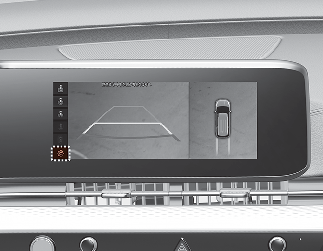
You can change Surround View Monitor 'Display Contents' or 'Display Settings' by touching the setup icon (
 ) on the screen while Surround View Monitor is operating, or selecting 'Driver Assistance → Parking Safety → Camera Settings'
from the Settings menu while the engine is on.
) on the screen while Surround View Monitor is operating, or selecting 'Driver Assistance → Parking Safety → Camera Settings'
from the Settings menu while the engine is on.
-
In the Display Contents, you can change settings for 'Top View Parking Guidance', 'Rear View Parking Guidance' and 'Parking Distance Warning'.
-
In the Display Settings, you can change the screen's 'Brightness' and 'Contrast'.
Top View Parking Guidance
-
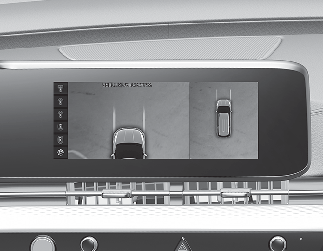
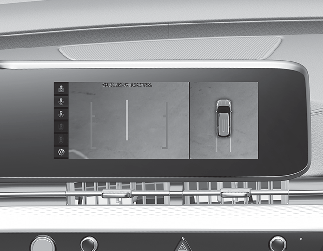
When the 'Top View Parking Guidance' is selected, parking guidance is displayed on the right side of the Surround View Monitor screen.
-
You may see the front top view or the rear top view when using front top view and Top View Parking Guidance.
Rear View Parking Guidance
-
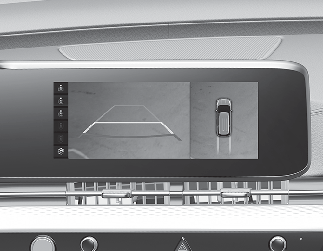
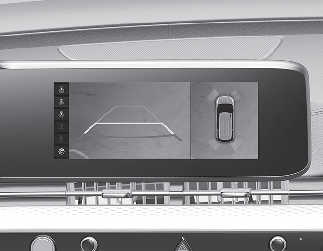
When the 'Rear View Parking Guidance' is selected, parking guidance is displayed in the rear view.
-
The horizontal guideline of the Rear View Parking Guidance shows the distance of 0.5 m (1.6 ft.), 1 m (3.3 ft.) and 2.3 m (7.6 ft.) from the vehicle.
Parking Distance Warning
-
When the 'Parking Distance Warning' is selected, parking distance warning is displayed on the right side of the Surround View Monitor screen.
-
The image will be displayed only when Parking Distance Warning is warning the driver.
Surround View Monitor Auto On
With the engine on, select 'Driver Assistance → Parking Safety → Surround View Monitor Auto On' from the cluster or infotainment system Settings menu to use the function.
To use this function, refer to More Details.