

How to register Digital Key 2 (Smartphone)
Kia Digital Key 2 can only be used on the smartphones that support this function, and the smartphone's Digital Key 2 function is provided by the smartphone manufacturer. Some functions may not work depending on whether the vehicle is provided with such service.
Whilst updating the digital key 2 controller, the smart key function may not work temporarily. In this case, it can be operated with the door lock/unlock button of the smart key.
Smartphone Set Up
In order to use Digital Key 2 (Smartphone) function, install the Kia App or Kia Connect app on your smartphone and register your information and subscribe the service.
For more details, refer to the user’s manual in the infotainment system.
Smartphone Registration
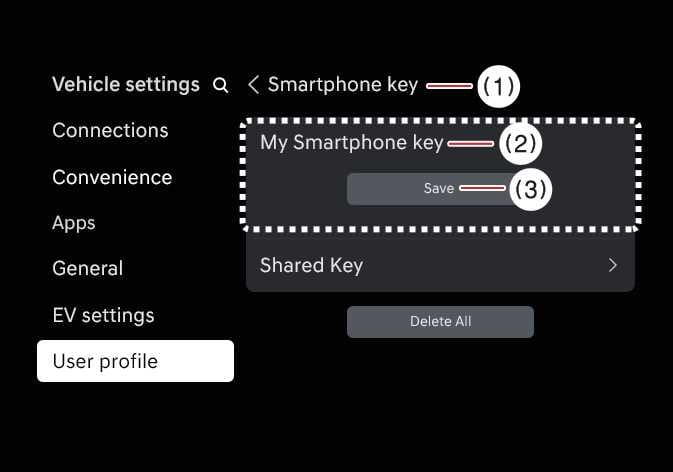 OSW035152L |
|
-
Turn the vehicle on with the Smart key and make sure to keep the smart key inside the vehicle during digital key registration.
-
In some areas, two smart keys in the vehicle may be required when registering a Digital Key2 (Smartphone).
-
-
After pressing on Kia App or Kia Connect app, place the backside of the smartphone on the In-vehicle authentication pad (wireless charging pad).
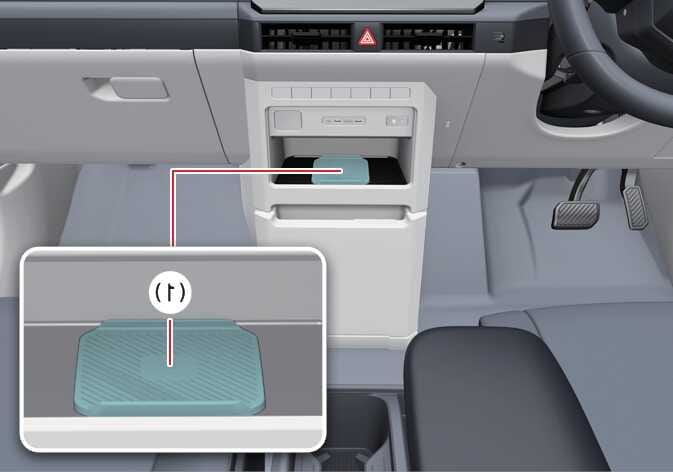 OSW035055R
-
In-vehicle authentication pad (wireless charging pad)
-
As long as the device is supported from additional vehicle services, the Digital Key can be registered wirelessly.
-
-
Select Save menu on the instrument cluster or on the infotainment system screen. The saving process will begin automatically.
-
When the digital key (smartphone) is saved, a message will appear on the instrument cluster or the infotainment system screen.
-
Remove the smartphone from the pad and complete the saving process under the guidance of the smartphone screen.
-
The infotainment system may change after software updates. For more information, refer to the user's manual provided in the infotainment system and the quick reference guide.
-
Vehicle
When there is a digital key (smartphone) already saved in the vehicle, Delete All will be displayed on the Smartphone Key menu screen of the infotainment system and Delete will be displayed on the My Smartphone Key screen. If you want to save a digital key again, How to delete Digital Key (Smartphone).
-
Smartphone
The digital key cannot be saved again whilst the vehicle’s digital key is saved in the owner's smartphone. Save the digital key after deleting the digital key from the Kia App or Kia Connect app.
-
During the digital key 2 saving process, the process will cancel when:
-
The smartphone is removed from the in-vehicle authentication pad (wireless charging pad)
-
Changing the infotainment system or instrument cluster screen
-
The vehicle is turned off
-
The gear is shifted
-
There is no smart key (saving process will not begin)
-
-
As the In-vehicle authentication pad (wireless charging pad) may not work smoothly depending on the internal structure of the smartphones, the digital key may not be registered. In this case, register the procedure by moving the smartphone to the left or right of the in-vehicle authentication pad (wireless charging pad).
-
UWB (Ultra Wide Band) means ultra-wideband wireless communication technology. NFC (Near Field Communication) means short-range wireless communication.
When it is not registered on the Kia App or Kia Connect App on your smartphone
-
After turning the vehicle OFF, use the smart key to turn POWER ON again, then place the smart key inside the vehicle.
-
Select on the infotainment system screen whilst the vehicle is in P(Park) position.
OSW035152L-
Smartphone key
-
My Smartphone key
-
Save
-
-
Place the NFC antenna of the smartphone on the centre of the indoor authentication pad (wireless charging pad).
When the digital key (smart phone) is saved, a message will appear on the infotainment system screen.