
Blind-Spot Collision-Avoidance Assist settings
Blind-spot safety

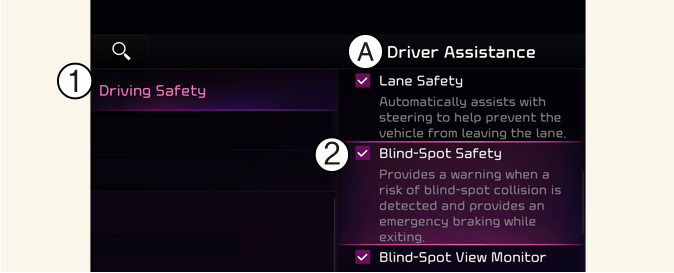
A: Driver Assistance
-
Driving Safety
-
Blind-Spot Safety
With the vehicle on, touch User Settings → Driver Assistance → Driving Safety → Blind-Spot Safety on the instrument cluster or Settings → Vehicle → Driver Assistance → Driving Safety → Blind-Spot Safety on the infotainment system.
-
Blind-Spot Safety: Blind-Spot Collision-Avoidance Assist will warn you with a warning message and an audible warning depending on the collision risk level while driving, and will provide emergency braking depending on the collision risk level for parallel parking exit.

A: Blind-Spot Safety System is Off
When activating Blind-Spot Collision-Avoidance Assist or restarting the vehicle with this function activated, the warning light on the side mirrors will appear for approximately 3 seconds.
When the vehicle is restarted with Blind-Spot Collision-Avoidance Assist inactivated, the warning message will appear on the cluster.

If Blind-Spot Safety is deselected, the driver should always be aware of the surroundings and drive safely.

If the vehicle is restarted, Blind-Spot Collision-Avoidance Assist will maintain the last setting.
Warning methods

-
Warning volume
-
High
-
Medium
-
Low
-
Off

A: Driver assistance
-
Warning methods
-
Warning volume
-
Haptic warning
-
Driving safety priority
Warning methods can be set when the vehicle is in ON position.
-
Warning volume: Select User settings → Driver assistance → Warning volume on the instrument cluster, or select Settings → Vehicle → Driver assistance → Warning methods → Warning volume on the infotainment system, and adjust the warning volume.
-
Haptic warning: Select User settings → Driver assistance → Haptic warning on the instrument cluster, or select Settings → Vehicle → Driver assistance → Warning methods → Haptic warning on the infotainment system, and adjust the Haptic warning.
-
Driving safety priority: Select Settings → Vehicle → Driver assistance → Warning methods → Driving Safety Priority on the infotainment system. The audio volume is reduced for safe driving while a warning sounds.
-
Ensure that Warning methods you have set may apply to the Warning methods of other driver assistance systems.
-
Warning methods will maintain its last setting even if the vehicle is restarted.
-
The setting menu may not be available for your vehicle depending on the vehicle features and specifications.
-
The Warning Volume and Haptic Warning cannot be turned off at the same time. When one of the warning is turned off the other is activated.