
Smart Cruise Control settings
Smart Cruise Control

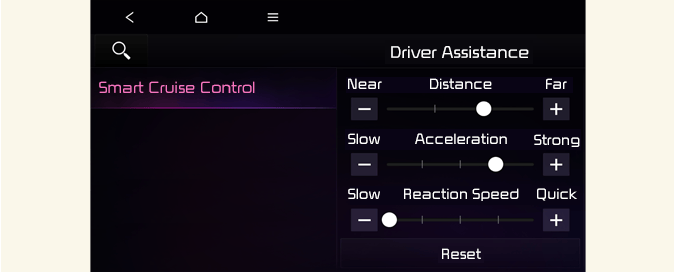
With the vehicle on, touch Settings → Driver Assistance → Driving Convenience → Smart Cruise Control on the instrument cluster or Settings → Vehicle → Driver Assistance → Driving Convenience → Smart Cruise Control on the infotainment system to set the distance, acceleration and the reaction speed.
Based on driving style (if equipped)
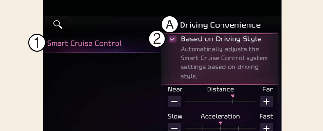
A: Driving convenience
-
Smart Cruise Control
-
Based on driving style
With the vehicle on, if Settings → Driver Assistance → Driving Convenience → Smart Cruise Control → Based on Driving Style is selected on the instrument cluster or Settings → Vehicle → Driver assistance → Driving convenience → Smart Cruise Control → Based on Driving Style is selected from the infotainment system screen, Smart Cruise Control will operate based on the driver's driving style, such as vehicle distance, acceleration, reaction speed.
The driver's driving style can be adjusted each driving style manually.

-
If equipped with Based on Driving Style, Based on driving mode and Based on driving style can be selected from the infotainment system screen by selecting Settings → Vehicle → Driver assistance → Driving convenience → Smart Cruise Control.
-
If Based on driving mode is selected, Smart Cruise Control will operate based on the drive mode selected.
-
While Smart Cruise Control is operating with Based on driving style selected, if you press and hold the Vehicle Distance (
 ) button, Smart Cruise Control will change to Based on driving mode. Press and hold the Vehicle Distance () button to change Smart Cruise Control to Based on driving style mode.
-
View driving style analysis is displayed when Based on Driving Style is selected.
-
Smart Cruise Control learns the driver's driving styles only when the driver drives the vehicle.
Warning methods
-
Warning volume
-
High
-
Medium
-
Low
-
Off
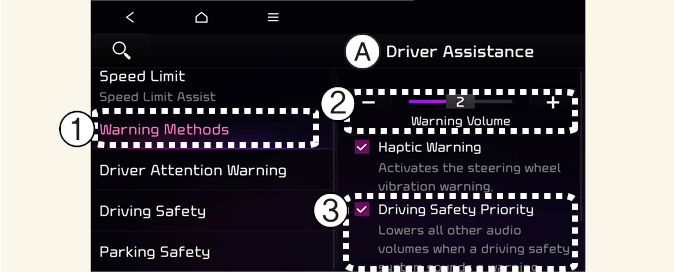
A: Driver assistance
-
Warning methods
-
Warning volume
-
Haptic warning
-
Driving safety priority
Warning methods can be set when the vehicle is in ON position.
-
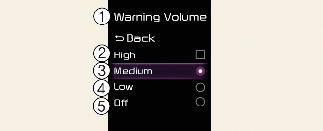
Warning volume: Select User settings → Driver assistance → Warning volume on the instrument cluster, or select Settings → Vehicle → Driver assistance → Warning methods → Warning volume on the infotainment system, and adjust the warning volume.
If you turn off the Warning Volume, for your safety, the function may warn you with a low volume.
-
Haptic warning: Select User settings → Driver assistance → Haptic warning on the instrument cluster, or select Settings → Vehicle → Driver assistance → Warning methods → Haptic warning on the infotainment system, and adjust the Haptic warning.
-
Driving safety priority: Select Settings → Vehicle → Driver assistance → Warning methods → Driving Safety Priority on the infotainment system. The audio volume is reduced for safe driving while a warning sounds.
-
Ensure that Warning methods you have set may apply to the Warning methods of other driver assistance systems.
-
Warning methods will maintain its last setting even if the vehicle is restarted.
-
The setting menu may not be available for your vehicle depending on the vehicle features and specifications.
-
The Warning Volume and Haptic Warning cannot be turned off at the same time. When one of the warning is turned off the other is activated.