

How to delete Digital Key (Smartphone)
Turn the vehicle on with the smart key and make sure to keep the smart key inside the vehicle during the digital key (smartphone) deletion process.
-
To Delete All Digital Keys
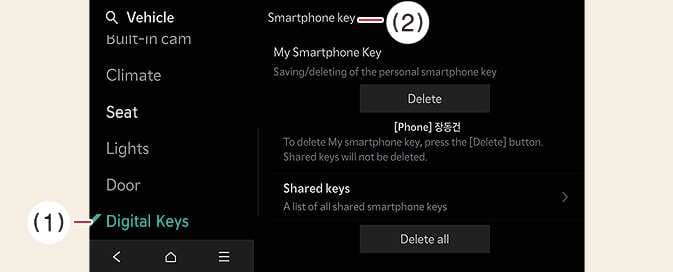 OCV045001N
-
Digital Keys
-
Smartphone key
With the vehicle on, touch on the infotainment system.
-
The key of owner and the shared user will be deleted.
-
If there is no registered key, the menu cannot be selected.
-
-
To Delete the Owner’s Digital Key
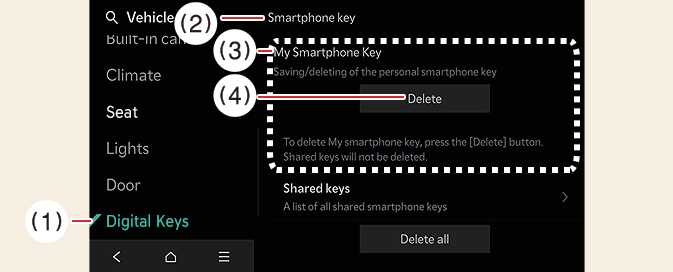 OCV035035N
-
Digital Keys
-
Smartphone key
-
My Smartphone Key
-
Delete
If you want to change only the owner’s smartphone key while keeping the shared key, delete My Smartphone Key not Delete All and then Save again.
With the vehicle on, touch on the infotainment system.
-
After deleting My Smartphone key, the new smartphone can be registered.
-
Deleting the shared keys
Select on the infotainment system screen.
Those digital keys other than the My Smartphone Key (smartphone) are classified by [Group] and displayed as ‘Shared Key.’
If the account logged in the smartphone is the same, it is displayed as the same [Group]. You can delete the Shared Key by the unit of [Group].
-
If you delete the digital key (smartphone) on the vehicle, the digital key saved in the smartphone is also deleted.
-
If digital key (smartphone) is deleted on the smartphone, the digital key saved in the vehicle is also deleted.
-
The function to delete shared user’s key is not provided from the infotainment system.
The infotainment system might change after software updates. For more information, refer to the manual provided in the infotainment system and the quick reference guide.