
Digital Key 2 (Smartphone)
How to register Digital Key 2 (Smartphone)
Kia Digital Key 2 can only be used on the smartphones that support this function, and the smartphone's Digital Key 2 function is provided by the smartphone manufacturer. Some smartphone functions may be incompatible with your vehicle.
While updating the digital key 2 controller, the smart key function may not work temporarily. In this case, it can be operated with the door lock/unlock button of the smart key.
Smartphone Set Up
To use Digital Key 2 (Smartphone) function, install the Kia Access App on your smartphone, register your information and subscribe to the service.
For more details, access the web manual using the QR code in the infotainment system quick reference guide.
SmartPhone Registration
-
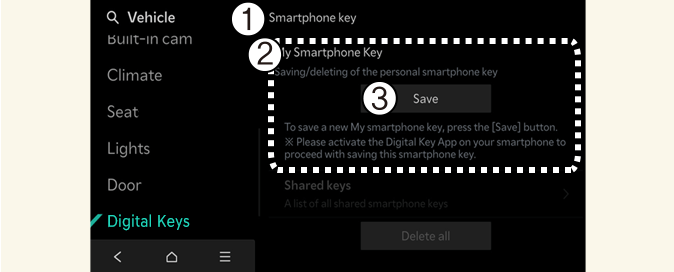
Smartphone key
-
My Smartphone key
-
Save
-
Turn the vehicle on with the Smart key and make sure to keep the smart key inside the vehicle during digital key registration.
-
After pressing Digital Key Settings → Register on Kia Access app, place the backside of the smartphone on the in-vehicle charging pad.
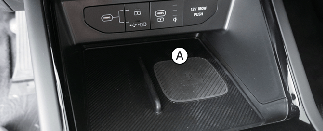
A: Charging pad
-
If the device is supported from additional vehicle services, the Digital Key can be registered wirelessly.
-
-
Select Save menu on the instrument cluster or on the infotainment system screen. The saving process will begin automatically.
-
When the digital key (smartphone) is saved, a message will appear on the instrument cluster or the infotainment system screen.
-
Remove the smartphone from the in-vehicle authentication pad (wireless charging pad) and complete the saving process by following the instructions on the smartphone screen.

-
The infotainment system may change after software updates. For more information, refer to the user's manual provided in the infotainment system and the quick reference guide.
-
Vehicle
When there is a digital key (smartphone) already saved in the vehicle, Delete All will be displayed on the Smartphone Key menu screen of the infotainment system and Delete will be displayed on the My Smartphone Key screen. If you want to save a digital key again, refer to More Details.
-
Smartphone
The digital key cannot be saved again while the vehicle’s digital key is saved in the owner's smartphone. Save the digital key after deleting the digital key from the Kia Access App.
-
During the digital key 2 saving process, the process will cancel when:
-
The smartphone is removed from the in-vehicle authentication pad (wireless charging pad)
-
Changing the infotainment system or instrument cluster screen
-
The vehicle is turned off
-
The gear is shifted
-
There is no smart key (saving process will not begin)
-
-
As the in-vehicle authentication pad may not work smoothly depending on the internal structure of the smartphones, the digital key may not be registered. Register the key by moving the smartphone to the left or right of the in-vehicle authentication pad (wireless charging pad).
-
UWB (Ultra Wide Band) means ultra-wideband wireless communication technology. NFC (Near Field Communication) means short-range wireless communication.
How to Use the Digital Key 2 (Smartphone)
Smartphone Touch Control
The driver can lock and unlock the door by touching the smartphone on the door handle without opening the Kia Access App. The vehicle can be started by placing the smartphone on the charging pad. Make sure that the location of the smartphone's NFC antenna touches the door handle authentication pad.
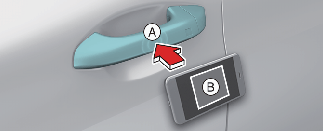
A: Door handle authentication pad
B: Different smartphones have their NFC antennas located in different places.
The Apple iPhone's NFC antenna is located at the top of the back of the device, and the Apple Watch's NFC antenna is in the center of the screen. The NFC antenna is in the same location that you may use for tapping to make contactless payments. If you are uncertain about the location of the NFC antenna on your phone, contact your smartphone manufacturer for more details.
Locking/Unlocking the doors
-
If the driver touches the smartphone antenna to the driver's or passenger's door handle authentication pad for more than 2 seconds, the door will lock or unlock.
-
After unlocking the doors, the doors will automatically re-lock after 30 seconds unless a door is opened.
-
If the smartphone digital key does not operate, move the smartphone more than 4 inches (0.1 m) from the door handle authentication pad and try it again.
To lock or unlock the doors with a registered smartphone, touch the NFC antenna on the smartphone on the authentication pad of the driver's or passenger's outside door handle for about 2 seconds.
To lock or unlock the doors, carry your smartphone and touch the door handle lock/unlock sensor (curved area) on the outside door handle.

-
If the smartphone is in a back pocket or bag, the signal may be blocked and could limit the Bluetooth connection and cause operation delay when locking/unlocking doors or starting the vehicle.
-
If a tinting film containing metal components is applied, the digital key may not function properly.
Note that the door will unlock and a beep sounds when using the Digital Key 2 if any of the following occur:
-
When the Smart Key is in the vehicle
-
The ENGINE START/STOP button is in ACC or ON position
-
Attempting to lock the door when more than one door, or hood, trunk is opened
-
If a tinting film containing metal substances is applied to the digital key, it may not function properly.
Starting the vehicle
After placing your registered smartphone on the charging pad, depress the brake pedal and press the ENGINE START/STOP button.
-
Once the vehicle is started, you can remove the smartphone from the pad.
For more details, refer to More Details.
-
Place the NFC antenna of the smartphone in of the charging pad, press the brake pedal, and then press the start button to start the vehicle.
-
After starting the vehicle, you can remove the smartphone from the charging pad.
-
Some smartphones may not have smooth NFC communication due to their internal structure. In such cases, move the smartphone to the right or left of the charging pad to operate it.
-
Carry the smartphone inside the vehicle, press the brake pedal, and then press the start button to start the vehicle.
-
To start the vehicle remotely, use an app provided by the smartphone manufacturer to lock the vehicle using the door lock button, and then press the remote start button within 4 seconds. The vehicle will start, and the hazard warning light will flash
-
To turn off the vehicle, press the remote start button again.
The vehicle can be started when the registered smartphone is placed on the in-vehicle authentication pad (wireless charging pad). Therefore, do not leave unsupervised children or people who are not aware of the system since it can result in serious injury or death. In addition, always have the registered smartphone with you to prevent vehicle theft when leaving the vehicle.
The operation time of Digital Key 2 for shared user may extend during first time use.
Approach your Digital Key 2 (smartphone) on the authentication pad located in the outside door handle until the vehicle door lock/unlock function operates.
If the inner authentication pad is used for the first time, 1st vehicle start function may not operate.
How to delete Digital Key (Smartphone)
Turn the vehicle on with the smart key and make sure to keep the smart key inside the vehicle during the digital key (smartphone) deleting process.
-
To Delete All Digital Keys
-
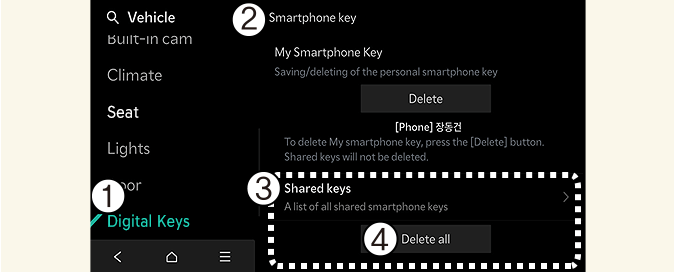
Select Digital Keys
-
Select Smartphone key
-
Select Shared Keys
-
Select Delete all
With the vehicle on, touch Setup → Vehicle → Digital Keys → Smartphone key → Delete all on the infotainment system.
-
The owner’s key and the shared user will be deleted.
-
If there is no registered key, the menu cannot be selected.
-
-
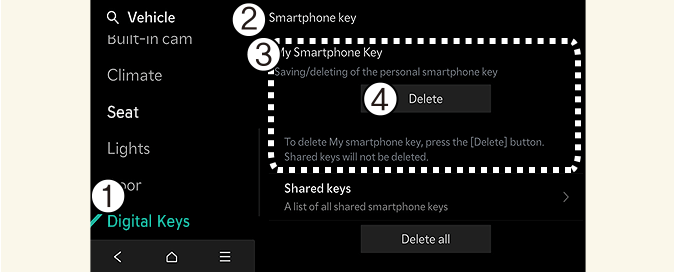
To Delete One Digital Key
-
Select Digital Keys
-
Select Smartphone key
-
Select the Digital Key you wish to delete.
-
Select Delete
If the owner's smartphone has been changed, the new smartphone can be registered after only deleting the previous Digital Key 2 (Smartphone).
-
-
If digital key (smartphone) is deleted, the digital key saved in the smartphone is also deleted.
-
If digital key (smartphone) is deleted on the smartphone, the digital key saved in the vehicle is also deleted.
-
The function to delete shared user's key is not provided by the infotainment system.
-
Digital key (smartphone) is not deleted even if Kia Access app is deleted on your smartphone.
-
Digital key can be activated or deactivated within the Kia Access app provided from the smartphone manufacturer.
The infotainment system may change after software updates. For more information, refer to the user's manual provided in the infotainment system and the quick reference guide.