
Surround View Monitor operation
Parking/View button
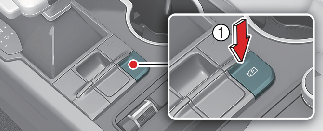
Press the Parking/View button (1) to turn on Surround View Monitor.
Press the button again to turn off the function.
Front view
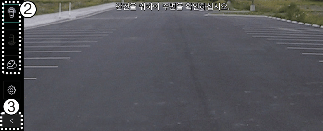
The front view function displays the vehicle's front situation on the navigation system according to the driver's settings, assisting in safe driving.
While parking, the front view of the Surround View Monitor is activated in the following conditions:
-
P (Park) or N (Neutral) or D (Drive) position with a vehicle speed slower than 6 mph (10 km/h), Pressing the Parking/View button (1).
-
Shifting from R (Reverse) to N (Neutral) or D (Drive).
-
When the automatic activation function of the Surround View Monitor is enabled
Pressing the view switching button (2) on the Surround View Monitor to select the Top View, Front View, Side View, or Wide View.
While parking, the front view of the Surround View Monitor will be turned off in the following conditions:
-
Shifting to P (Park) or R (Reverse)
-
Pressing the Parking/View button (1)
-
Pressing the back button (3) on the Surround View Monitor screen
-
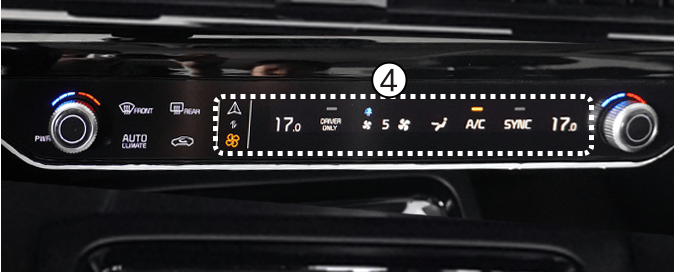
Pressing the infotainment system power button (4)
-
Driving faster than 6 mph (10 km/h)

When the front view is activated, the last used view is displayed.
Rearview
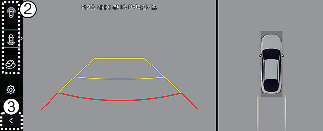
The rearview function of the Surround View Monitor displays the vehicle's rear situation on the navigation system according to the driver's settings, assisting in safe parking.
While parking, the rearview of the Surround View Monitor is activated in the following cases:
-
P (Parking) or N (Neutral) or D (Drive) position with a vehicle speed slower than 6 mph (10 km/h) Pressing the Parking/View button (1) and then pressing the view switching button (2) to select the rearview
-
Shifting to R (Reverse)
Pressing the view switching button (2) on the Surround View Monitor to select the rearview, rear top view, rear side view, or rear wide view.
While parking, the rearview function of the Surround View Monitor is turned off in the following conditions when the vehicle is in P (Park) or N (Neutral) or D (Drive) mode:
-
Shifting from N (Neutral) or D (Drive) to P (Parking)
-
Pressing the Parking/View button (1)
-
Pressing the back button (3) on the Surround View Monitor screen
-
Pressing the infotainment system power button (4)
-
Driving faster than 6 mph (10 km/h)
When the vehicle is in R (Reverse), the rearview function of the Surround View Monitor will be turned off in the following conditions:
-
Shifting to P (Parking)
-
The rearview will always be displayed in R (Reverse).
-
In R (Reverse) position, the video will not be turned off by pressing the infotainment system power button (4).
3D view function
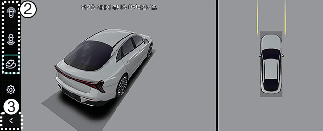
3D view function shows the vehicle in various angles. Press the 3D view icon on the Surround View Monitor screen to choose the angle. Press the 3D view icon again to reset the angle.
The 3D view of the Surround View Monitor is activated under the following conditions:
-
P (Parking) or N (Neutral) or D (Drive) position with a vehicle speed slower than 6 mph (10 km/h) or when selecting the 3D view button (2) while the Surround View Monitor is activated in R (Reverse) mode.
The 3D view function of the Surround View Monitor while parking will be turned off under the following conditions:
-
Shifting from N (Neutral) or D (Drive) to P (Parking)
-
Pressing the Parking/View button (1)
-
Pressing the back button (3) on the Surround View Monitor screen
-
Pressing the infotainment system power button (4)
-
Driving faster than 6 mph (10 km/h)
When the vehicle is in R (Reverse), the 3D view function of the Surround View Monitor will be turned off under the following conditions:
-
Shifting to P (Parking)
-
The 3D view does not display parking guidelines.
-
The top view screen, which is displayed with a Front/Rear view or 3D view, converts the original images entered from the four wide-angle cameras to provide a 360-degree image around the vehicle that is viewed down.
-
Top view is not displayed with front/rear wide view.
-
Zoom in or out on the top view by pinching within the top view area.