
Surround View Monitor settings
Camera setting
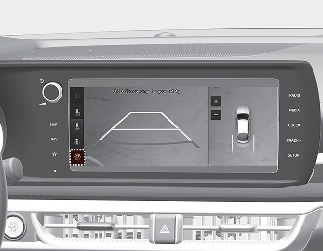
-
You can change Surround View Monitor settings by pressing the setup icon (
 ) on the screen while the function is operating, or select '‘Setup → Vehicle (Infotainment System screen) → Driver Assistance
→ Parking Safety → Camera Settings' from the Settings menu in the Settings in the Infotainment System screen while the ignition
switch or ENGINE START/STOP button is in the ON position.
) on the screen while the function is operating, or select '‘Setup → Vehicle (Infotainment System screen) → Driver Assistance
→ Parking Safety → Camera Settings' from the Settings menu in the Settings in the Infotainment System screen while the ignition
switch or ENGINE START/STOP button is in the ON position.
-
You can change the settings of the following information:
-
Top View Parking Guide Lines
-
Rear View Parking Guide Lines
-
Parking distance warning
-
-
You can change the following lists in the screen settings:
-
brightness (daytime)
-
brightness (nighttime)
-
contrast
-
Top View Parking Guide Lines
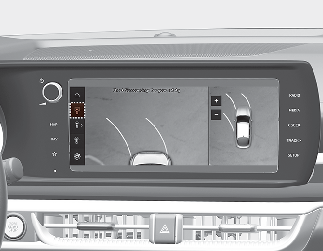
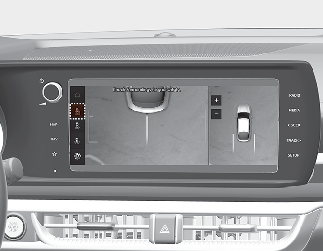
-
If top view is selected, the top view will be displayed on the right side of top view in Surround View Monitor screen.
-
The top view also works in pair with the front top view and rear top view guideline display.
Rear View Parking Guide Lines
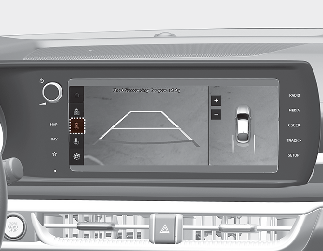
-
If rear view is selected, the rear view will be displayed on the rear view screen.
-
The horizontal guideline of the rear view shows the distance of 0.5 m (20 inches), 1 m (40 inches), 2.3 m (90 inches) from the vehicle.
Parking Distance Warning
-
If warning is selected, the warning image will be displayed on the right side of top view in Surround View Monitor screen.
-
The warning image appears only when the parking distance warning occurs.
Surround View Monitor Auto On
-
With the ENGINE START/STOP button is in the ON position, Surround View Monitor auto activation is activated or deactivated when you select ‘Setup → Vehicle → Driver Assistance → Parking Safety → Surround View Monitor Auto On’.