

How to delete digital key (smartphone)
Turn the vehicle on with the smart key and make sure to keep the smart key inside the vehicle during the digital key (smartphone) deletion process.
- To delete all digital key:
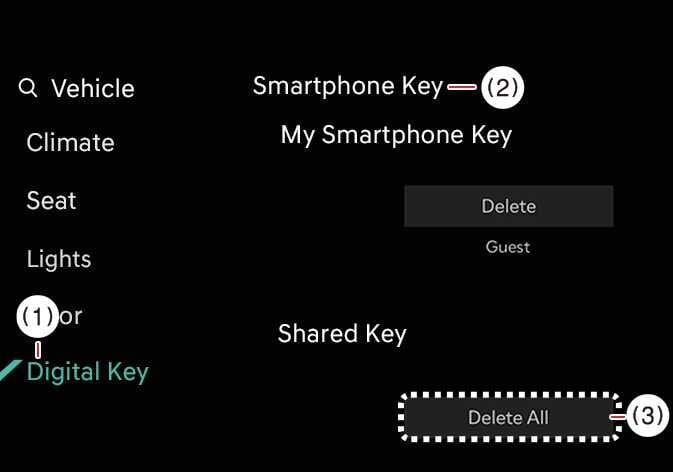 OCL4M035126N
-
Digital Key
-
Smartphone key
-
Delete all
-
With the vehicle on, tap on the infotainment system.
-
The owner’s and shared user’s keys will be deleted.
-
If there is no registered key, you cannot select the menu.
-
-
- To delete MY Smartphone Key:
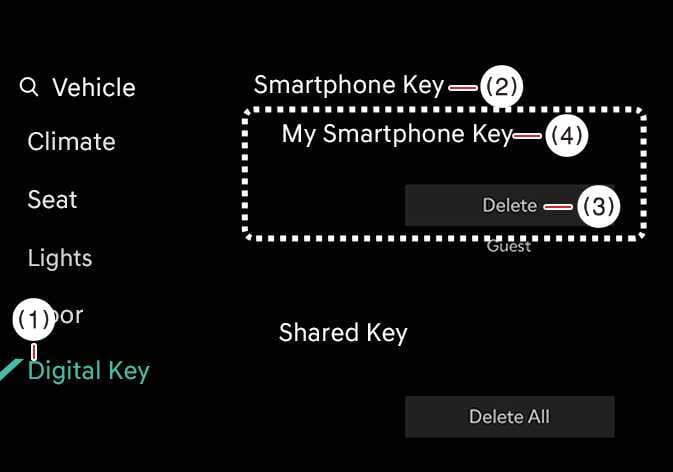 OCL4M035127N
-
Digital key
-
Smartphone key
-
Delete
-
My Smartphone key
If you change smartphones, you can only register the new smartphone after deleting the previous Digital Key 2 (smartphone).
TIP-
If you delete the digital key (smartphone) on the vehicle, the digital key saved in the smartphone is also deleted.
-
If you delete the digital key (smartphone) on the smartphone, the digital key saved in the vehicle is also deleted.
-
The infotainment system cannot delete a shared user’s key.
-
The digital key will not be deleted if you uninstall the Kia Access app or Kia App on your smartphone.
-
You can activate or deactivate the digital key within the Kia Access app or Kia App provided by your smartphone manufacturer.
TIPThe infotainment system may change after software updates. For more information, refer to the user manual provided in the infotainment system and the quick reference guide.
-
- To delete the shared keys
Select on the infotainment system.
Those digital keys other than the My Smartphone Key (smartphone) are classified by [Group] and displayed as Shared Key.
If the account logged in the smartphone is the same, it is displayed as the same [Group]. You can delete the Shared Key by the unit of [Group].