

Over-The-Air (OTA) software update
The OTA software update feature allows you to wirelessly update software to the latest version. Using this feature, you can keep your vehicle system updated with the latest software. To receive OTA updates, you need to have a Kia Connect service.
Downloading software
The latest software can be downloaded automatically while driving. A notification appears on your phone through the Kia Access app or Kia App or the vehicle screen that the software update is ready to install. The next time the vehicle is turned off, you can choose to start the update.
Approving software update
 OCL4M035134N |
|
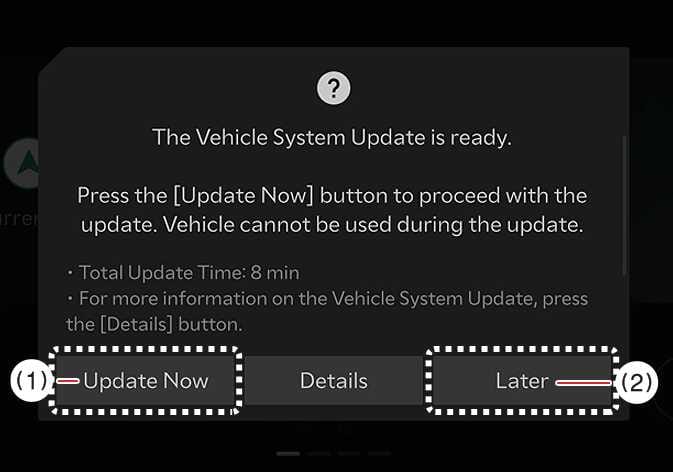
After you turn the vehicle off, the vehicle system allows you to start the update.
-
To start the update, press Update Now (1).
-
To postpone the update, press Later (2).
Preparing software update
 OCL4M035135N |
|
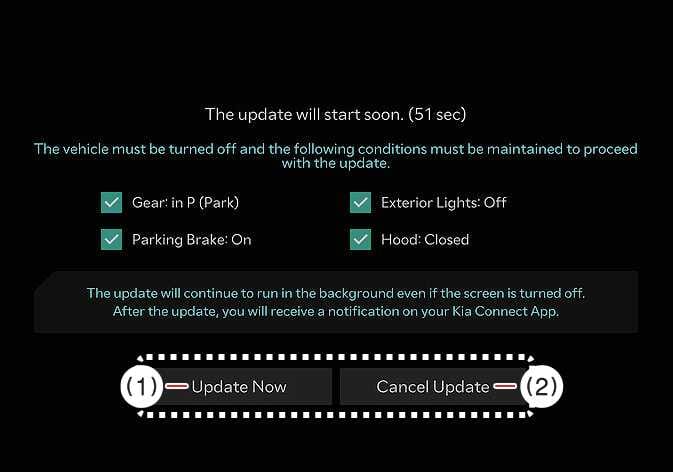
If you press the Update Now button on the screen, the vehicle begins installing the update automatically. The following conditions must be satisfied:
-
The vehicle must be in OFF position.
-
The vehicle must be in P (Park).
-
The parking brake must be applied.
-
The exterior lights must be turned off.
-
The hood must be closed.
-
The vehicle's 12V battery must be sufficiently charged.
-
The systems to be updated must not be running.
-
To update immediately, press Update Now.
-
To cancel the update, press Cancel Update.
The vehicle automatically checks the battery and system status.
Updating software
 OCL4M035137N |
|
You can see the progress of the update on the screen. At some point during the update, the screen may turn off and back on.
You will receive a notification on your phone through the Kia Access app or Kia App or the vehicle screen that indicates that the software update is complete.
-
To save battery life, the screen turns off automatically after 3 minutes. You can check the update progress by pressing the ENGINE START/STOP button.
-
You can exit the vehicle after the update starts.
-
The Over-The-Air (OTA) software update feature is only available for Kia Connect service users.
-
The update details may vary depending on the installed software version.
-
If the update fails, the system will automatically initiate update recovery. If you'd like to retry the software update after a successful recovery, press the Start button on the screen, and the vehicle will begin installing the update automatically.
If both the update and recovery fail, have your vehicle inspected by an authorized Kia dealer.
-
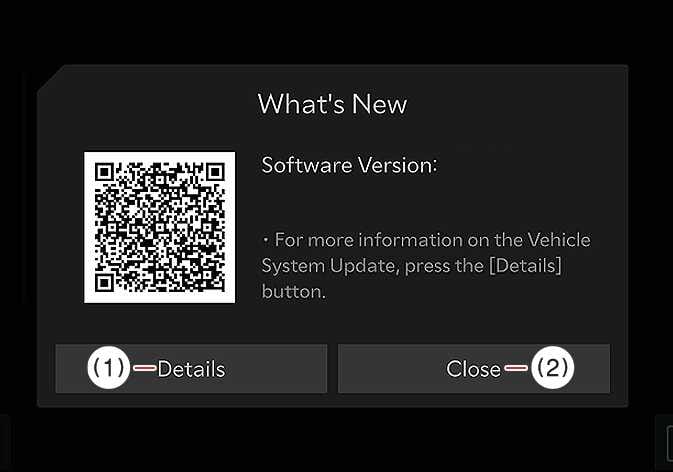
Once the update is complete, a message will appear on the screen. Press Details or scan the QR Code for update detail information.
-
Observe the following restrictions during the update:
-
You cannot use the vehicle during the update. Be sure you have enough time for the update, and safely park the vehicle before starting the update process.
-
You cannot use remote features, including remote start.
-
You cannot charge the vehicle. Charge your vehicle after completing the update.
-
The Rear Occupant Alert may not work. Visually check if there are any occupants in the rear seat after the update starts.
-
If the digital key function is included in the update history, the door lock/unlock function through digital key or fingerprint authentication may not work. Check the update history for notices, and if the digital key function is updated, use the smart key button to lock or unlock the door.
-
-
The update is automatically canceled if any required vehicle conditions change before you start the update.
-
You cannot cancel the update after it has started.
-
You cannot use the OTA software update feature if you modify or replace any vehicle software.
-
Do not open the hood or replace the battery in the vehicle during the update. The update may fail.
-
The high-voltage-related module for charging the 12V battery may activate during the software update.
-
If a diagnostic tool / dongle of any kind is connected to the vehicle On-board Diagnostic (OBD) terminal, the vehicle cannot be updated. The vehicle can be updated by removing the diagnostic tool / dongle connected to the OBD terminal and then restarting the vehicle.
-
Vehicle reception must be identified to safely install any downloaded software.
-
Vehicle signal strength must be strong (above -82 dBm) to safely install any downloaded software.