

Speed Limit
 OCL4M055124N |
|
While the vehicle is ON, tap on the infotainment system screen.
-
Country Selection: If navigation is not enabled, you can manually select the country from the menu. Please select the country you are currently driving in for proper functionality.
-
Speed Offset Setting: Sets the speed offset. The system issues an overspeed warning and adjusts the set speed based on the road’s speed limit plus the selected offset value.
-
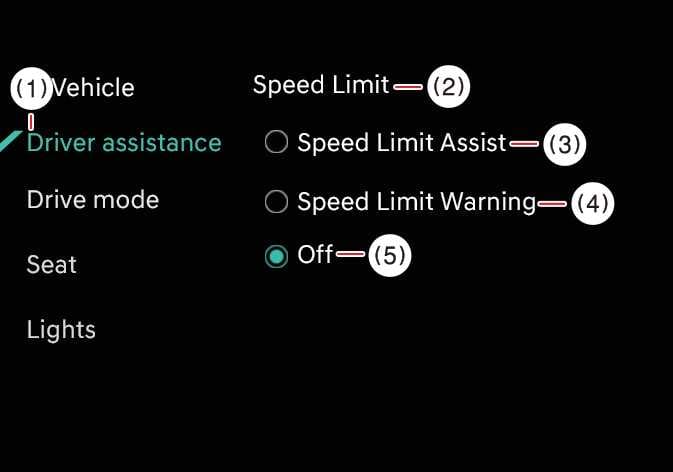
Speed Limit Assist: Intelligent Speed Limit Assist informs you of the posted speed limit and additional road signs, and warns you when you drive the vehicle faster than the speed limit. Intelligent Speed Limit Assist also recommends changing the set speed of the Manual Speed Limit Assist or Smart Cruise Control functions to help you stay within the posted speed limit.
-
Speed Limit Warning: Intelligent Speed Limit Assist informs you of the posted speed limit and additional road signs. Intelligent Speed Limit Assist also warns you when you drive the vehicle faster than the posted speed limit.
-
Off: Intelligent Speed Limit Assist turns OFF.
Be sure to park in a safe place before setting Intelligent Speed Limit Assist.
-
The Speed Limit and Speed Limit Warning functions operate based on an offset value added to the speed limit. Set the offset value to “0” to change or warn you of the speed according to the posted speed limit.
-
Navigation-based Smart Cruise Control does not reflect the setting of the Speed Limit Offset function.