

Camera Settings
 OLQ2AH005045 |
|
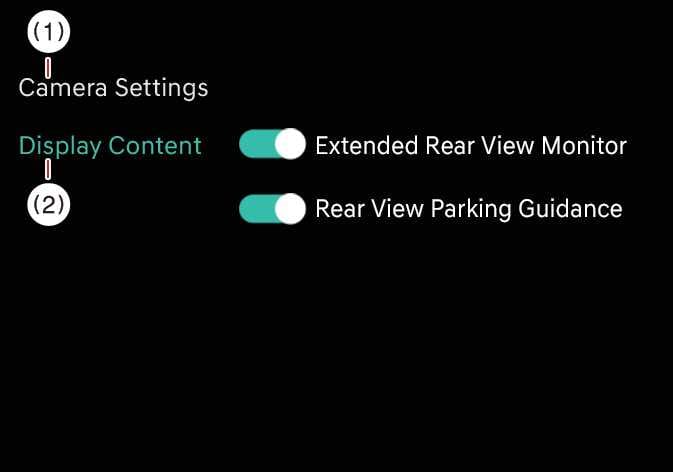
While the vehicle is ON, tap the setup icon ( ) or tap on the infotainment system screen to change the Rear View Monitor settings.
Extended Rear View Monitor
If you activate the Extended Rear View Monitor setting, the rear camera view continues to display when you shift from R (Reverse) to N (Neutral) or D (Drive).
Rear View Parking Guidance
If you activate the Rear View Parking Guidance setting, Rear View Parking Guidance and Top Rear View Parking Guidance display on the rear monitor.
Display settings
You can set the brightness (day/night) and contrast of the camera image in Display settings.
-
Depending on your vehicle’s specifications, the settings menu may not be available.
-
The horizontal lines displayed by Rear View Parking Guidance indicate distances from your vehicle of 20 in (0.5 m), 40 in (1 m), and 91 in (2.3 m).
-
The horizontal scale displayed by Top View Parking Guidance indicates liftgate opening distances and the 60 in (1.5 m) distance from your vehicle.