
Radio
Turning on the radio
-
On the control panel, press the [AUDIO] button.
-
When the mode selection window displays, turn the [TUNE] knob to select the desired radio mode and then press the knob.
FM/AM Mode
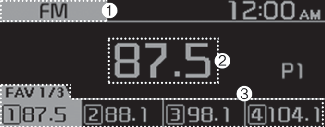
-
Current radio mode
-
Radio station information
-
Preset list
Press the [MENU/CLOCK] button on the control panel to access the following menu options:
-
Autostore: Save radio stations to the preset list.
-
Scan: The system searches for radio stations with strong radio signals and plays each radio station for about five seconds.
-
Sound settings: You can change the settings related to sounds, such as location where sound will be concentrated and the output level for each range.
-
Position: Select a location where sound will be concentrated in the vehicle. Select Fader or Balance, turn the [TUNE] knob to select the desired position, and then press the knob. To set sound to be centred in the vehicle, select Centre (Center).
-
Equaliser (Tone): Adjust the output level for each sound tone mode.
-
Sound experience: (if equipped)
select the location where sound is focused in the vehicle between the driver's seat and all other seats.
-
Speed dependent vol.: Set the volume to be adjusted automatically according to your driving speed.
 NOTICE
-
Depending on vehicle models or specifications, available options may vary.
-
Depending on the system or amplifier specifications applied to your vehicle, available options may vary.
-
-
Mode popup: Set to display mode selection window when the [AUDIO] button is pressed on the control panel.
-
Date/Time: You can change the date and time that are shown on the system display.
-
Set date: Set date to display on the system display.
-
Set time: Set time to display on the system display.
-
Time format: Select to display time in the 12 hour format or the 24 hour format.
-
Display (Power Off): Set to display the clock when the system power is off.
-
-
Language: You can change the display language.
FM/AM Mode (With RDS)
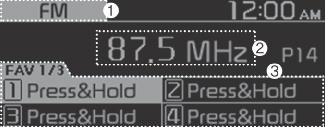
-
Current radio mode
-
Radio station information
-
Preset list
Press the [MENU/CLOCK] button on the control panel to access the following menu options:
-
Traffic announcement: Activate or deactivate traffic announcements. Announcements and programmes will be received automatically if available.
-
Autostore: Save radio stations to the preset list.
-
Scan: The system searches for radio stations with strong radio signals and plays each option for about five seconds.
-
Sound settings: You can change the settings related to sounds, such as location where sound will be concentrated and the output level for each range.
-
Position: Select a location where sound will be concentrated in the vehicle. Select Fader or Balance, turn the [TUNE] knob to select the desired position, and then press the knob. To set sound to be centred in the vehicle, select Centre (Center).
-
Equaliser (Tone): Adjust the output level for each sound tone mode.
-
Speed dependent vol.: Set the volume to be adjusted automatically according to your driving speed.
NOTICE-
Depending on vehicle models or specifications, available options may vary.
-
Depending on the system or amplifier specifications applied to your vehicle, available options may vary.
-
-
Mode popup: Set to display mode selection window when the [AUDIO] button is pressed on the control panel.
-
Date/Time: You can change the date and time that are shown on the system display.
-
Set date: Set date to display on the system display.
-
Set time: Set time to display on the system display.
-
Time format: Select to display time in the 12 hour format or the 24 hour format.
-
Display (Power Off): Set to display the clock when the system power is off.
-
-
Language: You can change the display language.
DAB Mode (if equipped)
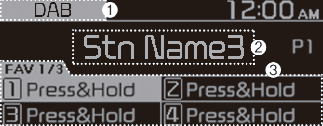
-
Current radio mode
-
Radio station information
-
Preset list
Press the [MENU/CLOCK] button on the control panel to access the following menu options:
-
Traffic announcement: Activate or deactivate traffic announcements. Announcements and programmes will be received automatically if available.
-
List: Display all available radio stations.
-
Scan: The system searches for radio stations with strong radio signals and plays each option for about five seconds.
-
Sound settings: You can change the settings related to sounds, such as location where sound will be concentrated and the output level for each range.
-
Position: Select a location where sound will be concentrated in the vehicle. Select Fader or Balance, turn the [TUNE] knob to select the desired position, and then press the knob. To set sound to be centred in the vehicle, select Centre (Center).
-
Equaliser (Tone): Adjust the output level for each sound tone mode.
-
Speed dependent vol.: Set the volume to be adjusted automatically according to your driving speed.
NOTICE-
Depending on vehicle models or specifications, available options may vary.
-
Depending on the system or amplifier specifications applied to your vehicle, available options may vary.
-
-
Mode popup: Set to display mode selection window when the [AUDIO] button is pressed on the control panel.
-
Date/Time: You can change the date and time that are shown on the system display.
-
Set date: Set date to display on the system display.
-
Set time: Set time to display on the system display.
-
Time format: Select to display time in the 12 hour format or the 24 hour format.
-
Display (Power Off): Set to display the clock when the system power is off.
-
-
Language: You can change the display language.
Changing the radio mode
-
On the control panel, press the [AUDIO] button.
-
When the mode selection window displays, turn the [TUNE] knob to select the desired radio mode and then press the knob.
-
Each time you press the [MODE] button on the steering wheel, the radio mode switches to FM ► AM in order (if any other media is not connected).
-
When the Mode popup is not selected in [MENU/CLOCK] ► Mode popup, press the [AUDIO] button on the control panel to change the radio mode.
Each time you press the [AUDIO] button on the control panel, the radio mode switches to FM ► AM in order (if any other media is not connected).
Scanning for available radio stations
You can listen to each radio station for a few seconds to test the reception and select the one you want.
-
From the radio screen, press the [MENU/CLOCK] button on the control panel.
-
When the option selection window displays, turn the [TUNE] knob to select Scan, and then press the knob.
-
The system searches for radio stations with strong radio signals and plays each radio station for about five seconds.
-
-
When you find the radio station you want to listen to, press the [TUNE] knob.
-
You can continue listening to the selected station.
-
Searching for radio stations
To search for the previous or next available radio station, press the [< SEEK] button / [TRACK >] button on the control panel.
-
You can also press and hold the [< SEEK] button / [TRACK >] button to search for frequencies quickly. When you release the button, a radio station with a strong signal is selected automatically.
If you know the exact frequency of the radio station you want to listen to, turn the [TUNE] knob on the control panel to change the frequency.
Saving radio stations
You can save your favourite radio stations and listen to them by selecting them from the preset list.
Saving the current radio station
While listening to the radio, press and hold the desired number button on the control panel.
-
The radio station you are listening to will be added to the selected number.
-
To save the next page of the preset list, press the [FAV] button.
-
You can save up to 12 radio stations in each mode.
-
If a station is already saved to the selected preset number, the station will be replaced by the station you are listening to.
Using the auto save function
You can search for radio stations in your area where there is a strong signal. The results of your search can be saved to the preset list automatically.
-
From the radio screen, press the [MENU/CLOCK] button on the control panel.
-
When the option selection window displays, turn the [TUNE] knob to select Autostore, and then press the knob.
Listening to saved radio stations
FM/AM Mode
-
Confirm the preset number for the radio station you want to listen to.
-
To view the next page of the preset list, press the [FAV] button.
-
-
On the control panel, press the desired number button.
-
Alternatively, push the Up/Down lever on the steering wheel to change the station.
-