
Media player
Using the media player
You can play music stored in various media storage devices, such as USB storage devices, smartphones.
-
Connect a device to the USB port in your vehicle.
-
Playback may start immediately depending on the device that you connect to the system.
-
-
On the control panel, press the [AUDIO] button.
-
When the mode selection window displays, turn the [TUNE] knob to select the desired mode and then press the knob.

-
To start the media player, press the [AUDIO] button on the control panel.
-
You can also change the mode by pressing the [MODE] button repeatedly on the steering wheel.
-
Make sure to connect or disconnect external USB devices with the system power turned off.
-
When the Mode popup is not selected in [MENU/CLOCK] ► Mode popup, press the [AUDIO] button on the control panel to change the media player.
Each time you press the [AUDIO] button on the control panel, the media mode switches to Bluetooth audio ► USB ► FM ► AM in order.
-
Depending on vehicle models and specifications, available buttons or the appearance and layout of the USB port in your vehicle may vary.
-
Do not connect a smartphone or an MP3 device to the system via multiple methods such as USB, Bluetooth simultaneously. Doing so may cause a distorted noise or a system malfunction.
-
When the equaliser function of the connected device and Equaliser (Tone) settings of the system are both activated, the effects may interfere with each other and may lead to sound degradation or distortion. Deactivate the device’s equaliser function if possible.
Using the USB mode
You can play media files stored in portable devices, such as USB storage devices and MP3 players. Check compatible USB storage devices and file specifications before using the USB mode.
Connect your USB device to the USB port in the vehicle.
-
Playback starts immediately.
-
Press the [AUDIO] button on the control panel to display the mode selection window, turn the [TUNE] knob to select USB and then press the knob.
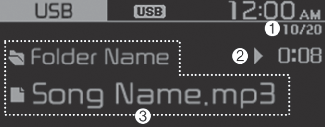
-
Current file number and total number of files
-
Playback time
-
Information about the song currently playing
Press the [MENU/CLOCK] button on the control panel to access the following menu options:
-
List: Access the file list.
-
Folder list: Access the folder list.
-
Information: Display information about the song currently playing.
-
Sound settings: You can change the settings related to sounds, such as location where sound will be concentrated and the output level for each range.
-
Position: Select a location where sound will be concentrated in the vehicle. Select Fader or Balance, turn the [TUNE] knob to select the desired position, and then press the knob. To set sound to be centred in the vehicle, select Centre (Center).
-
Equaliser (Tone): Adjust the output level for each sound tone mode.
-
Speed dependent vol.: Set the volume to be adjusted automatically according to your driving speed.
NOTICE-
Depending on vehicle models or specifications, available options may vary.
-
Depending on the system or amplifier specifications applied to your vehicle, available options may vary.
-
-
Song information (Media Display): Select information such as Folder/File or Artist/Title/Album to display when playing MP3 files.
-
Mode popup: Set to display mode selection window when the [MEDIA] button is pressed on the control panel.
-
Date/Time: You can change the date and time that are shown on the system display.
-
Set date: Set date to display on the system display.
-
Set time: Set time to display on the system display.
-
Time format: Select to display time in the 12 hour format or the 24 hour format.
-
Display (Power Off): Set to display the clock when the system power is off.
-
-
Language: You can change the display language.
Rewinding/Fast forwarding
On the control panel, press and hold the [< SEEK] button / [TRACK >] button.
-
You can also push and hold the Up/Down lever on the steering wheel.
Restarting the current playback
On the control panel after the song has played for 2 seconds, press the [< SEEK] button.
-
You can also push the Up lever on the steering wheel.
Playing the previous or next song
To play the previous song on the control panel within the first 2 seconds of the current song, press the [< SEEK] button. To play the next song, press the [TRACK >] button on the control panel.
-
If more than 2 seconds of playback have elapsed, press the [< SEEK] button on the control panel twice to play the previous song.
-
You can also push the Up/Down lever on the steering wheel.
Press the [MENU/CLOCK] button on the control panel to display the mode selection window, turn the [TUNE] knob to find the desired song and press the knob to play the song.
Playing repeatedly
On the control panel, press the [1 RPT] button. The repeat play mode changes each time you press it. The corresponding mode icon will be displayed on the screen and the playing song will be repeated.
Playing in random order
On the control panel, press the [2 SHFL] button. The shuffle play mode is activated or deactivated each time you press it. When you activate the shuffle mode, the corresponding mode icon will be displayed on the screen. when shuffle is active, the available songs will be played randomly.
Searching folders
-
On the control panel, press the [MENU/CLOCK] button.
-
When the option selection window displays, turn the [TUNE] knob to select the Folder list and then press the knob.
-
Navigate to the desired folder in the Folder list and then press the [TUNE] knob.
-
The first song in the selected folder will be played.
-

-
Start the engine of your vehicle before connecting a USB device to your system. Starting the engine with a USB device connected to the system may damage the USB device.
-
Be careful of static electricity when connecting or disconnecting a USB device. A static discharge may cause a system malfunction.
-
Be careful not to let your body or external objects contact the USB port. Doing so may cause an accident or a system malfunction.
-
Do not connect and disconnect a USB connector repeatedly in a short time. Doing so may cause an error in the device or a system malfunction.
-
Do not use a USB device for purposes other than playing files. Using USB accessories for charging or heating may cause poor performance or a system malfunction.
-
When connecting a USB storage device, do not use an extension cable. Connect it directly to the USB port. If you use a USB hub or an extension cable, the device may not be recognized.
-
Fully insert a USB connector into the USB port. Failure to do so may cause a communication error.
-
When you disconnect a USB storage device, a distorted noise may occur.
-
The system can play only files encoded in a standard format.
-
The following types of USB devices may not be recognised or work correctly:
-
Encrypted MP3 players
-
USB devices not recognised as removable disks
-
-
A USB device may not be recognised depending on its condition.
-
Some USB devices may be incompatible with your system.
-
Depending on the USB device’s type, capacity, or the format of files, USB recognition time may be longer.
-
Image and video playback are not supported.