
Reverse Parking Collision-Avoidance Assist settings
Parking Safety
A: Driver assistance
-
Parking safety
-
Rear Collision-Avoidance Assist
-
Rear Collision Warning
-
Off
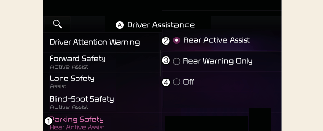
With the vehicle on, select or deselect Driver assistance → Parking safety from the Settings menu to set whether or not to use each function.
-
Rear Collision-Avoidance Assist: Reverse Parking Collision-Avoidance Assist will warn the driver and assist with braking when a collision with a pedestrian or an object is imminent.
-
Rear Collision Warning: Reverse Parking Collision-Avoidance Assist will warn the driver when a collision with a pedestrian or an object is imminent. Braking will not be assisted.
-
Off: Reverse Parking Collision-Avoidance Assist will turn off.
Turning On/Off

Press and hold the Parking Safety ( ) button for more than 2 seconds to turn Rear Active Assist or Rear Warning Only on or off.
Warning Timing
A: Driver assistance
-
Warning timing
-
Normal
-
Late
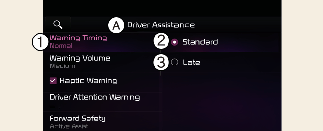
With the vehicle on, select Driver assistance → Warning timing from the Settings menu to change the initial warning activation time for Reverse Parking Collision-Avoidance Assist.
-
Normal: Use in a normal driving environment. If the function operates too sensitively, set to the warning timing to Late.
-
Late: The warning timing will be slow.

If you change the Warning Timing, the Warning Timing of other Driver Assistance systems may change.
Warning Volume
A: Driver assistance
-
Warning volume
-
High
-
Medium
-
Low
-
Off (If steering wheel vibration function is equipped)
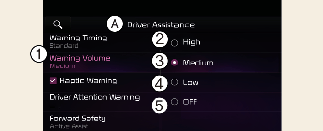
With the vehicle on, select Driver assistance → Warning volume from the Settings menu to change the Warning Volume to High, Medium, Low or Off for Reverse Parking Collision-Avoidance Assist.
-
If you change the Warning Volume, the warning volume of other Driver Assistance systems may change.
-
However, even if Off is selected, the volume will not turn off but the volume will sound as Low.
-
Depending on your region or update, the menu may be displayed as 'Warning volume', 'Warning Sound and Haptic' or 'Warning Methods'.