
Surround View Monitor settings
Camera Setting
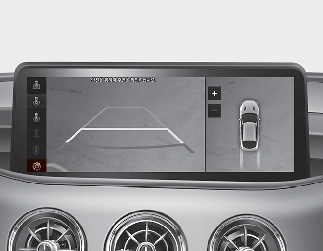
-
You can change Surround View Monitor settings by pressing the setup icon (
 ) on the screen whilst Surround View Monitor is operating, or select '‘Settings → Vehicle (Infotainment System screen) → Driver
Assistance → Parking Safety → Camera Settings' from the Settings menu in the Settings in the Infotainment System screen whilst
the ENGINE START/STOP button is in the ON position.
) on the screen whilst Surround View Monitor is operating, or select '‘Settings → Vehicle (Infotainment System screen) → Driver
Assistance → Parking Safety → Camera Settings' from the Settings menu in the Settings in the Infotainment System screen whilst
the ENGINE START/STOP button is in the ON position.
-
You can change the settings of the following information:
-
Top View Parking Guidance
-
Rear View Parking Guidance
-
Parking distance warning
-
-
You can change the following lists in the screen settings:
-
brightness (daytime)
-
brightness (nighttime)
-
contrast
-
Top View Parking Guidance
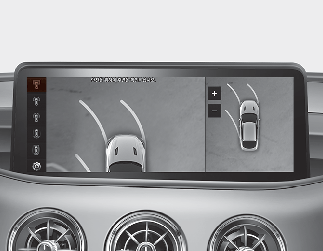
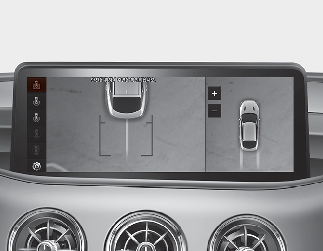
-
If parking assist top view is selected, the parking assist top view will be displayed on the right side of top view in the Surround View Monitor screen.
-
The top view also works in pair with the front top view and rear top view guideline display.
Rear View Parking Guidance
-
If parking assist rear view is selected, the parking assist rear view will be displayed on the rear view screen.
-
The horizontal guideline of the rear view shows the distance of 0.5m, 1m and 2.3m from the vehicle.
Parking Distance Warning
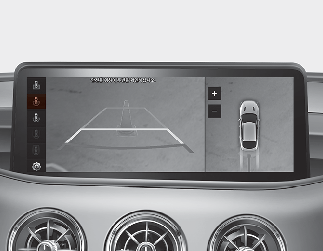
-
If parking distance warning is selected, the parking distance warning image will be displayed on the right side of top view in the Surround View Monitor screen.
-
The warning image appears only when the parking distance warning occurs.
Surround View Monitor Auto On
-
With the ENGINE START/STOP button is in the ON position, Surround view monitor auto activation is activated or deactivated when you select ‘User Settings (LCD display) or Settings → Vehicle → Driver Assistance → Parking Safety → Surround View Monitor Auto On’ from the Settings menu in the cluster LCD display or the Settings in the Infotainment System screen.
For more details, refer to More Details.
If your vehicle is equipped with additional Infotainment System, please scan the QR code in a separately supplied Car Infotainment System Quick Reference Guide.