
Media

Using Compact Discs (if equipped)
-
This device has been manufactured to be compatible with software bearing the following logo marks.
-
Do not clean discs with chemical solutions, such as record sprays, antistatic sprays, antistatic liquids, benzene, or thinners.
-
After using a disc, put the disc back in its original case to prevent disc scratches.
-
Hold discs by their edges or within the center hole to prevent damage to disc surfaces.
-
Do not introduce foreign substances into the disc insert/eject slot. Introducing foreign substances could damage the device interior.
-
Do not insert two discs simultaneously.
-
When using CD-R/CD-RW discs, differences in disc reading and playing times may occur depending on the disc manufacturer, production method and the recording method used.
-
Clean fingerprints and dust off the disc surface (coated side) with a soft cloth.
-
The use of CD-R/CD-RW discs attached with labels may result in disc slot jams or difficulties in disc removal. Such discs may also result in noise while playing.
-
Some CD-R/CD-RW discs may not properly operate depending on the disc manufacturer, production method and the recording method used. If problems persist, trying using a different CD as continued use may result in malfunctions.
-
The performance of this product may differ depending on the CDRW Drive Software.
-
Copy-protected CDs such as Stype CDs may not function in the device. DATA discs cannot be played. (However, such discs may still operate but will do so abnormally.)
-
Do not use abnormally shaped discs (8cm, heart-shaped, octagon shaped) as such discs could lead to malfunctions.
-
If the disc is straddled on the disc slot without removal for 10 seconds, the disc will automatically be re-inserted into the disc player.
-
Only genuine audio CDs are supported. Other discs may result in recognition failure. (e.g. copy CDR, CDs with labels)
-
Compatibility by Disc Type
-
Playing MIXED CDs: First plays the audio CD, then plays the compressed file(s).
-
Playing EXTRA CDs: First plays the audio CD, then plays the compressed file(s).
-
Playing multi session CDs: Plays in order of sessions.
-
MIXED CD: CD type in which both MP3 and audio CD files are recognized in one disc.
-
Multisession CD: CD type that includes more than two sessions. Different from Extra CDs, multisession CDs are recorded by sessions and have no media limitation.
-

Upon Writing Disc
-
In all cases except when creating multi session discs, check the close session option before creating the disc.Though product malfunctions will not occur, some time may be required for the device to check whether the session state is closed (approximately 25 seconds). (Additional time may also be required depending on the number of folders or files.)
-
Changing the MP3/WMA file extensions or changing files of other extensions to MP3/WMA may result in product malfunction.
-
When naming files with MP3/WMA file extensions, write using only Korean and English. (Korean, English and Chinese are supported.)
-
Unauthorized use or duplication of music files are prohibited by law.
-
Prolonged use of CD-R/CDRW discs that do not satisfy related standards and/or specifications could result in product malfunction.
Using MP3
Supported audio formats
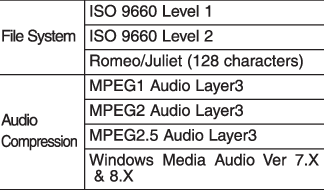
File formats that do not comply with the above formats may not be properly recognized or play without properly displaying file names or other information.
Support for Compressed Files
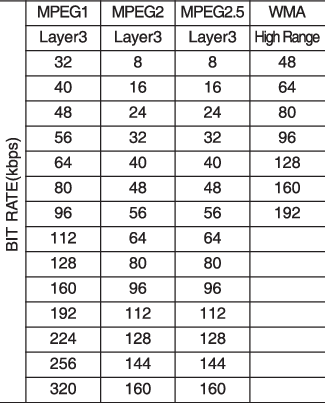
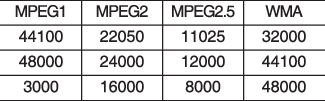
-
For MP3/WMA compression files, differences in sound quality will occur depending on the bitrate. (Higher sound quality can be experienced with higher bitrates.)
-
This device only recognizes files with MP3/WMA extensions. Other file extensions may not be properly recognized.
-
Folder: 1,000 folders for USB
-
File: 5,000 files for USB
-
There are no limitations to the number of recognized folder levels.
-
File name: Maximum 40 English characters
-
Folder name: Max 40 English characters
Using the scroll feature allows you to see the entire name of files with names that are too long to be displayed at once.
Language Support (Unicode Support)
-
Korean: 2,604 characters
-
English: 94 characters
-
Common Chinese characters: 4,888 characters
-
Special symbols: 986 characters
Japanese/Simplified Chinese characters are not supported.
Using the USB Devices
-
Connect the USB device after turning on the engine. The USB device may become damaged if it is already connected when the ignition is turned on. The USB device may not operate properly if the car ignition is turned on or off with the USB device connected.
-
Be careful for static electricity when connecting/disconnecting USB devices.
-
Encoded MP3 Players will not be recognized when connected as an external device.
-
When connecting an external USB device, the vehicle's Infotainment System may not recognize the USB depending on what firmware is used by USB device or what files are on the USB.
-
Only products formatted with byte/sectors under 64Kbyte will be recognized.
-
This device recognizes USB devices formatted in FAT 12/16/32 file formats. This device does not recognize files in NTFS file format.
-
Some USB devices may not be supported due to compatibility issues.
-
Avoid contact between the USB connector and bodily parts or foreign objects.
-
Repeated connecting/disconnecting of USB devices within short periods of time may result in product malfunction.
-
A strange noise may occur when disconnecting the USB.
-
Make sure to connect/disconnect external USB devices with the audio power turned off.
-
The amount of time required to recognize the USB device may differ depending on the type, size or file formats stored on the USB. Such differences in time are not indications of malfunctions.
-
The vehicle Infotainment System only supports USB devices designed to play music files.
-
USB images and videos are not supported.
-
Do not use the USB I/F to charge batteries or USB accessories that generate heat. Doing so may lead to worsened performance or damage to the Infotainment System.
-
The Infotainment System may not recognize the USB device if separately purchased USB hubs and extension cables are being used. Connect the USB device directly with the USB port of the vehicle.
-
When using mass storage USB devices with separate logical drives, only files saved to the root drive can be played.
-
Files may not properly operate if application programs are installed on the USBs.
-
The Infotainment System may not operate normally if MP3 Players, cellular phones, digital cameras, or other electronic devices (USB devices not recognized as portable disk drives) are connected with the Infotainment System.
-
Charging through the USB may not work for some mobile devices.
-
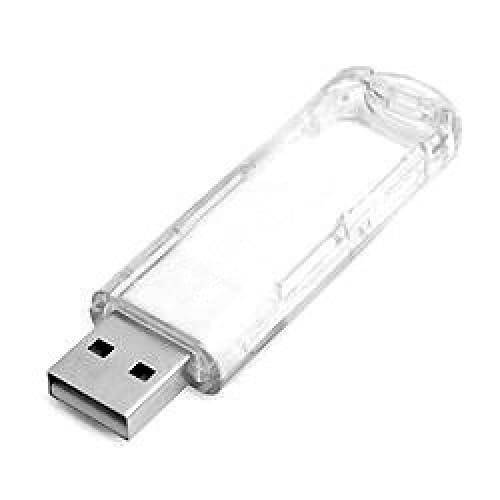
The device may not support normal operation when using an atypical USB memory device (miniature, keychain, etc.). For best results, use a typical USB device that has a metal case.
-
The device may not support normal operation when using formats such as HDD Type, CF, or SD Memory.
-
The device will not support files locked by DRM (Digital Rights Management.).
-
USB memory sticks used by connecting an Adaptor (SD Type or F Type) may not be properly recognized.
-
The device may not operate properly when using USB HDDs or USBs subject to connection failures caused by vehicle vibrations. (e.g. i-stick type)
-
Avoid use of USB memory products that can also be used as key chains or mobile phone accessories. Use of such products may cause damage to the USB jack.
-
Connecting an MP3 device or phone through various channels, such as AUX/BT or Audio/USB mode may result in pop noises or abnormal operation.
Using an iPod®
-
iPod® is a registered trademark of Apple Inc.
-
In order to use the iPod® with your vehicle’s Infotainment System, you must use a dedicated iPod® cable. (the cable that is supplied when purchasing iPod®/iPhone® products)
-
If the iPod® is connected to the vehicle while it is playing, a high pitch sound could occur for approximately 1-2 seconds immediately after connecting. If possible, connect the iPod® to the vehicle with the iPod® stopped/paused.
-
When the vehicle ignition is set to ACC or ON, connecting the iPod® through the iPod® cable will charge the iPod® through the car Infotainment System.
-
When connecting with the iPod® cable, make sure to fully insert the jack to prevent communication interference.
-
When the EQ features of an external device, such as the iPod®, and the Infotainment System are both active, EQ effects could overlap and cause sound deterioration and distortion. Whenever possible, turn off the EQ feature within the external device when it is connected to the Infotainment System.
-
Noise may occur when an iPod® or AUX device is connected. When such devices are not being used, disconnect the device for storage.
-
When the iPod® or AUX device power is connected to the power jack, playing the external device may result in noise. In such cases, disconnect the power connection before use.
-
Skipping or improper operation may occur depending on the characteristics of your iPod®/iPhone® device.
-
If your iPhone® is connected to both the Bluetooth® Wireless Technology and USB, the sound may not be properly played. In your iPhone®, select the Dock connector or Bluetooth® Wireless Technology to change the sound output (source).
-
iPod® mode cannot be operated when the iPod® cannot be recognized due to the playing of versions that do not support communication protocols, cases of iPod® abnormalities and defects.
-
For fifth generation iPod® Nano devices, the iPod® may not be recognized when the battery level is low. Please charge the iPod® for use.
-
The search/play orders shown within the iPod® device may differ from the orders shown within the Infotainment System.
-
If the iPod® malfunctions due to an iPod® device defect, reset the iPod® and try again. (To learn more, refer to your iPod® manual)
-
Some iPod®s may not sync with the System depending on the version. If the Media is removed before the Media is recognized, then the system may not properly restore the previously operated mode. (iPad® charging is not supported.)
-
Use an iPod® cable shorter than 1 meter in length such as the one originally supplied with a new iPod®, longer cables may lead to the Infotainment System not recognizing the iPod®.
Using the Bluetooth® Wireless Technology Audio Mode (if equipped)
-
Bluetooth® Wireless Technology Audio Mode can be used only when a Bluetooth® Wireless Technology phone has been connected.
-
Bluetooth® Wireless Technology Audio Mode will not be available when connecting mobile phones that do not support this feature.
-
If a Bluetooth® Wireless Technology Phone is being used to play music and receives an incoming or outgoing phone call, then the music will stop.
-
Moving the Track up/down while playing Bluetooth® Wireless Technology audio mode may result in pop noises with some mobile phones.
-
Bluetooth® Wireless Technology streaming audio may not be supported in some mobile phones.
-
When returning to Bluetooth® Wireless Technology Audio mode after ending a call, the mode may not automatically restart in some mobile phones.
-
Receiving an incoming call or making an outgoing call while playing Bluetooth® Wireless Technology Audio may result in audio interference.
Media Mode
Change Mode: [MEDIA] button
-
Each time the button is pressed, the media mode popup will be displayed or closed.
-
The media mode popup will not be displayed when [SETUP] button ▶ [Display] ▶ [Mode popup] is turned [Off].
You can select a menu in the mode popup by using the [1] ~ [6] (Preset) buttons or TUNE knob.
-
If media device(USB, AUX) is connected, then it will automatically operate. Once it is disconnected, the previous mode will be restored.
-
The Audio/BT Audio*/AUX volume can also be controlled.
* if equipped
Repeat: [1 RPT] button
-
Repeats the current song or repeats all songs within the current folder.
-
Disc CD*, iPod® mode: Repeat Song → Repeat Off.
-
Disc MP3*, USB mode: Repeat Song → Repeat Folder → Off.
* if equipped
Shuffle: [2 SHFL] button
-
Plays all songs within the current folder(category) or play all songs in random order.
-
Disc CD*, iPod® mode: Shuffle All → Shuffle Off.
-
Disc MP3*, USB mode: Shuffle Folder → Shuffle All → Off.
* if equipped
Change Song/File: [SEEK/TRACK] button
[∨ TRACK]/[∨ SEEK/TRACK] button
-
Pressing the button: Plays the current song from the beginning. If the [∨ TRACK]/[∨ SEEK/TRACK] button is pressed again within 2 seconds, the previous song is played.
-
Pressing and holding the button: Rewinds the song.
[SEEK ∧]/[SEEK/TRACK ∧] button
-
Pressing the button: Plays the next song.
-
Pressing and holding the button: Fast-forwards the song.
-
AUX and BT Audio* don’t support Rewind/Fast-forward feature.
-
Changing the previous/next song may not be supported in some Bluetooth® devices.
* if equipped
Search Song: TUNE knob
-
Turning TUNE knob: Searches for songs(files).
-
Pressing TUNE knob: Plays selected song(file).
-
BT Audio*, iPod® and AUX don’t support playlist feature.
-
While BT Audio* is playing, pressing the TUNE knob plays and pauses the current song.
* if equipped
Search Folder: [FLDR] button
-
Searches the previous/next folder. (Disc MP3*, USB)
* if equipped
If a folder is selected by pressing the TUNE knob, the first file within the selected folder will be played.
Disc CD (Type B-5,Type B-6)

Displays Menu Popup when pressing the [MENU] button.
List
Moves to the list screen.
Repeat
Repeats the current song. Press it again to turn off.
Shuffle
Randomly plays all songs. Press it again to turn off.
Scan
Scans the beginning parts of all songs. (approximately 10 seconds per file)
Information
Displays information of the current song.
Sound Settings
Moves to Sound Settings.
Disc MP3 (Type B-5,Type B-6)/USB
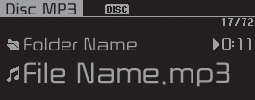
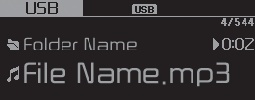
Displays Menu Popup when pressing the [MENU] button.
List
Moves to the list screen.
Repeat
Repeats the current song. Press it again to turn off.
Repeat Folder
Repeats songs within the current folder. Press it again to turn off.
Shuffle Folder
Randomly plays songs within the current folder. Press it again to turn off.
Shuffle
Randomly plays all songs. Press it again to turn off.
Scan
Scans the beginning parts of all songs. (approximately 10 seconds per file)
Information
Displays information of the current song.
Sound Settings
Moves to Sound Settings.
iPod®
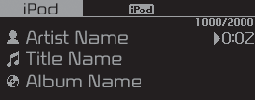
Displays Menu Popup when pressing the [MENU] button.
List
Moves to the list screen.
Repeat
Repeats the current song. Press it again to turn off.
Shuffle
Plays all songs within the currently playing category in random order. Press it again to turn off.
Information
Displays information of the current song.
Sound Settings
Moves to Sound Settings.
Bluetooth® (BT) Audio (if equipped)

Displays Menu Popup when pressing the [MENU] button.
Sound Settings
Moves to Sound Settings.
-
Audio may not automatically start playing in some Bluetooth® devices. If the music in the Bluetooth® device is not played after changing to audio streaming mode, press the TUNE knob. Check if the music is playing in the Bluetooth® device after changing to audio streaming mode.
-
Audio streaming may not be supported for some Bluetooth® devices.
-
If Bluetooth® device is disconnected, BT Audio* is ended.
-
Bluetooth® connection is required to use BT Audio*. Refer to the Bluetooth® manual for more information.
* if equipped
AUX

Displays Menu Popup when pressing the [MENU] button.
Sound Settings
Moves to Sound Settings.
-
AUX mode can be used only when an external audio player has been connected.
-
If only a cable is connected to the AUX without an external device, the mode will be changed to AUX, but noise may occur. When an external device is not being used, remove the connector jack.
-
When the external device power is connected to the power jack, playing the external device may output noise. In such cases, disconnect the power connection before use.